LS10 Installation and Operating Guide Page 40
LS10 Installation & Operating Guide Document # 9301H66300 Ver. 1.01
Network.
The VNC client software requires the LS10 IP address to establish a connection. The LS10 IP address
can be viewed on the LS10 touchscreen menus by selecting Setup (the gear icon), followed by the Net
button on the top. The first line in white text on that screen shows the IP Address (see section 1.5.1
Network, page 19). In case an IP address is not displayed, verify th
e LS10 network
connection by
checking DHCP or Static selection, and the network addresses if Static is selected. Once the IP address
is available you should be able to enter the IP address in the VNC client and connect to the LS10. If the
VNC client cannot connect to the LS10, verify that the VNC computer is on the same network.
Password.
When the VNC connection to the LS10 is made, the VNC software will prompt you for the LS10
password. The default password for the LS10 is a dash character ('-'). This password may be changed by
changing the Setup Password field in the Access Control screen (see section: 3.19 Access Control, page
72).
The VNC co
nnectio
n is no longer needed once the configuration is completed. Everyday changes to the
playback operating mode are available through the IR control, automation control, or touchscreen display.
Note: When using a laptop to VNC into the LS10, use the up and down arrows to mimic
the scrolling action of the front panel volume control. A mouse wheel also works for
up/down on screen controls for numbers or lists.
Note: When using a VNC device that does not have a keyboard, such as a tablet, virtual
arrow keys may be enabled/disabled by double tapping the volume level display box on
the Home screen.
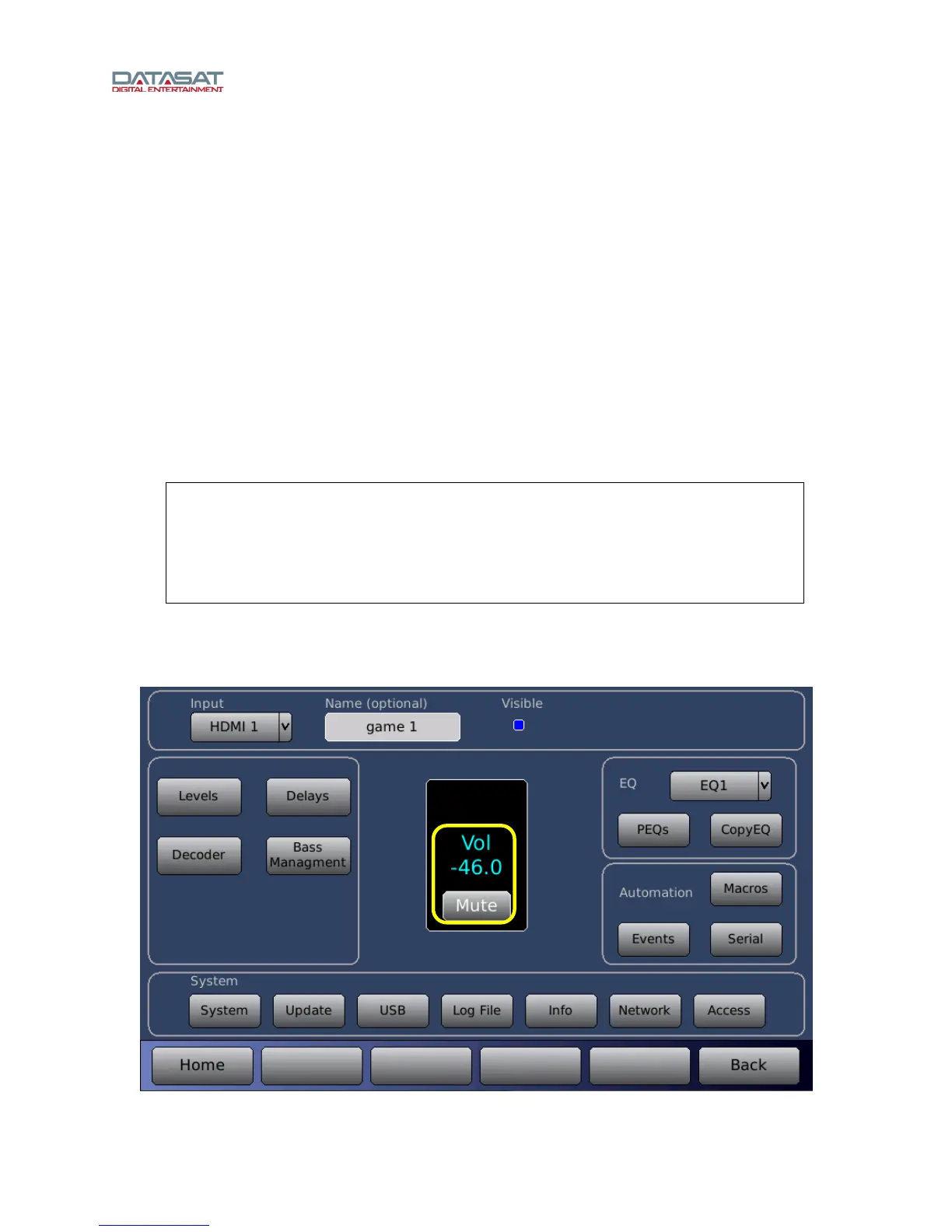
3.3 Setup Home Screen
Upon connecting to the LS10 using VNC, the Setup Home screen appears on the connected computer.
Figure 28. Setup Home Screen


 To Next Page