LS10 Installation and Operating Guide Page 75
LS10 Installation & Operating Guide Document # 9301H66300 Ver. 1.01
Existing events are displayed in the Automation Events screen. Use the up/down arrow keys or mouse
scroll wheel to move the selection bar to an existing event for editing or deleting. The list will scroll when
there are more events in the list than can display at one time. The Macros button at the bottom of the
screen allows easy navigation between the Events screen and the Macros screen when building Macros.
3.21.1 Add New Event
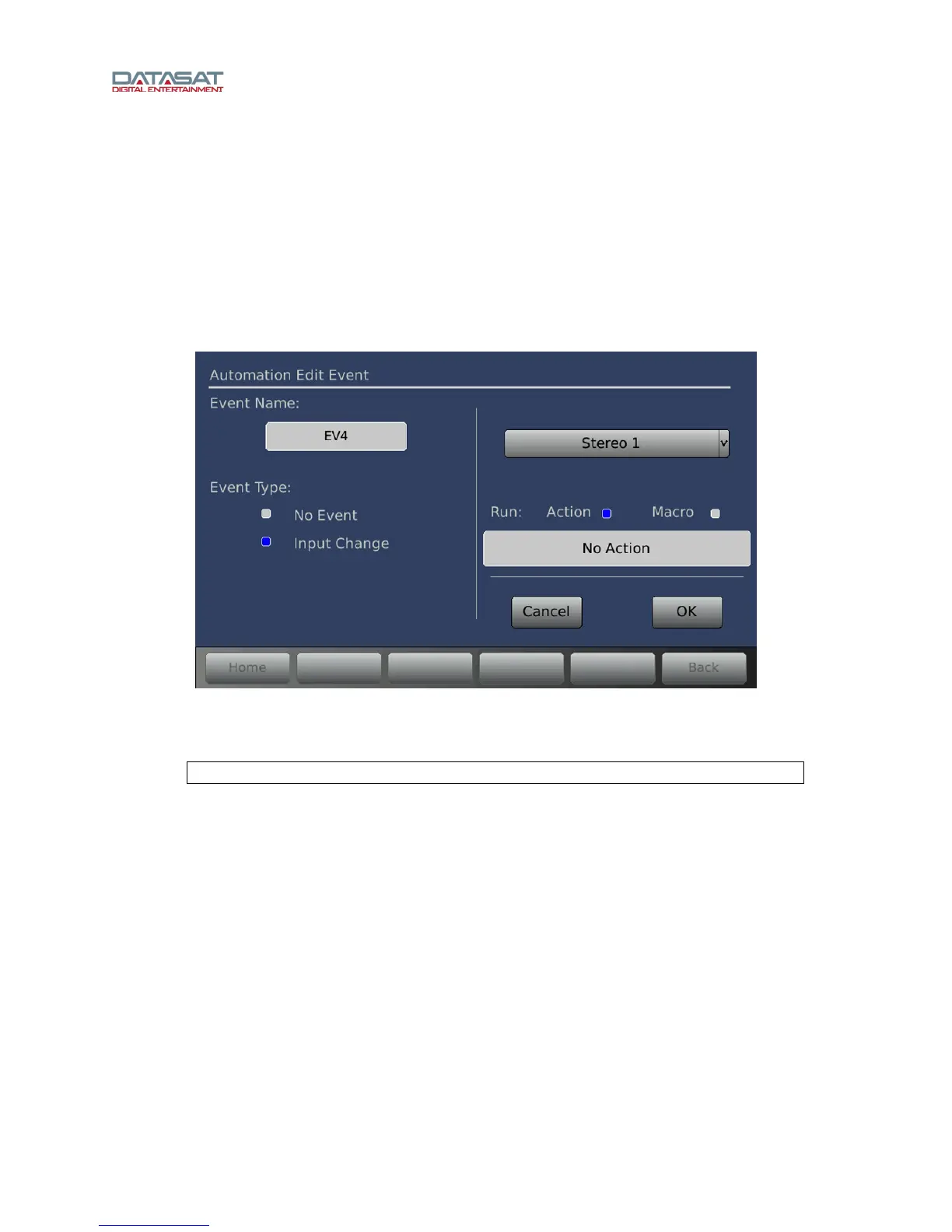
Selecting the Add New Event button takes you into the Automation Edit Event screen and
automatically assigns a temporary event name. In the example below, EV2 is the temporary name.
When an event is first added the Event Type defaults to No Event. This means the event type is not yet
configured.
Figure 56. Automation Add New Event
• To assign or change the Event name, touch the Event Name field. A keyboard screen will
open allowing you to type in a new name for this Event.
Note: This application accepts only Latin alphanumeric characters.
• Touch the Input Change button to set up the Event or change its actions. The screen will
display more options, in the right panel.
• Select an audio input from the dropdown on the right. (In this example, Stereo 1 is selected.)
• To assign a macro to the Event, select the Macro button, touch the Macro dropdown list and
select from the list (POWERON and POWEROFF, or any custom macros added by the user).
Touch OK when finished, or touch Cancel to cancel.
• To assign an Action to the button, select the Action button and touch the white field that
appears below it. This will bring up the Automation Edit Action screen.


 To Next Page