LS10 Installation and Operating Guide Page 64
LS10 Installation & Operating Guide Document # 9301H66300 Ver. 1.01
4. Insert the USB drive into the USB Save/Restore slot on the rear panel of the LS10, choose Select
Update Source > USB, then select the update file and press the Start Update button.
Note: If you select an older version of software than is currently running on the LS10, you
will receive a warning message and be asked to verify to continue.
5. When the installation process is finished, the LS10 will automatically reboot. The VNC connection is
lost during a reboot, so you will need to reconnect after the update and reset completes. Wait for the
Home screen to appear again when the reboot completes. You may remove the USB drive from the
LS10 when the Home screen appears.
6. Using VNC, check the System Update screen to verify that the new version of software was
installed. Verifying the installed software version can also be done through the touch screen display.
3.12 HDMI Status and Firmware Update
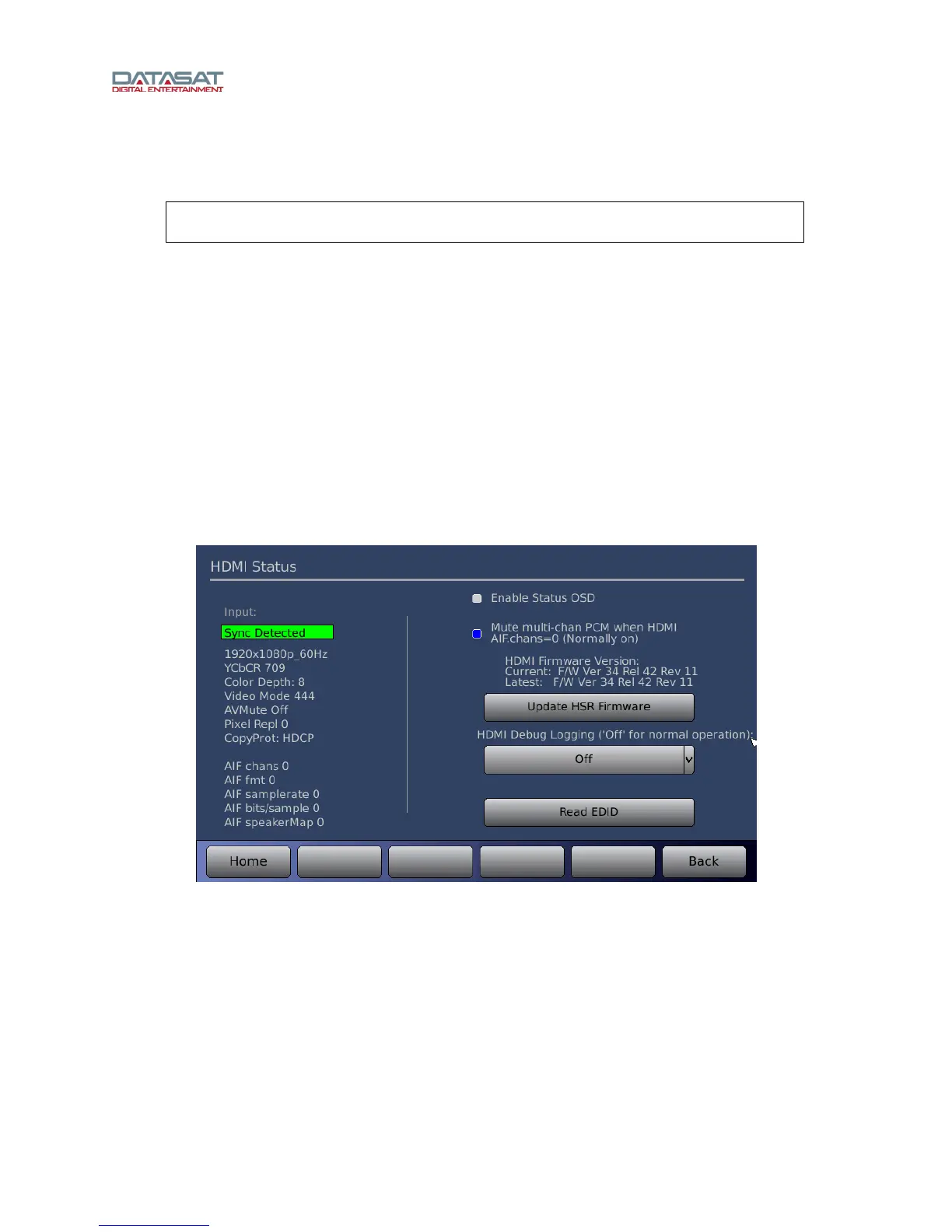
Press the Decoder button, on the Setup Home screen, then press the HDMI button in the lower right
corner to open the HDMI Status screen. The left hand section of the screen will display HDMI status info.
Figure 45. HDMI Status
Enable Status OSD – Select to enable on screen display of input source, volume, and audio stream type
on your monitor or TV. Note: The OSD is not persistent. It displays for a short time when a change in
status is detected (such as changing the volume).
Mute multi-channel PCM when HDMI AIF.chans=0 – This is set to on for most equipment, to mute any
extraneous noise when the AIF information indicates that no audio is being received. Turn this off if
needed, notably for some DIRECTV receivers.
Update HSR Firmware – The current loaded HDMI firmware version vs. the latest available version is
listed above this button. If a newer version is available, press the button to update. In the example
shown in Figure 45 above, no update is needed.


 To Next Page