LS10 Installation and Operating Guide Page 62
LS10 Installation & Operating Guide Document # 9301H66300 Ver. 1.01
View Log File – Touch the button to switch to the Log File screen.
Feature Key – Touch to open a virtual keyboard for entering the key.
Identity: – Touch to open a virtual keyboard for entering text to appear on the touchscreen.
VNC: Disable Hextile Encoding – Touch to activate.
3.11 Update LS10 Software
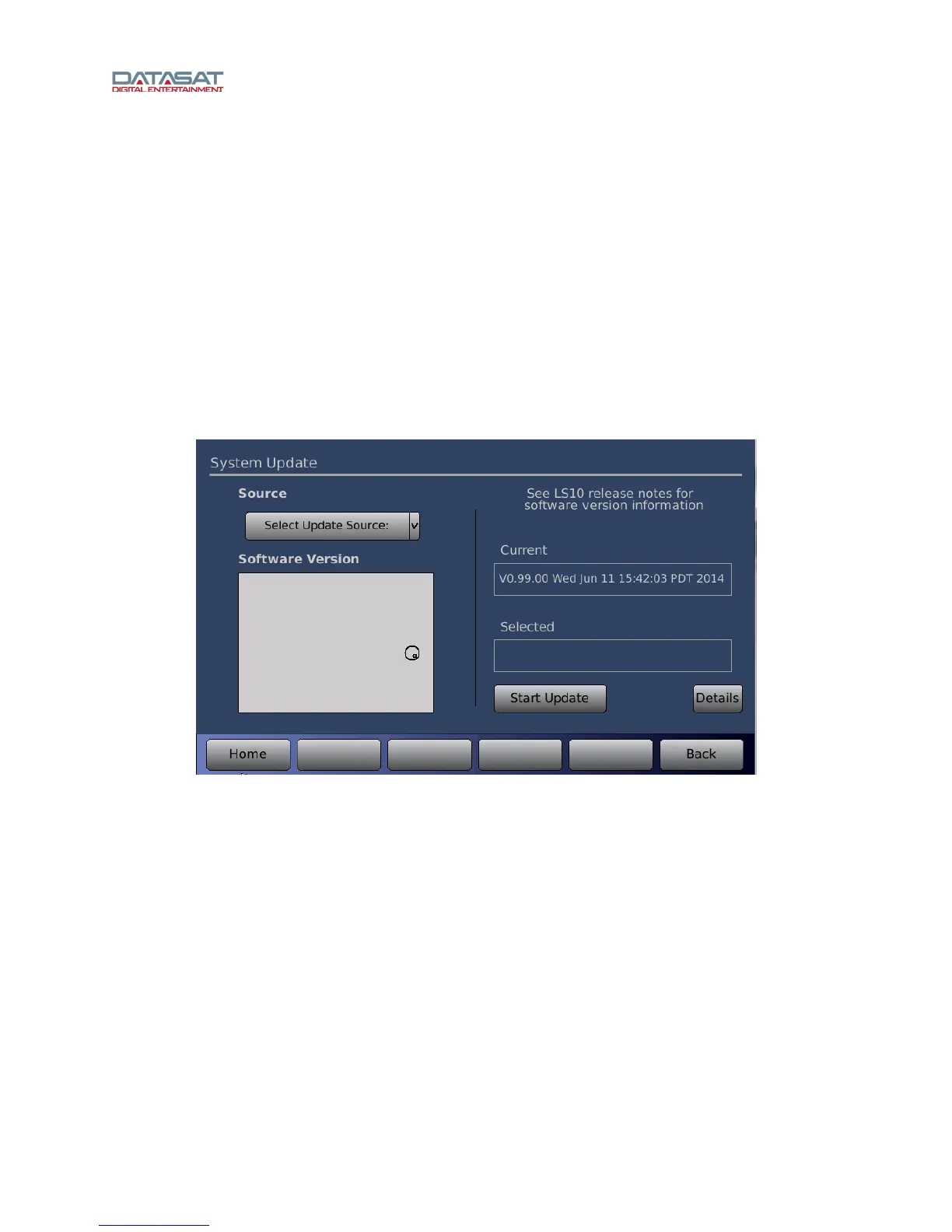
Tap the Update button on the Setup Home screen to open the System Update screen. The current
version of LS10 software is displayed in the Current field.
There are two ways you can update your software using this interface. The first way is to use the System
Update screen to connect to the servers at Datasat Digital Entertainment to select and install the update.
This requires that the LS10 is connected to the Internet. The second way is to install the update from a
USB Device. Both methods are described in more detail below.
Figure 43. System Update
Tap Select Update Source to select from the dropdown. (Main Server, Secondary Server, or USB).
Tap Start Update to begin. Tap Details for more information.
3.11.1 Update System Software from Network
The following steps describe how to update your LS10 software through the Internet by connecting to a
Datasat server.
1. From the Select Update Source drop down menu, select Main Server, or Secondary Server. Both
will provide the same information.
If you successfully connect to the server a list will appear of all available software versions. The most
current will always be at the top of the list.
2. Use the up/down arrow keys on your connected computer to highlight the desired software version.
The highlighted software version will display under Selected on the right side of the screen.


 To Next Page