LS10 Installation and Operating Guide Page 76
LS10 Installation & Operating Guide Document # 9301H66300 Ver. 1.01
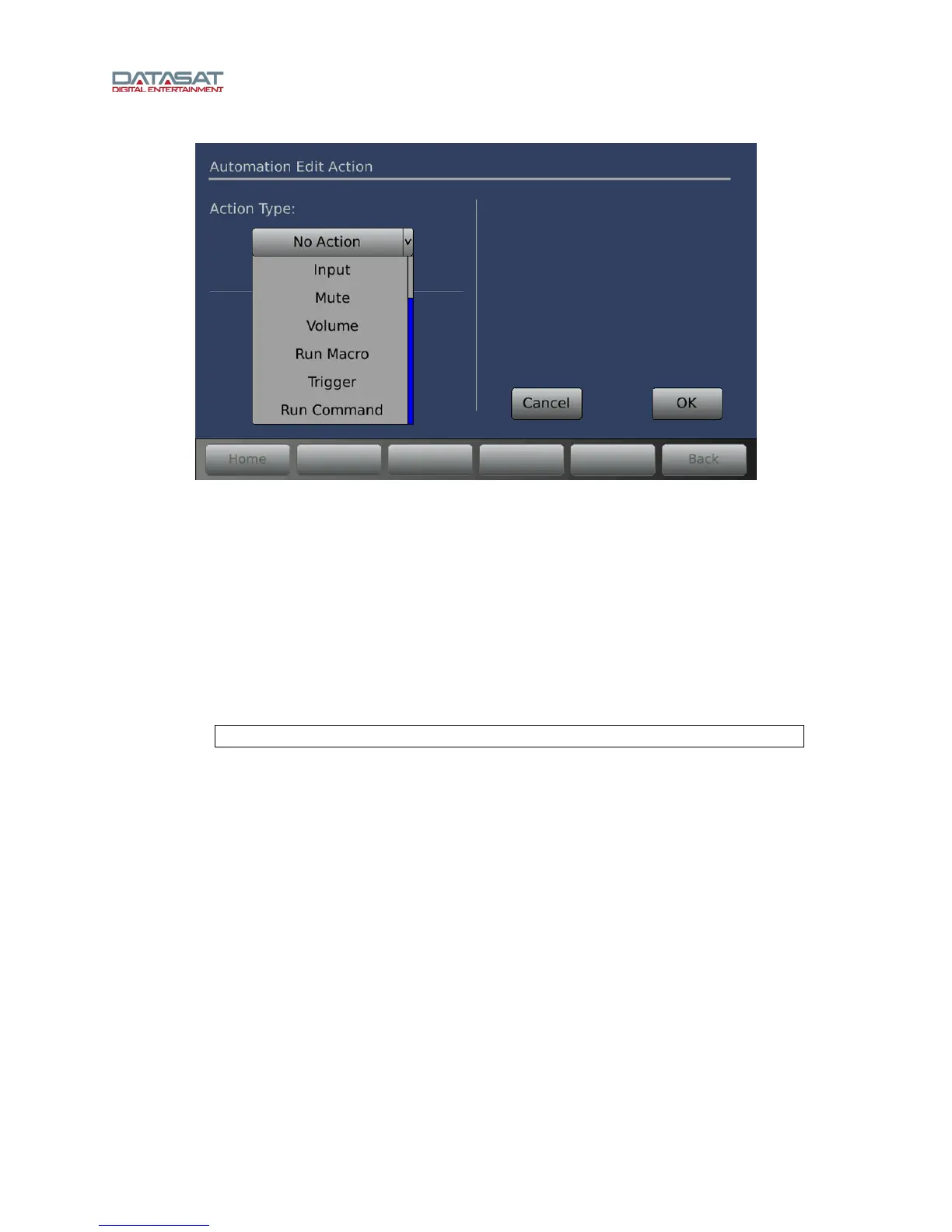
Figure 57. Automation Edit Action
• Select an Action Type from the dropdown list, using the up/down arrow keys or the mouse
scroll wheel.
Delay is set in milliseconds (ms) with a range of 0-10000ms (10 seconds).
Input – select the Input type from the Change Input To dropdown.
Mute– Select between On or Off.
Volume – The master volume control can be either Set to a specified value, or it can be
incremented or decremented (Adjust) through automation.
If Run Macro is selected, then accept or change the Macro Name. Touch the field to
open a keyboard screen.
Note: This application accepts only Latin alphanumeric characters.
Trigger – In the Set field, select which Trigger output (1 through 4) to use. In the To field,
select Pulse, Low, or High. If Pulse is selected, then enter a value in the Width field.
The pulse width can be set between 100ms and 1000ms in 5ms increments.
Run Command – Touch the Cmd field to open a virtual keyboard screen. Enter an LS10
command to be run. Any LS10 command defined by the LS10 command API can be
executed by this action. The LS10 API command definitions are in Appendix E, LS10
Command API. Do not include the leading '@' character, or the trailing carriage return
when entering the command as a Run Command action (they are necessary only for
remote serial or network commands).
• Touch OK when finished, or touch Cancel to cancel this setup.
3.21.2 Delete Event
Select an Event from the listing and touch the Delete Event button. A confirmation screen will appear.
Select Delete or Cancel.


 To Next Page