LS10 Installation and Operating Guide Page 74
LS10 Installation & Operating Guide Document # 9301H66300 Ver. 1.01
3.20.1 Add Macro
To add a Macro, select the Add Macro button. The virtual keyboard screen will appear where you enter
a Macro name.
Note: This application accepts only Latin alphanumeric characters.
Enter a name that is meaningful. A name of up to 15 characters will be displayed. The new Macro name
will appear on the list and its Actions list will be blank.
Select the screen panel under Actions for <macro name>. Actions may now be added. Select Add
After to enter the first action. This will bring up the Automation Edit Action screen (for a description of
options available, see Figure 57 and text following it, on page 76).
Contin
ue to de
fine the Macro script by adding Actions before or after existing Actions (highlight existing
actions using the up/down keys or mouse scroll wheel). Existing Actions may also be highlighted and
edited (select the Edit button) or removed (select the Delete button).
3.20.2 Delete Macro
To delete a macro, highlight it on the list and select the Delete Macro button. A Delete/Cancel prompt
will appear.
Caution: A macro may be deleted even if it is associated with an Event.
3.20.3 Copy Macro
This feature is useful to create a Macro similar to an existing Macro without reentering all the actions.
After the Macro is copied, just change or edit actions as needed.
To copy a Macro, first highlight the source macro, then press the Copy Macro button. A keyboard will
appear to enter the name of the new Macro. After entering the new Macro name, press OK to return to
the Macro list, where the new Macro will be added.
3.21 Automation Events
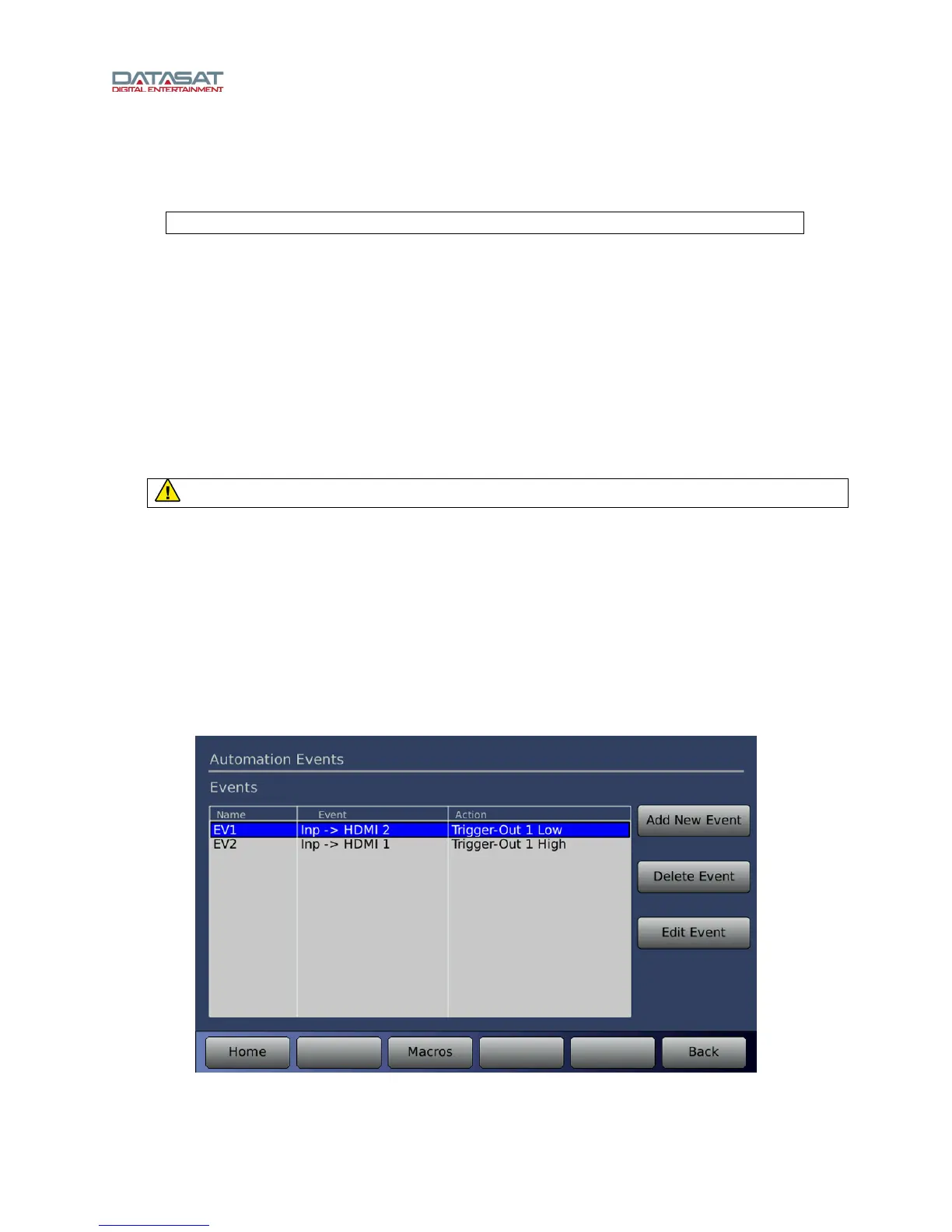
The Events button on the Automation Macros screen opens the Automation Events screen, where
Events are configured.
Figure 55. Automation Events


 To Next Page