User Manual DEV 2190
42 Copyright DEV Systemtechnik GmbH 2009-2017
If the device is operational (again), the screen usually automatically changes to
the Start Screen, thus enables the input fields to be edited; if not, please use
the refresh functionality of your web browser (e.g. the function key F5).
The Web Interface permits the definition of a number of users for accessing the
Web Interface in parallel (in accordance to the number of installed licenses). An
additional user who tries to log in receives a corresponding notification
informing about the logged in user(s), e.g.:
It is recommended to add users AND to change the password of the factory de-
fault account. How this is to be done is subject of chapters 5.4.7.1.2 & 5.4.7.1.1.
The language of the screenshots shown here is English, as a second language
currently German is available (chapter 5.4.7.1.1).
5.4.2 The Main Window and Common Features of the Main Tabs
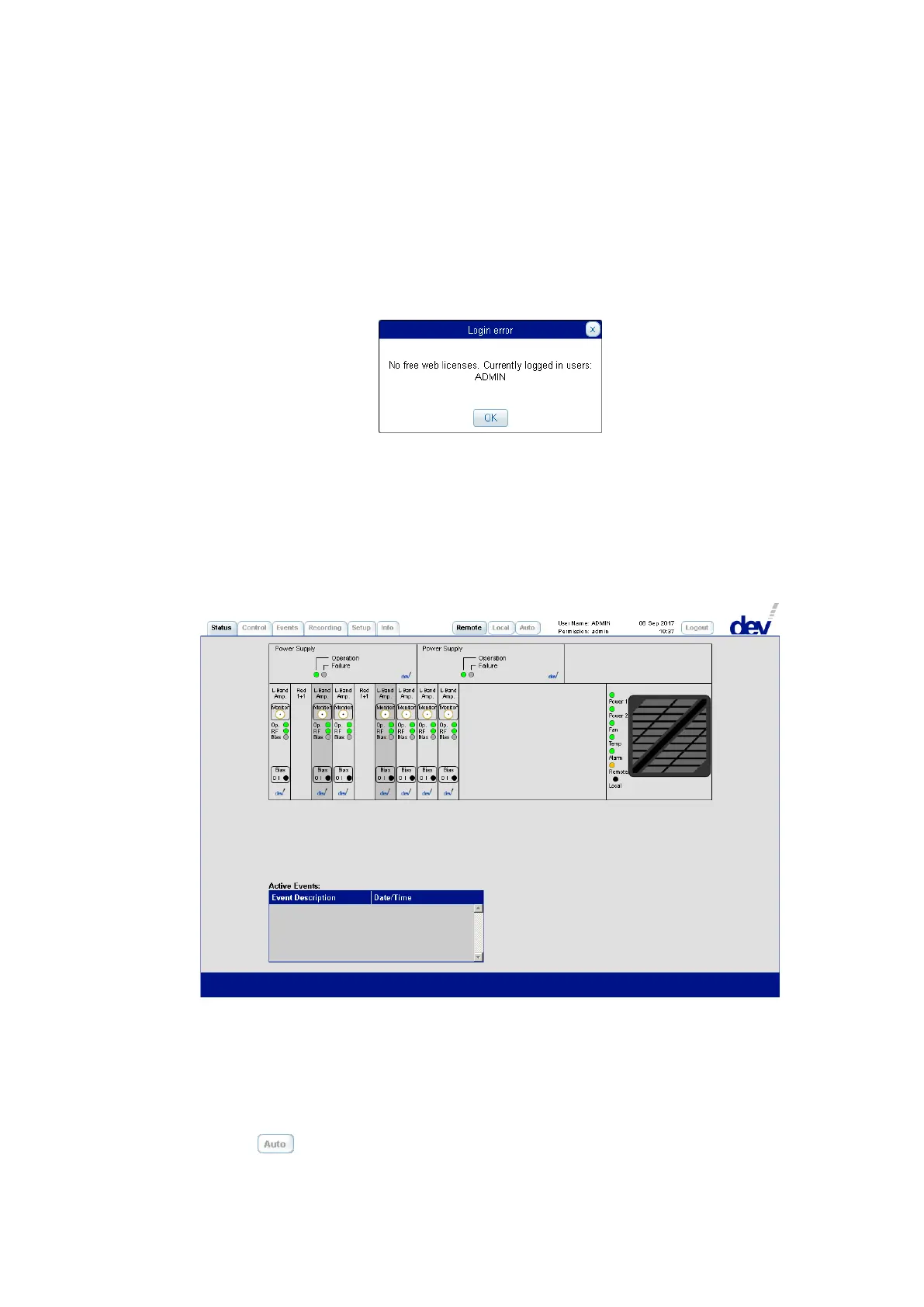
After successful authentication the main window of the Web Interface shows up
with the Status Tab opened, which is the default view:
In the top of the window on the left side, the six tabs are located ("Status",
"Control", "Events", "Recording", "Setup", and "Info"). The active tab is highlighted;
clicking on an inactive tab opens the corresponding tab instead.
In the middle on the top of the window two or three buttons are located indicating
that the device is in Remote Mode (as shown in the screenshot above), or in
Local Mode (as shown in the screenshot of chapter 5.4.3), or in Auto Mode. Note
that the button appears only if the DEV 2190 is equipped with redundancy
switching functionality.



 To Next Page