User Manual DEV 2190
Copyright DEV Systemtechnik GmbH 2009-2017 51
the table are acknowledged. If a confirmed error occurs again, the counter in the
table is increased and the acknowledgement is reset (i.e. the "X" disappears, the
Active Events Window reports the error again, and the "Alarm" LED becomes red at
the fan & monitoring module).
An acknowledged and not pending error can be deleted from the list by highlighting
the corresponding line, followed by clicking on the button.
If a deleted error occurs again, a line added at the beginning of the table.
Note:
It is possible to acknowledge (and to delete) more than one entry at a time by
highlighting more errors using the <Ctrl> or the <Shift> key of the keyboard in
combination with mouse click(s).
Users with "read" permission only have no rights to acknowledge or to delete
error entries (chapter 5.4.7.1.2).
If an error is still pending or not acknowledged, it cannot be deleted.
The table content can be stored using the data backup functionality
(chapter 5.4.7.4.2).
5.4.6 Recording Tab
Some data of each amplifier module is continuously captured in discrete intervals.
The Recording Tab permits the visualization and the external storage of this data.
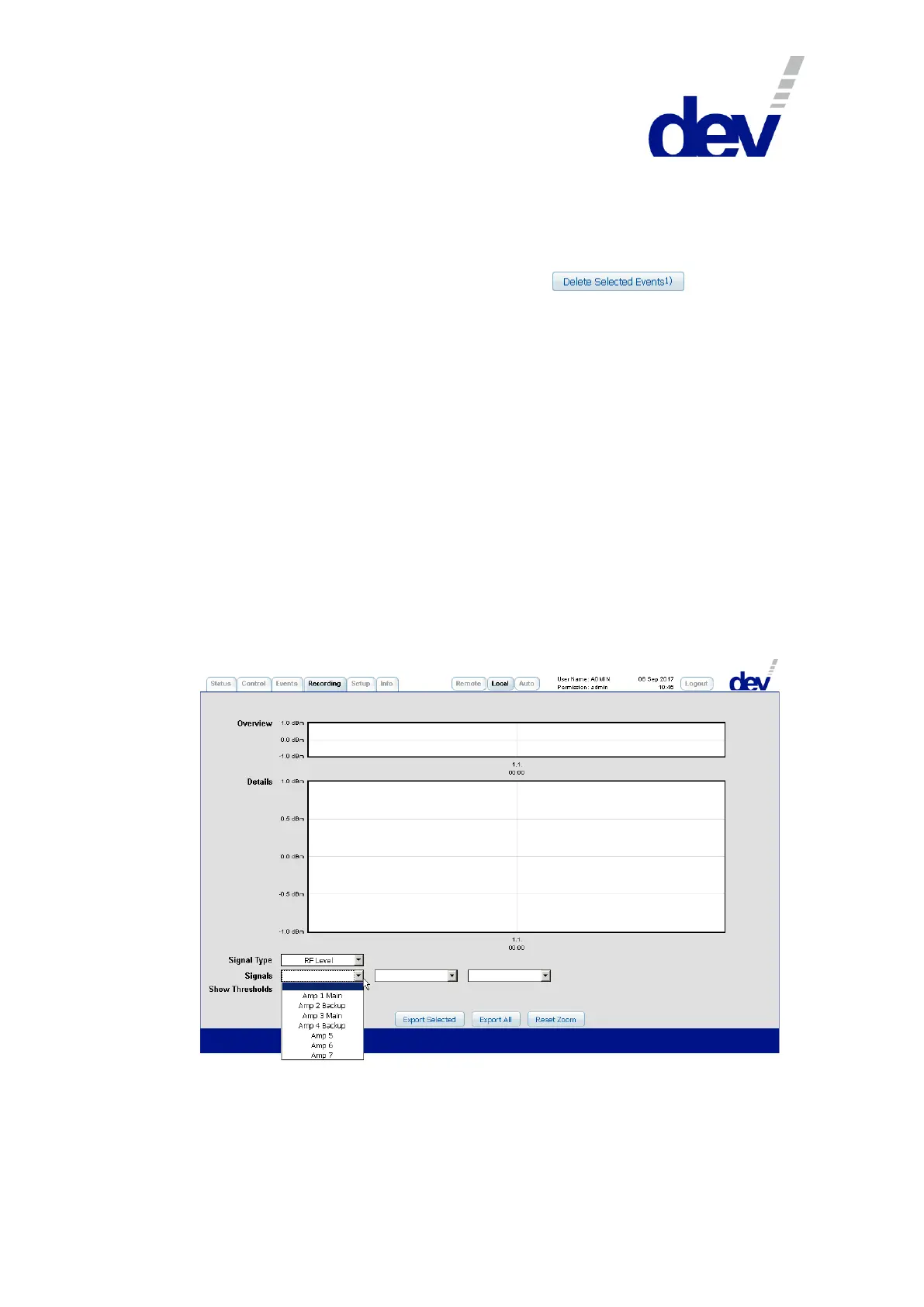
After opening the Recording Tab for the first time in a Web Interface session, two
empty diagrams labeled "Overview" and "Details" are shown as in the next
screenshot.
After selecting "RF Level" or "LNB Power" (for LNB power current monitoring data)
from the drop down list "Signal Type" and after selecting one to three "Signals" via
the three drop down lists, the recorded data shows up in both diagrams:



 To Next Page