PULSE MX
28
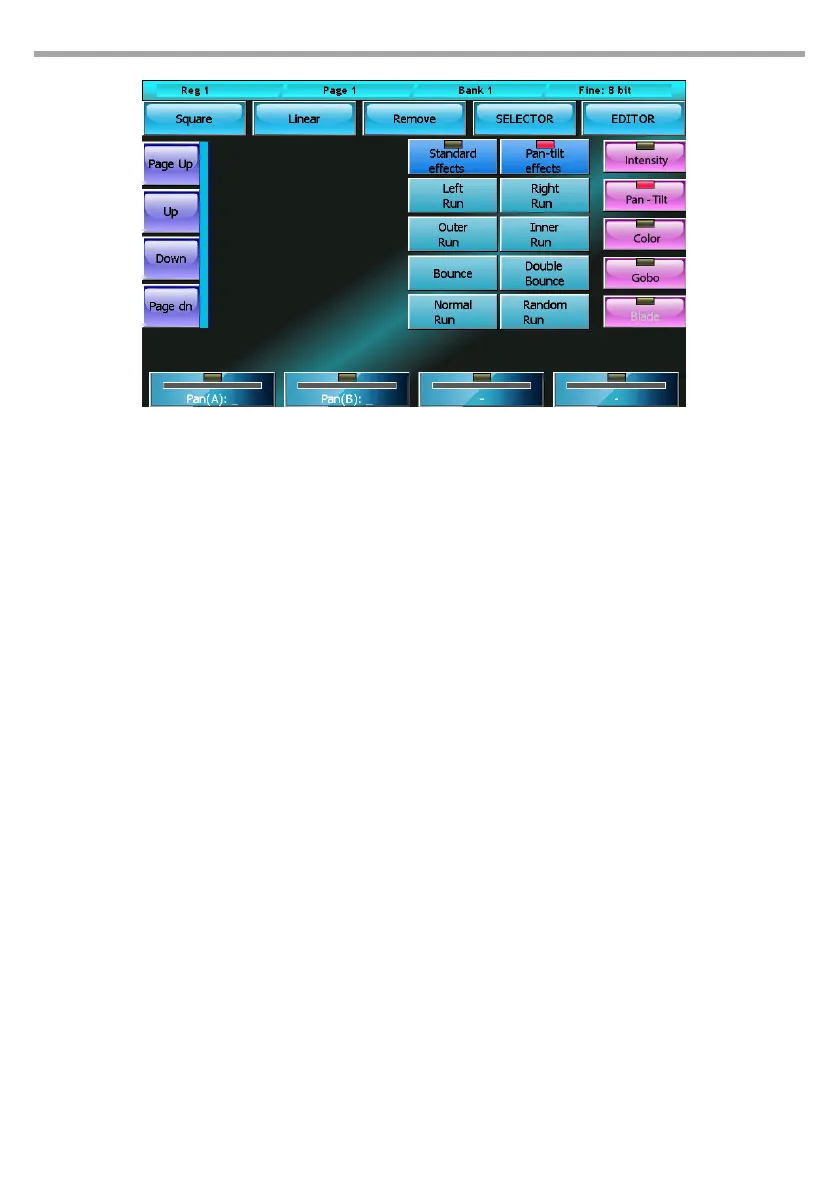
In the case of movement eects applied to the pan and tilt of the xtures, the situation is slightly dierent
as the movement is dened by the central or base point (which is set by pressing the palette buttons or
operating on the rst wheel) and the amplitude (set by using the second wheel). In the case of the Circle
eect, the pan e tilt share the same amplitude value, while the two values are independent from one
another in all other cases. The two Left/Right and Sync/No Sync buttons at the top are used to generate
chasing eects in case two or more xtures are used.
The Remove button removes the applied eect.
The Selector button recalls the selector window.
EDITING AN EFFECT
To edit an eect which had previously been saved in a cue: load the cue into the editor, select the xtures
involved and nally open the window of the eects generator to edit. If the show contains many xtures
and if one cue contains more groups of xtures with dierent eects, selecting the xtures may be a
dicult task. In this case, the Selector window helps analyse the content of the cue and recreates the
groups of xtures which have the same eect. To open, simply press the Selector button when you are
in the eects generator window. The column button on the left highlights how many groups of xtures
contain eect for each family of attributes. (for example, in the picture there is a cue which contains 4
groups of xtures having as many eects: two Intensity eects and two Pan/Tilt eects).
Press the buttons on the left to scroll (and select) in sequence the groups of xtures having the same
eect.
Once having identied the group which contains the eect to be edited, press OK to go back to the
eects generator window and edit.
Eects window Fig.23


 To Next Page