31
PULSE MX
2.2 CONTROLLER INPUT
After having calculated the input of the active cues of the playbacks, the console determines the input
of the controllers: in Manual cue mode, the controller slider controls the cross-fade between the manual
cue and the cue playback processing result; in practice, when the slider is at zero, the controller cannot
give any input; if the slider is at 100%, the playback cues are ignored and the controller cue takes priority;
in intermediate cases, to determine the nal value, the following criteria, which also depends on how the
manual cue was saved, is applied.
• All channel fade: the nal value is the linear combination between the value of the controller and the
result of the processing of the cues: the closer the slider is to 100%, the greater the inuence is of the
controller and the lower the Cue input and vice versa (linear path).
• Snap Start: channels which have path = Linear follow the All channel fade criteria, while to channels
with path = Snap_start or Snap_end the following criteria is applied: if the slider is 0, the value of the
playback cues appears (the controller gives no input); if the slider is above 0, the controller value
appears.
• Snap End: the channels which have path = Linear follow the All channel fade criteria, while the chan-
nels with path = Snap_start or Snap_end the following criteria is applied: If the slider is lower than
100%, the value of the playback cues appears (the controller gives no input); if the slider is equal to
100%, the value of the controller appears.
A direct consequence of this algorithm is that if the manual cue contains a zero, then by raising the con-
troller slider to 100%, the value of the channel is taken to zero. The elaboration of the controllers is done
according to the chronoplaybackical order of their activation, therefore if one same channel is involved
in two manual cues, an intermediate result is calculated rst, by applying the calculation criteria while
considering the “oldest” controller, and then the intermediate result is elaborated again using the most
recent controller.
Activating a manual cue
To activate a controller, just move the slider away from zero; if the slider of a controller is place on
a value other than zero, rst take the slider to zero. In any case, pressing the ash key activates the
controller which returns to its previous status when the key is released.
Switching off a controller
A controller can be disabled by setting its slider at zero. It is automatically disabled if other control-
lers or the editor take away channel control. To reactivate the controller, set the slider at zero and
then raise it to the desired value.
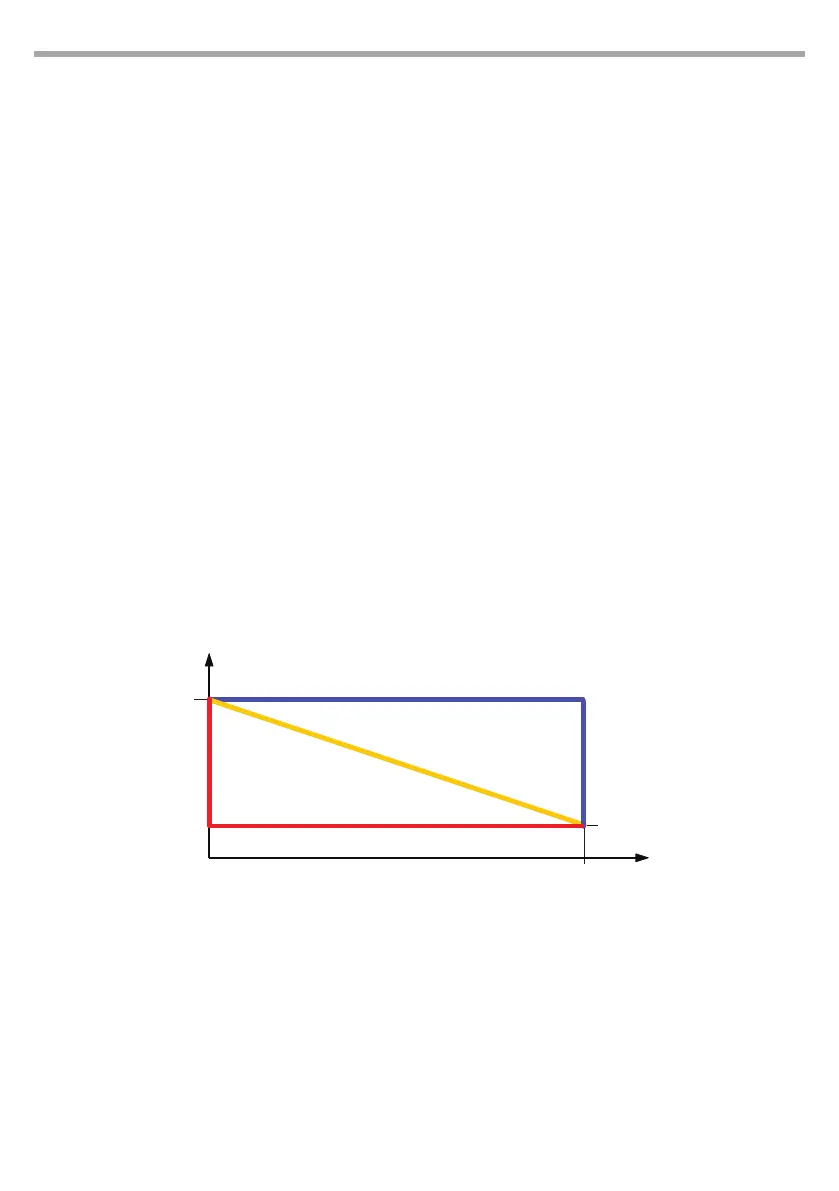
The drawing above is the graphical representation
of 3 algorithms
Fig.26
Resultant Value
Cue Value
0%
100%
Slider position
Snap end path
Linear path
Snap start path
Manual cue
Value


 To Next Page