37
PULSE MX
• Qlist, Chase, Sequence, Live: cue list mode selection buttons
• EDITOR: recalls the editor window.
• Link Next cue: button disabled in this mode
Wheels:
The wheels are used in two separate ways: if one or more cues operating on the wheels are selected,
the Delay e Fade-in times are set; otherwise, the wheels allows you to set the Master Size, Master
Speed, Master Intensity. The fourth wheel is always used for window scroll.
IMPORTANT: during playback, it could be useful to use the wheels to regulate in real time the amplitude
(Master Size) and the speed (master Speed) of the eects of the cue or the intensity of the dimmer (Master
Intensity). These three values are not saved on the disk and every time the cue list is activated they return
to their default values.
3.4 LIVE MODE
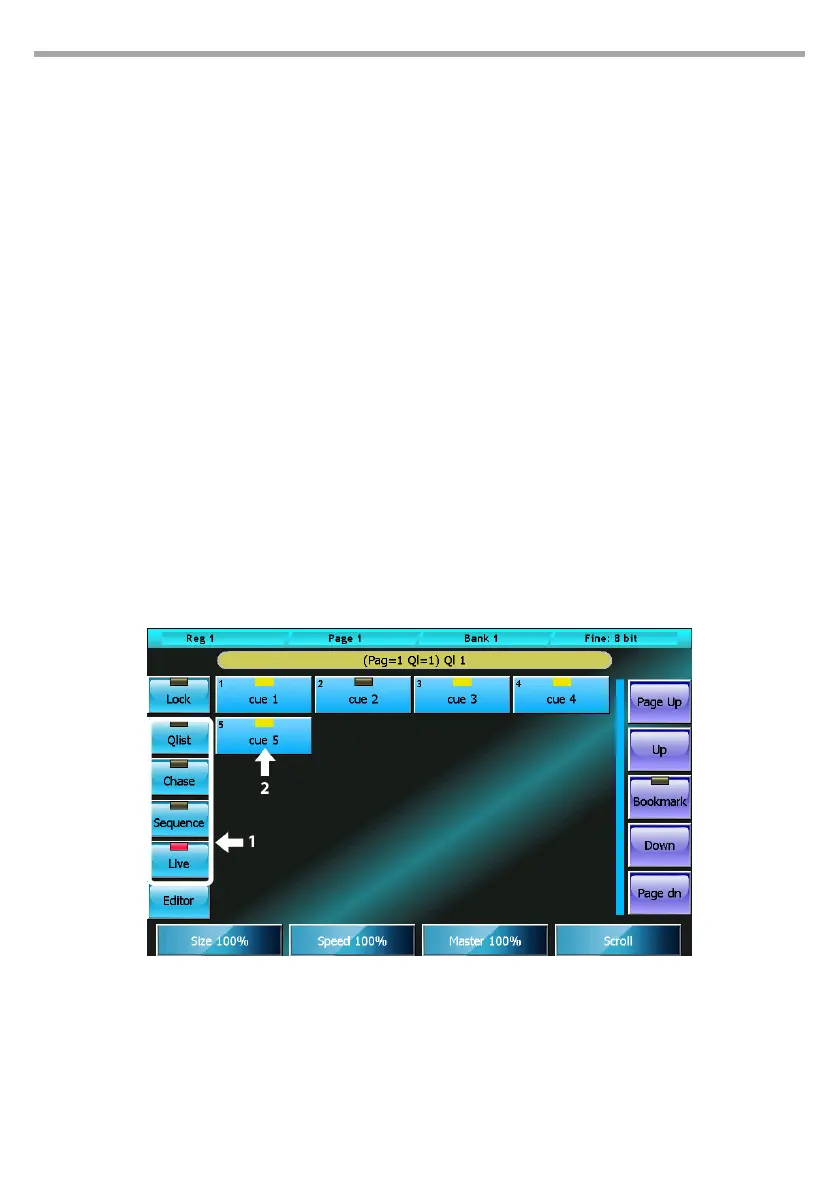
A cue list in Live mode allows you to activate single cues directly from the touchscreen: by pressing a but-
ton of the window, a trigger is sent to the corresponding cue which becomes active and is transmitted.
In this way, the cues of the cue list can be activated in any given order depending on your requirements
at any given time.
The timings of the cues are the ones inserted in Qlist mode; this window, due to space and opportunity,
does not allow to insert times; therefore this activity is to be performed with the cue list in Qlist mode.
Once the timings have been inserted, the Live mode can be set; of course, it is possible to return to the
Qlist mode at any point to make amendments to the times and then return to the Live mode.
Cue list in Live mode
1. Cue list mode selection buttons
2. Cue status led: red=last triggered cue,
yellow=previously triggered cue
Fig.31


 To Next Page