PULSE MX
66
- 8 - DMX-IN INPUT
The DMX input allows you to connect a generic DMX device as a console expansion and control all play-
backs and up to 288 manual-cues through device sliders.
Two programs are provided in order to congure both features.
IMPORTANT: Please connect the DMX device or switch it on only when the console is up and running, otherwise
the console will not recognize the device.
Remote playbacks configuration
The remote playback control by DMX input you allows to manage the console playbacks through a ge-
neric device capable of transmitting DMX data, keeping the built-in sliders free for other pourpose as
Controller or group masters.
You can send Trigger and Release commands to console registers and control their intensity master
using two DMX channels per playback. The use of one DMX channel for sending triggers and Release
commands is optional.
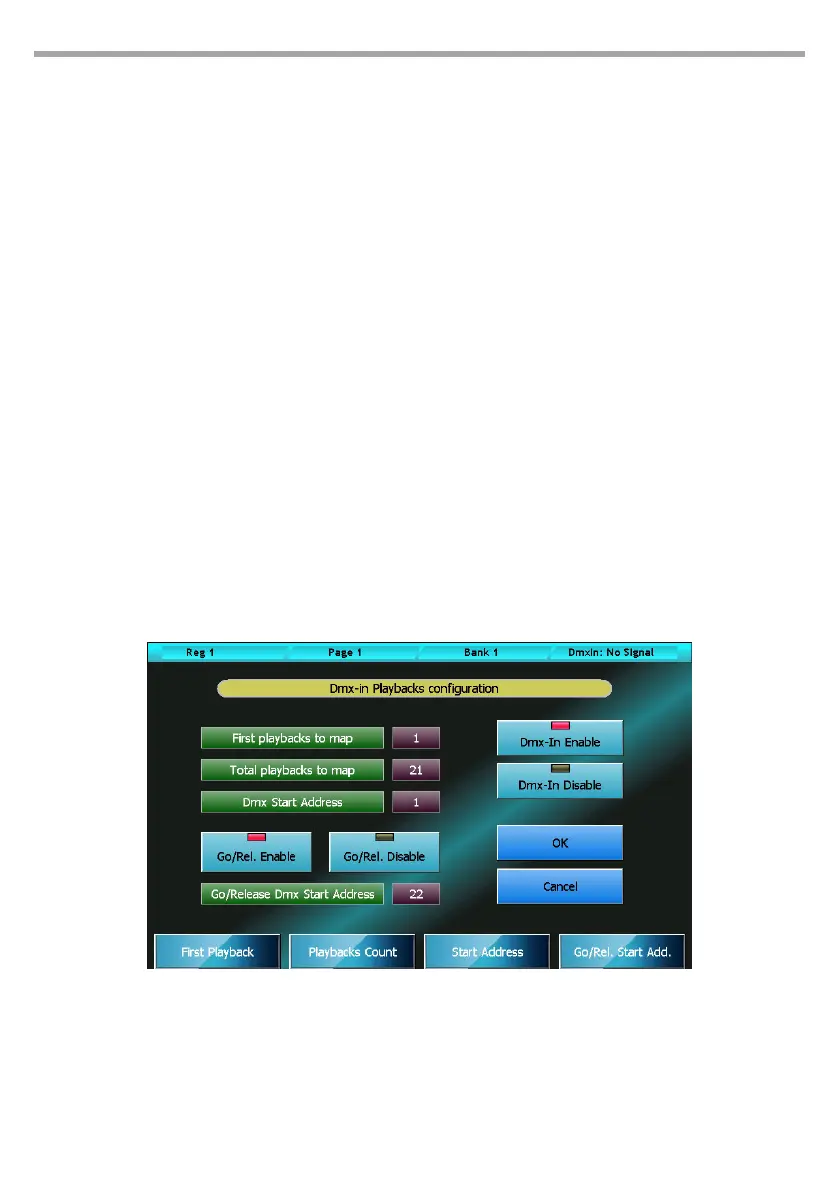
The DMX-In Playbacks Conguration window can be opened by pressing the homonymous button from
Setup Menu.
On the status bar, on the top-right corner, you can see the DMX input status: if the DMX input is not con-
nected or no DMX data are transmitted the “DMX-In: no signal” message will be displayed, otherwise
three numbers will be showed that mean: the receiver status (1 stands for receiver on), the number of
received data packets and the number of transmission errors. The last two numbers are reset to zero
every time the conguration window is opened.
You can change all the conguration values by moving the wheels.
Window buttons and fields:
DMX-In Enable
DMX playbacks control global enable
DMX-IN Playbacks Conguration window Fig.54


 To Next Page