PULSE MX
24
Editing an existing palette
To edit an existing palette, do as follows:
• Select the palette by pressing the corresponding button,
• Press the Load key (the Load key loads the last palette used into the editor)
• by using the features of the editor, carry out the necessary changes
• nally, press the Update key, which will substitute the old palette with the new values.
IMPORTANT: if you edit a palette, all the cues which referred to this palette will consequently be modied.
1.4 PREDEFINED PALETTES
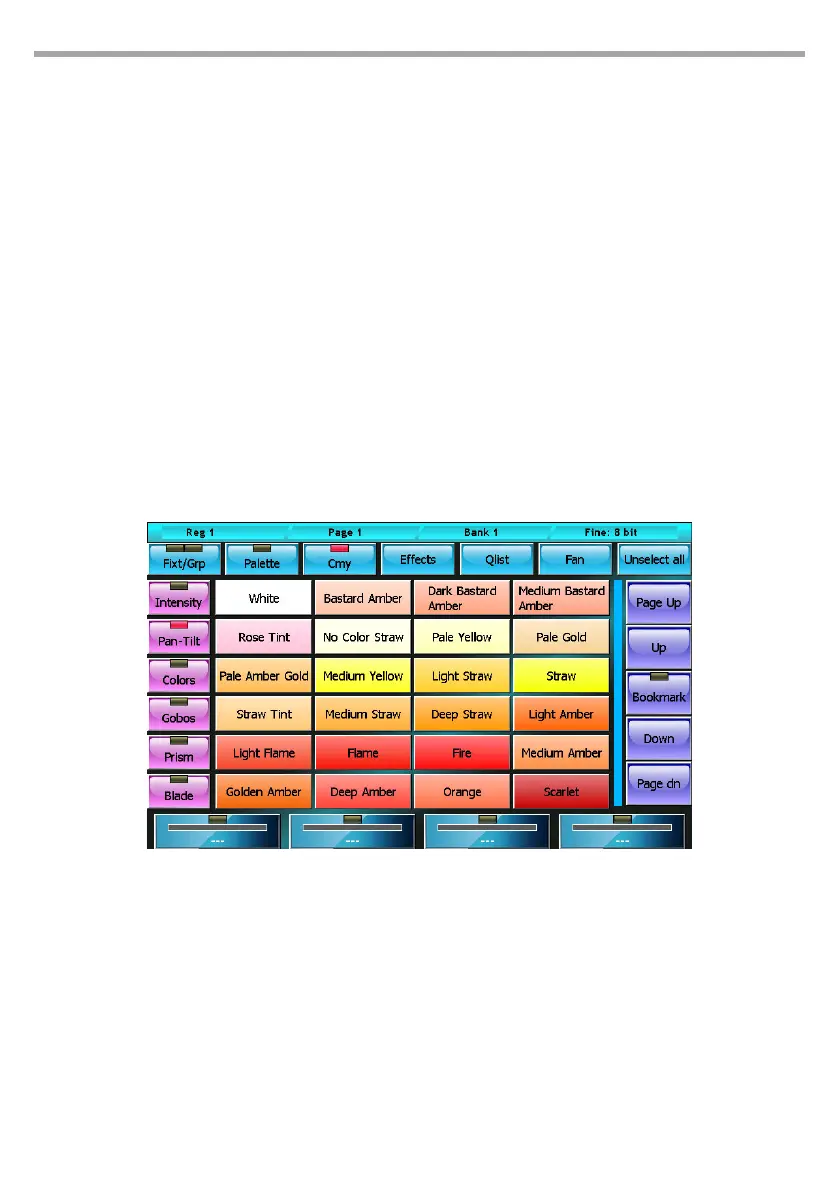
The console has four sets of predened palettes (Chris, Gam, Lee and Rosco) with RGB and CMY color
mixing system.
The window of the predened palettes (to display, press the CMY button) displays the palettes of the
current set which can be set in the General Options menu located in the Setup Menu.
The predened palettes can be identical to the user palette, but these cannot be edited.
In this display mode, the wheels and the Intensity, Pan-Tilt, Colors, Gobos, Prism and Blade buttons
maintain the same features as in the xtures display mode.
Editor: Rosco Palette display Fig.18
1.5 CONTEXT-SPECIFIC MENU
The context-specic menu of the editor has the following buttons:
Free
Sets all the parameters of the selected xtures to “Empty”
Read
Copies all the current available output values into all the parameters of the selected xtures This com-
mand ensures that all parameters of the selected xtures are set to a not Empty value and therefore
saving a cue stores the complete status of the xtures (and not just the directly assigned parameters)


 To Next Page