PULSE MX
16
2.4 SAVING A CUE
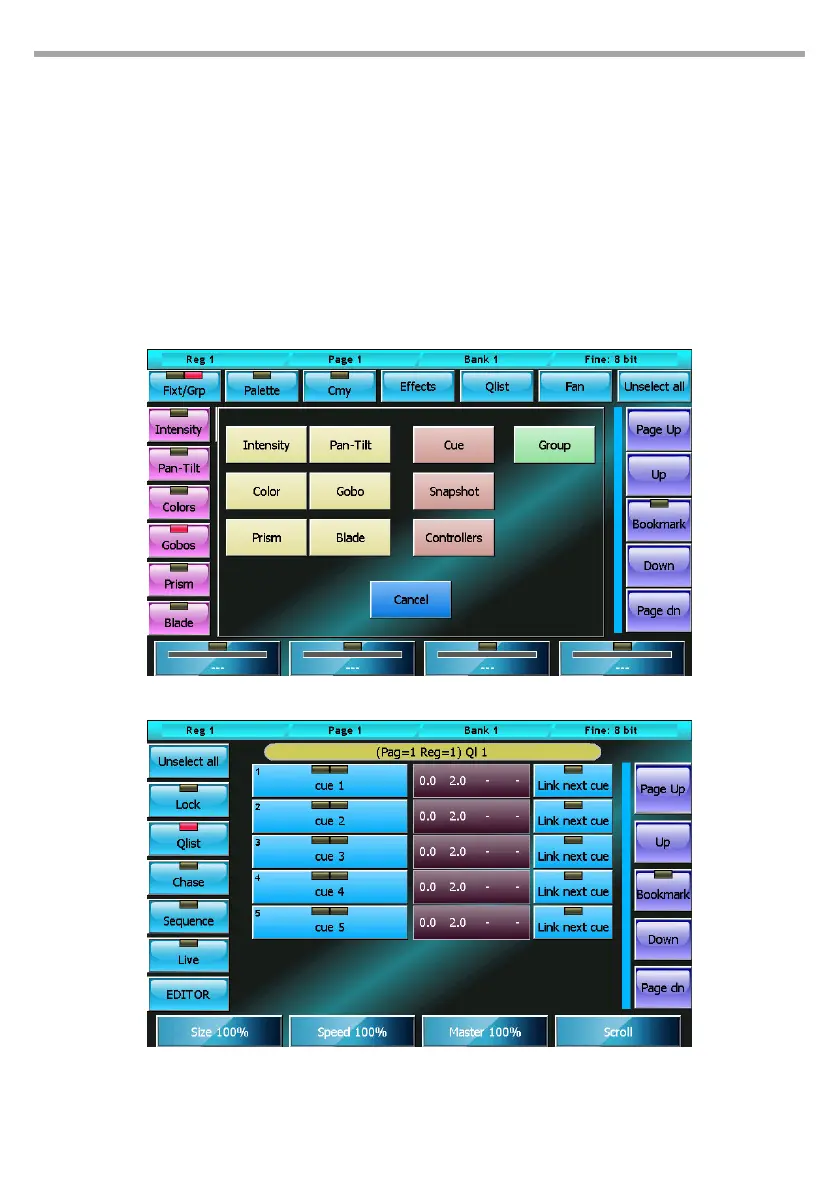
When you want to save a new cue, press the Store key to activate the Store menu and then select the
Cue button; doing this will add a new cue to the current playback in which the contents of the editor
will be copied.
WARNING: normally the programming of a cue begins by selecting the xtures involved and pressing the
Locate key in order to set all the xture attributes to a dened value. Only in advanced use for expert users it is
possible to program the cues by leaving Empty attribute
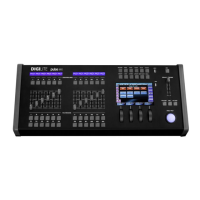
Press the Qlist button at the top of the editor to activate the cue-list window.
By selecting one or more cues and moving the encoder wheels it is possible to modify the Delay, Fade-
in, Wait and Fade-out times of each cue; if you omit the Wait and Fade-out times, the cue continues to
control the channels until a second cue intervenes or the Release playback is performed.
Menu store (1=store palette, 2=store cue) Fig.9
Fig.10Cue-list window


 To Next Page