PULSE MX
34
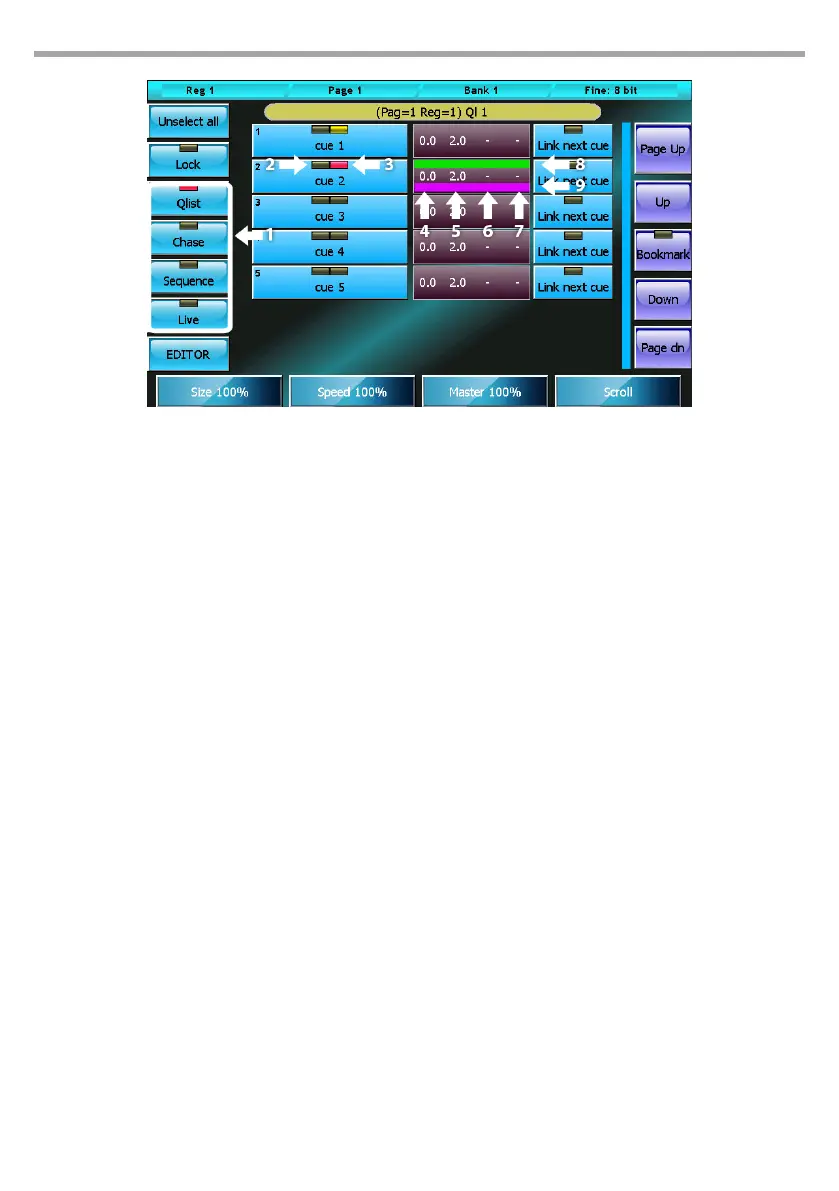
Cue list in Qlist mode
1. Cue list mode selection buttons
2. Cue selection leds: red=selected, o=not
selected
3. Execution led: o, cue not in execution, yellow=
cue execution completed, red= in execution
4. Delay time in seconds
5. Fade-in time in seconds
6. Wait time in seconds, '-' means value not inserted
7. Fade-out time in seconds, '-' means value not
inserted
8. Delay+Fade in timeline bar
9. Wait+Fade-out timeline bar
Buttons:
• Unselect all: Deselects all cues
• Lock: when activated to edit the current qlist, a clear command is needed; this can be done via the
Select button, otherwise simply trigger a qlist to make the cue list current.
• Qlist, Chase, Sequence, Live: cue list mode selection buttons
• EDITOR: recalls the editor window.
• Link Next cue: if activated, upon completion of the Fade-in, it sends an automatic trigger to the
following cue
Wheels:
When one or more cues are selected, the wheels allow you to respectively set Delay, Fade-in, Wait
e Fade-out times; if there are no cues selected, the wheels respectively become Master Size, Master
Speed, Master Intensity and Scroll wheel.
IMPORTANT: during playback, it could be useful to use the wheels to regulate in real time the amplitude
(Master Size) and the speed (master Speed) of the eects of the cue or the intensity of the dimmer (Master
Intensity). These three values are not saved on the disk and every time the cue list is activated they return
to their default values.
Fig.28


 To Next Page