Menu Options
81
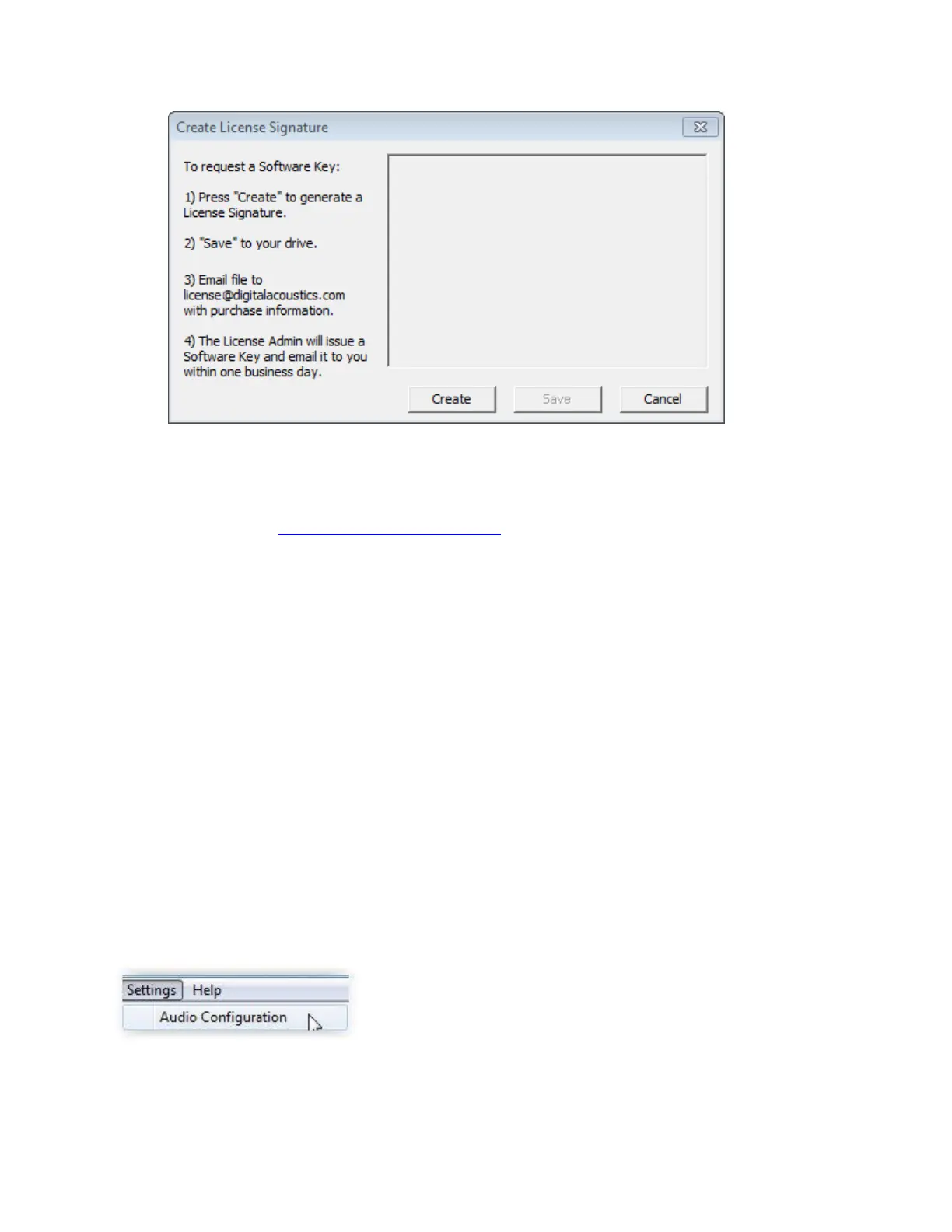
Press “Create” to generate a Machine Signature
Select “Save” to save the generated machine signature to your computer in an easy to find
location. Name the file "Company-MachineSignature.txt".
Email the file to license@digitalacoustics.com with a copy of the Serial Number provided by
Digital Acoustics as proof of purchase
Once the email is received by Digital Acoustics, the License Admin will issue a Software Key and
email it within one business day.
Applying the Software License Key:
Once you receive the license file from the Digital Acoustics’, save it on the machine that
TalkMaster FOCUS EE is installed on.
Open the Licensing -> Manage menu and select “Load License File”. Select the license file
and press Open
The license text should automatically populate the license box. Alternatively, copy and paste the
text string into the license text area
Press Apply
The system tray ICON should turn green within a minute
Settings Menu
The Settings menu has the following options:
Audio Configuration - Select this option to setup the audio device to be used by the Admin Console.
The Playback and Record options should specify the Speaker and Microphone to be used



 To Next Page