Page 35
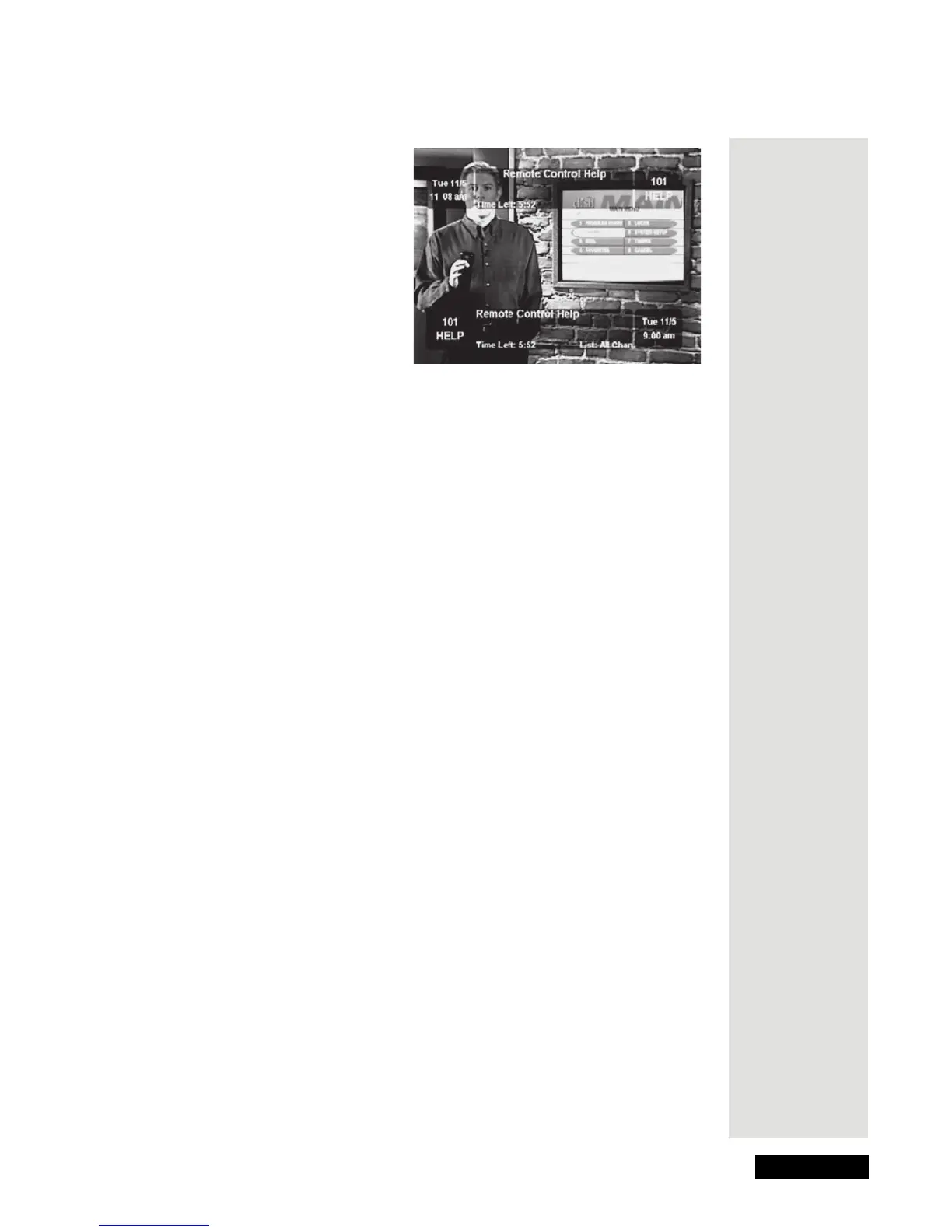
Use the Browse Banner
In this example, the Browse
Banner
shows info on a program
we’re watching at the top, and
info on another program at the
bottom.
The bottom
Browse Banner
displays the Favorites List that is
currently applied. If the All Chan
list is applied, all channels are
listed. If you apply another list,
the banner shows only the
channels on that list. If you hide
adult channels and lock the
receiver, the banner doesn’t show
adult channels.
Select a Program with the Browse Banner
While you watch a program, press the BROWSE button (RIGHT ARROW) to
get information on other programs:
With the Browse Banner open:
1. Move through the programs and highlight a desired program:
2. Press the UP or DOWN ARROW button to change the channel
information you see at the bottom of the screen, or use the number buttons
to enter a channel number. The Browse Banner shows information about
the program currently showing on that channel, at the bottom of the screen.
3. Press the RIGHT ARROW button to see information about the next
program on the channel you chose. If you do this, press the LEFT ARROW
button to go back to the current program showing on that channel.
4. Press the INFO button for more information about the highlighted program
at the bottom of the screen. If you do this, press the CANCEL button to go
back to the Browse Banner.
5. Select a highlighted program within the Browse Banner:
If this program is on now, the channel will change to the selected program.
If the program occurs in the future, a menu will open allowing you to create
an Event Timer to record the program.
6. To exit the Browse Banner, press the CANCEL button.









 To Next Page