Chapter 3
Page 58
Using the System
8. To test the device code, highlight the Test option.
The receiver displays a message that warns you to
make sure you turn the VCR on.
9. Press the SELECT button to start the test. The VCR records for a few
seconds, stops, and then rewinds.
10. The receiver displays a message that says the VCR test is done. Do what
the message says. If the VCR did not do the test, enter another device
code from the table, and then do step 8, step 9, and this step again.
11. Once you find the right VCR code, select the
Save
option to save the VCR code you entered.
12. Set the VCR Event Timer(s) you want.
Remember, you must leave the VCR turned on with a blank tape inserted
ready to record.
Use Caller ID
Caller ID displays on your TV the names of people as they call you if you
subscribe to Caller ID from your local phone company.
Enable Caller ID
1. Make sure you have a phone line connected to the DishDVR receiver,
2. Make sure your system is properly grounded. Sometimes an improperly
grounded system will cause problems with the Caller ID feature.
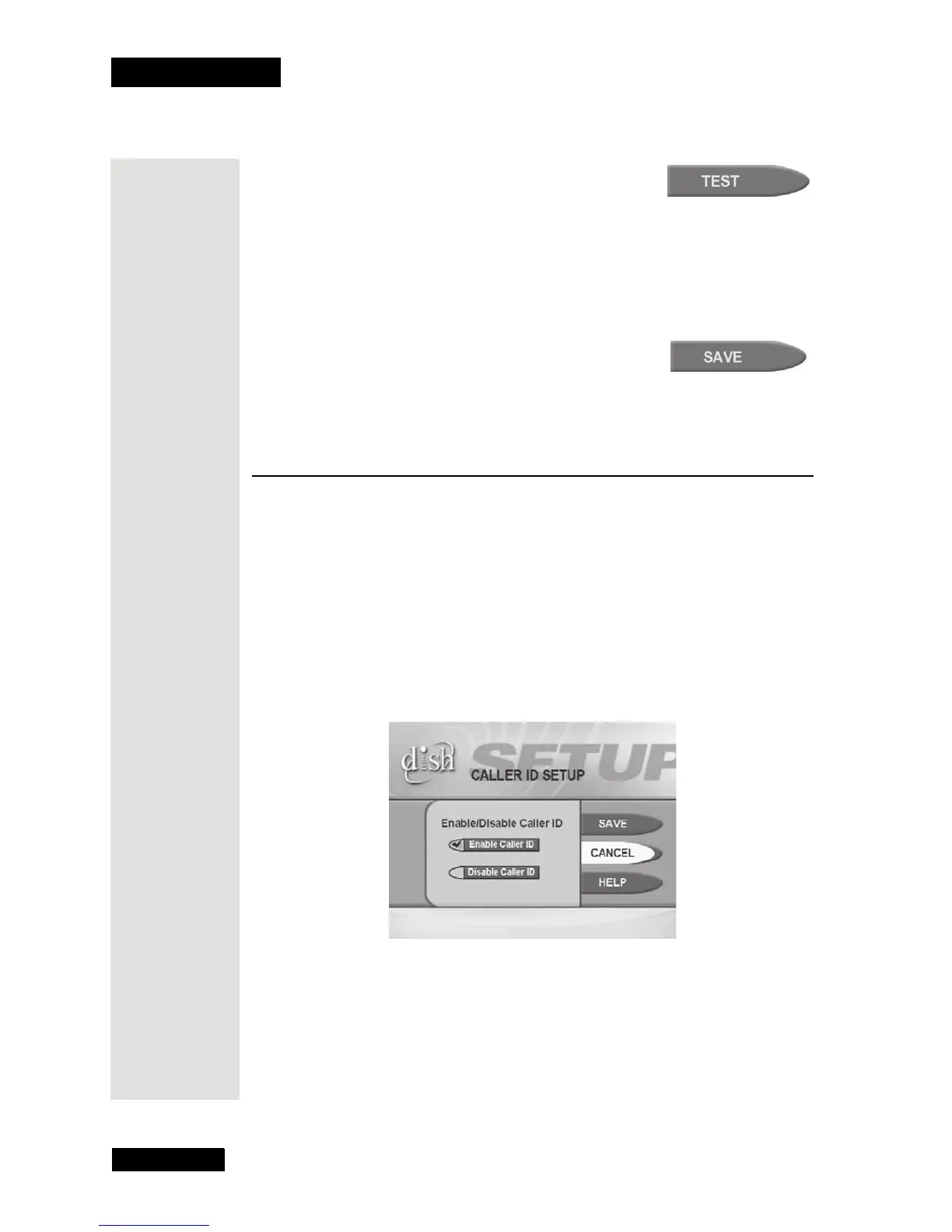
3. Press MENU on the remote and select
System Setup, Installation, and
then Caller ID, or press Menu-6-1-8 on the remote.
4. When the Caller ID Menu opens, move the highlight to Enable and
press SELECT to save your choice. Press VIEW to go back to watching a
program.









 To Next Page