Chapter 3
Page 54
Using the System
Edit an Event Timer
• You can edit any type of event timer.
• You can change any feature of an event timer.
• When you edit an automatic event timer you change it to a manual event
timer. A manual timer works at the times you set, which don’t have to be the
actual program times.
• You can change one type of event timer to any other type of event timer and
back, within the limits on each type of timer. Each type of timer has its own
limits, so please be careful! Also, you can’t change a manual timer to an
automatic timer.
Here’s what to do:
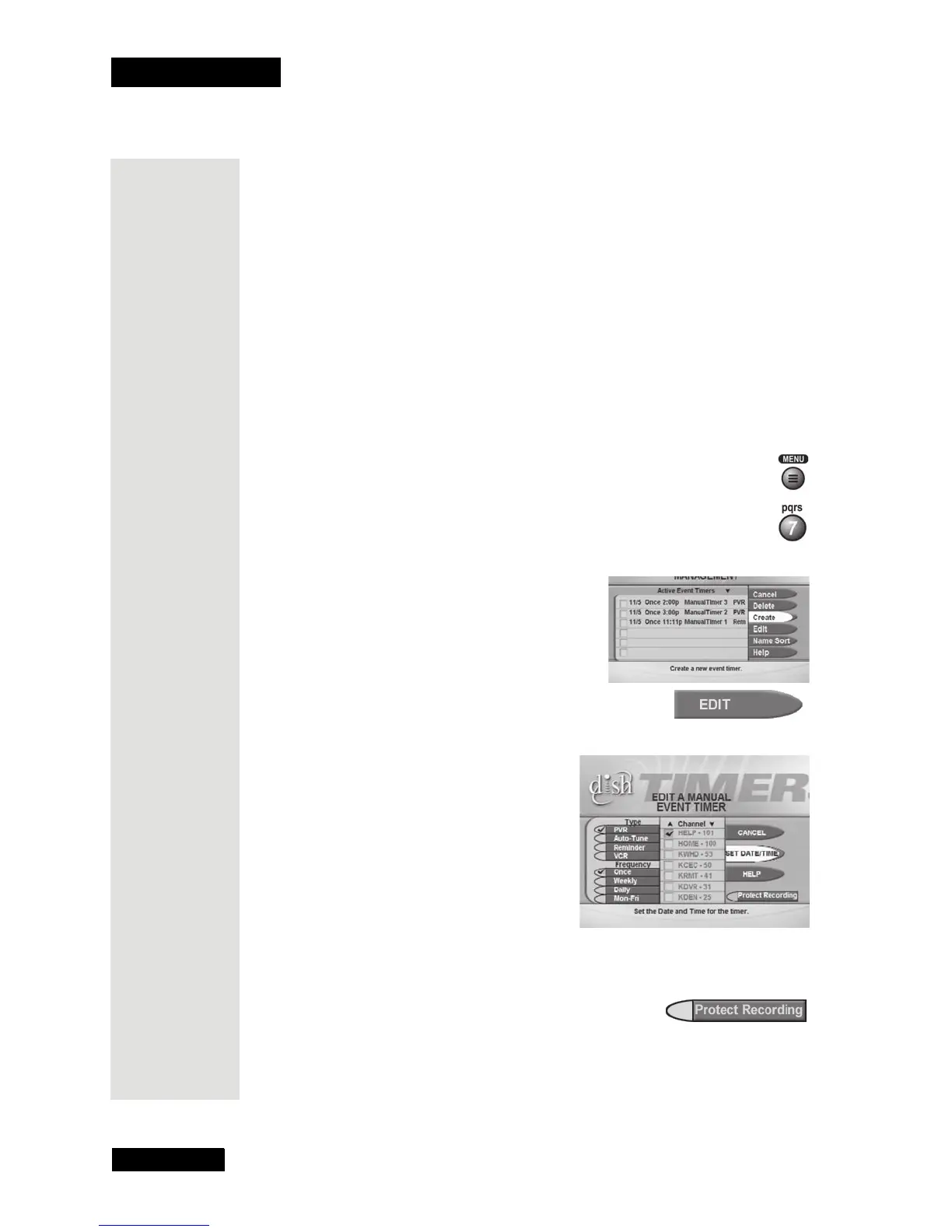
1. Press the MENU button.
2. Select the
Timers option.
This opens the
Event Timer Management menu.
3. Select the event timer you want to edit. A
check mark shows up in the box next to
the event timer. For example, here we
selected a PVR event timer.
4. Select the
Edit option.
This opens the
Edit a Manual Event Timer menu.
5. You can change the
Timer Type, Timer Frequency, or Channel. To do
this, select each option you want.
6. Only for a Once (one-time), PVR Event Timer,
you can select the
Protect Recording check box.
If you do this, a check mark shows up in the box.
Note: When you protect a recorded program, the receiver will ask you
before it records over that program.









 To Next Page