Chapter 3
Page 50
Using the System
When an Event Timer Works
Only during the five minutes right before an event timer works, you’ll see a
small picture of a clock blinking on the TV screen. This clock goes away
when the program begins. While you see the clock, you can do either one of
these things:
• Press the remote control CANCEL button to clear the clock from the TV
screen. This doesn’t change the timer; it will still work.
• Press the remote control INFO button to see more information on
the event timer. If you do this, you’ll have these two choices:
• Select the
OK option to continue with the event
timer, or
• Select the
Stop Timer option to stop the event
timer.
Use Quick Record
You can use Quick Record to very quickly set a one-time, one-program PVR
Event Timer or VCR Event Timer.
1. Highlight but don’t select a future program in the
Browse Banner, in the
Program Guide or in a Themes list.
Note: If you select a future program, you open a menu where you can set
an automatic event timer. This is almost as fast as Quick Record.
2. Press the RECORD button.
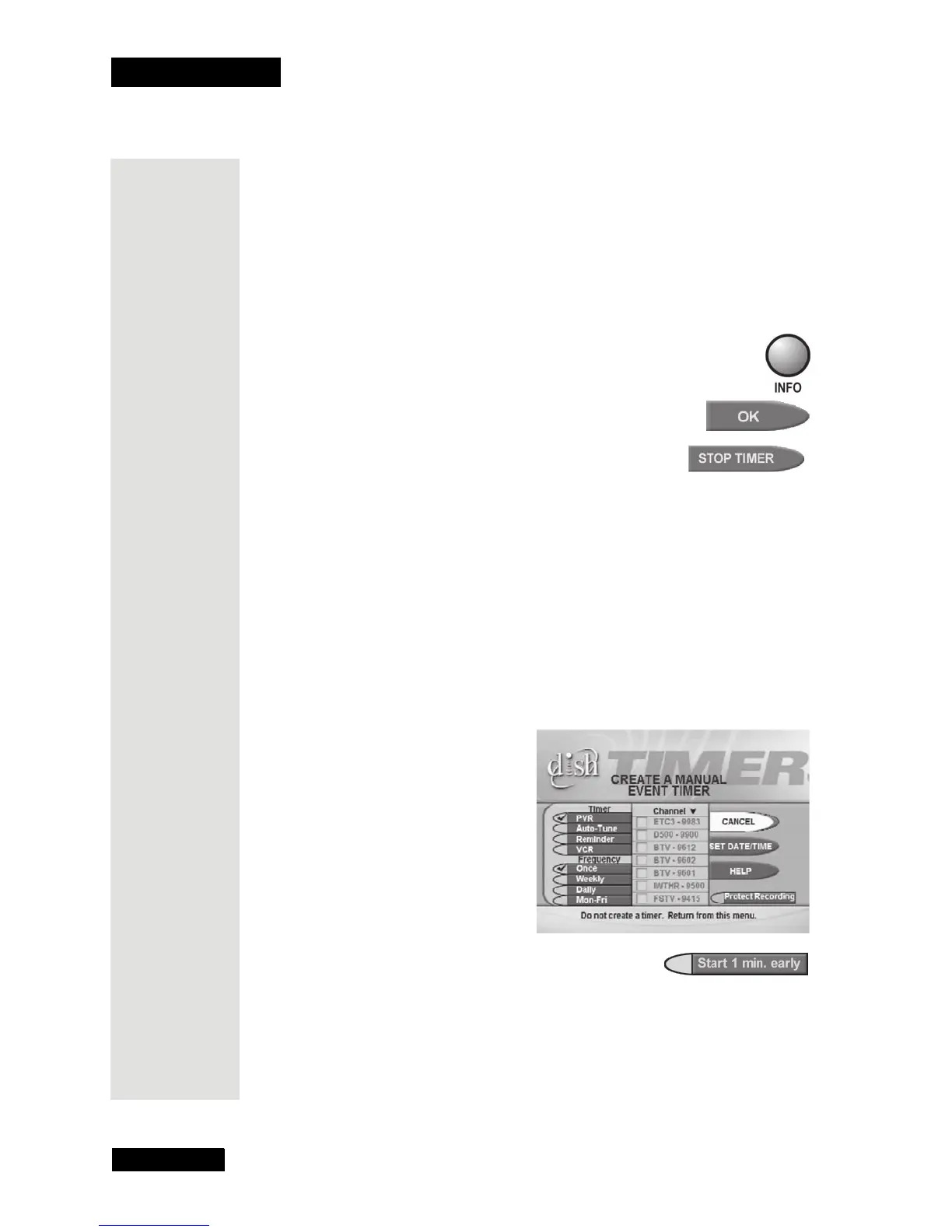
3. This opens a menu where you can set an event timer.
4. If you want to start the timer one minute early,
select the
Start 1 min. early option.
Note: This lets you make sure the timer records a program’s start.
Note: You can start any timer (except one for a pay per view program)
one minute early. But, if you set a timer that works right after another
timer and the second one starts early, the first one will end early.
5. Select the
DVR or VCR option.
Tip: Quick
Record is the
fastest and
easiest way to
record one
program once.
Just find the
program you
want to record,
press
Record
and then
you’re done.
It’s that simple!









 To Next Page