Chapter 3
Page 42
Using the System
Use Locks
The Locks feature allows you to lock out certain programming, channels, or
receiver functions. The locks can be unlocked using a special password.
Note: You can set up a Personal Identification Number (PIN) with the
Customer Service Center so only you can order services by phone (please see
Personal Identification Number on page 48).
You can set locks and lock the receiver so only someone who knows the
password can get to locked channels or programs.
You must do two things to use locks:
1.Set the locks you want (see the next few pages).
2.
Lock the receiver. This is how you apply the locks you set (that is,
how you make them work). Please see Lock or Unlock the Receiver
on page 47.
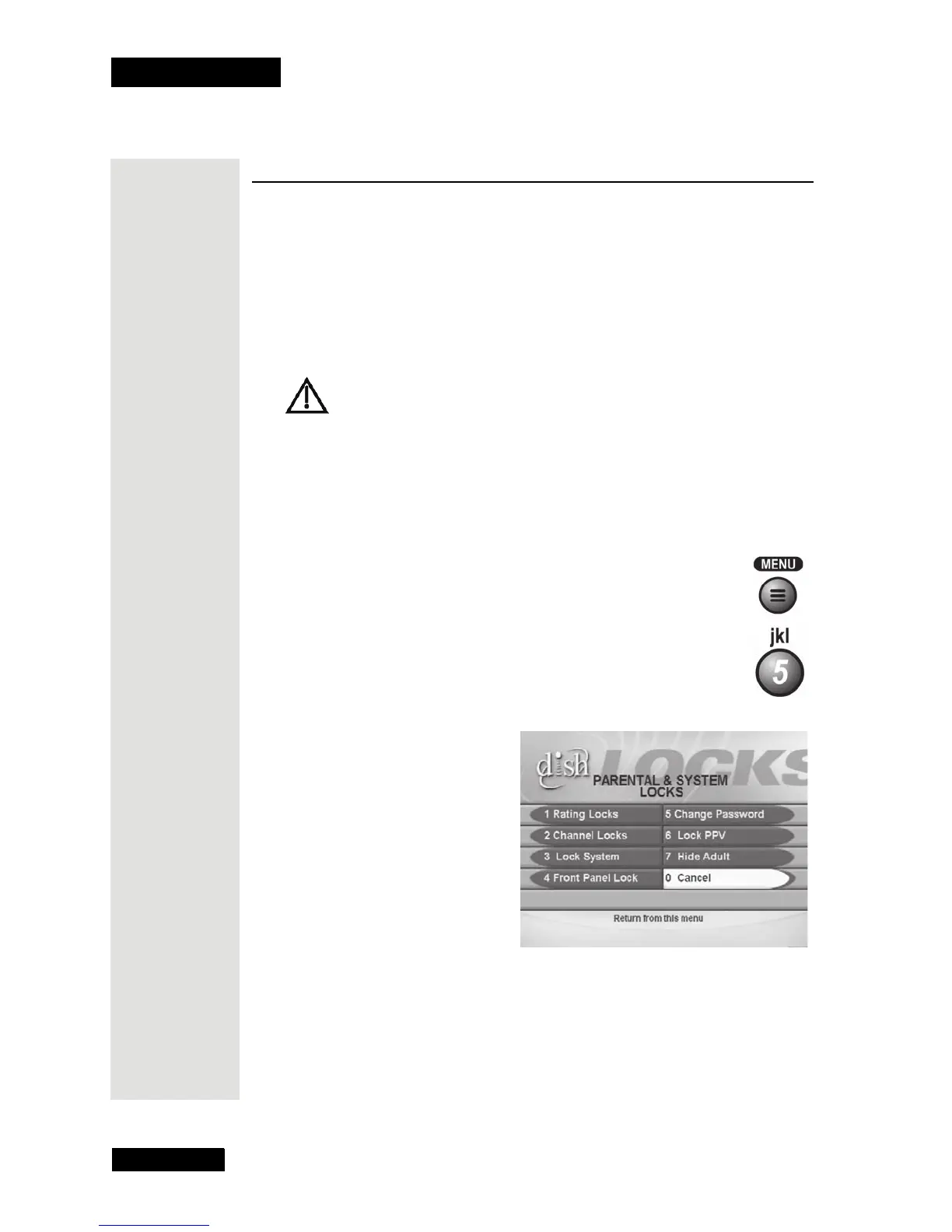
Open the Locks Menu
1. Press the MENU button.
2. Select the
Locks option.
This opens the
Locks (Parental and System Locks) menu.
Note: If you’ve locked the receiver, you must enter the
password to open the
Locks menu.
3. On the
Locks menu, select the option for the lock you want to set.
Tip: You can
lock out
programs by a
rating such as
PG-13, or you
can lock out
entire
channels.









 To Next Page