Page 27
Receiver Menus
Receiver Menus
This section shows examples of key menus the receiver displays on the TV
screen and how to use them.
Open or Close a Menu
• Press the MENU button to open the Main Menu. You can open any other
menu from the
Main Menu.
• Press the CANCEL button to close a menu.
Make a Choice in a Menu
Use the remote control Arrow buttons
to highlight
a menu
option.
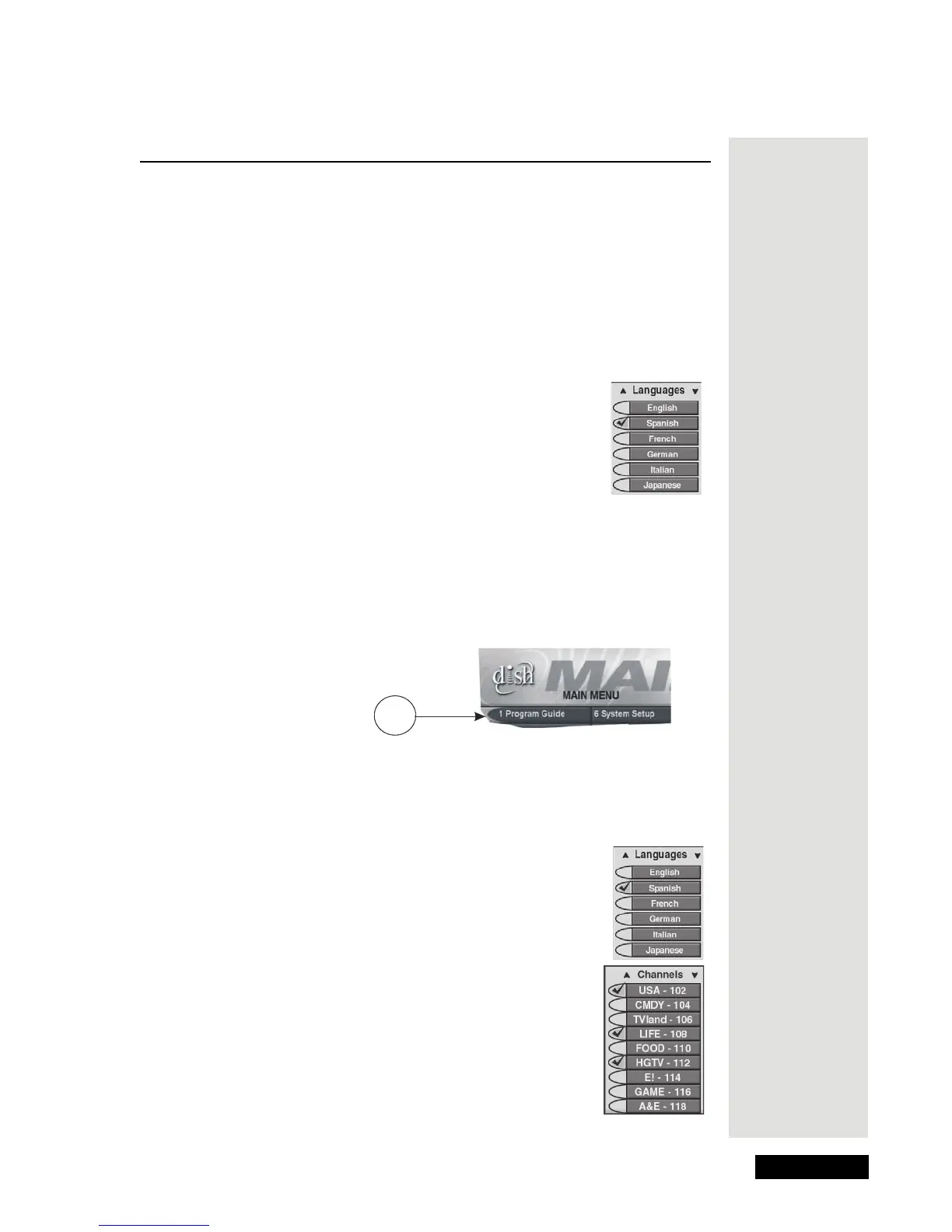
1. Use the remote control ARROW buttons to highlight a
menu option. An option you highlight looks like the
English option shown.
2. Press the remote control SELECT button to select the option you highlight.
Note: If a menu option has a number, you can press the remote control
button with the same number to select that option. If you do this, you don’t
have to highlight the option first. For example, to select the
Program
Guide
option on the Main Menu, just press the remote control 1 button.
Make a Choice in a Menu List
The menus have two types of lists, like these examples:
• A single choice list lets you make only one choice at a
time. If you make another choice, you don’t keep your
earlier choice.
• A multiple choice list lets you make more than one choice
at a time. If you make another choice, you keep your
earlier choice(s).
Tip:
Whenever a
menu option
has a number
next to it, you
can just
press that
number on
the remote to
instantly
access it.









 To Next Page