Page 51
Use Event Timers
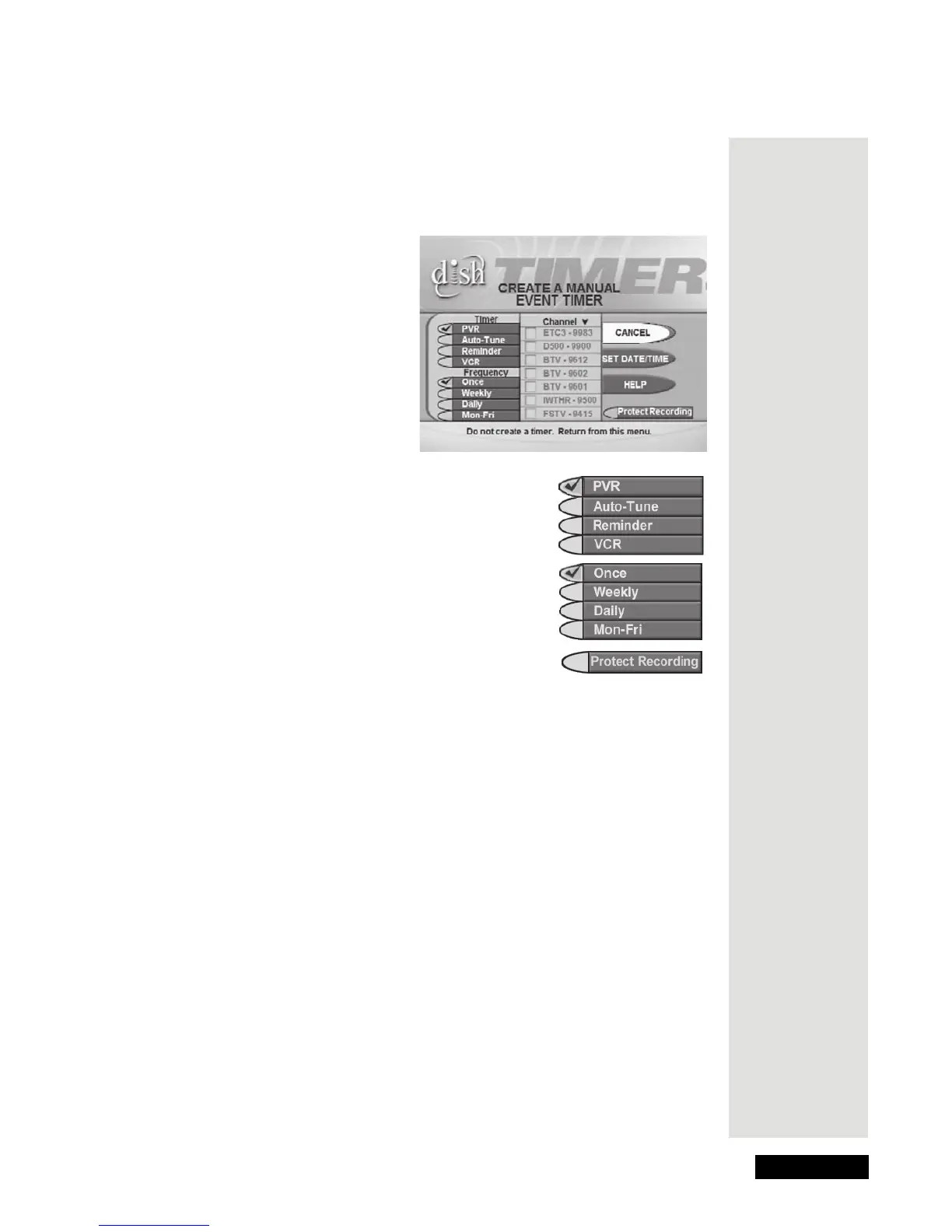
Set an Automatic Event Timer
1. Highlight and select a future program in the Browse Banner, in the
Program Guide, or in a Themes list.
This opens the
Create an Event Timer menu.
2. Select a Timer Type option. A check mark shows
up next to the option you select. For example, here
we selected the
PVR option.
3. Select a
Timer Frequency option. A check mark
shows up next to the option you select. For
example, here we selected the
Once option.
4. Only for a Once (one-time), DVR Event Timer,
you can select the
Protect Recording check box.
If you do this, a check mark shows up in the box.
Note: When you “protect” a recorded program, the receiver will ask you
before it records over that program.
5. Select the
Create option to set the event timer. You’ll see a clock picture on
the program in the
Program Guide, and also when you press the INFO
button to get information about the program.
Tip: You can
protect any
recording so
that the
receiver will
not record
over it
without
asking you
first. Just
select Protect
Recording on
the Create an
Event Timer
menu.









 To Next Page