Page 65
Use the DishDVR Features
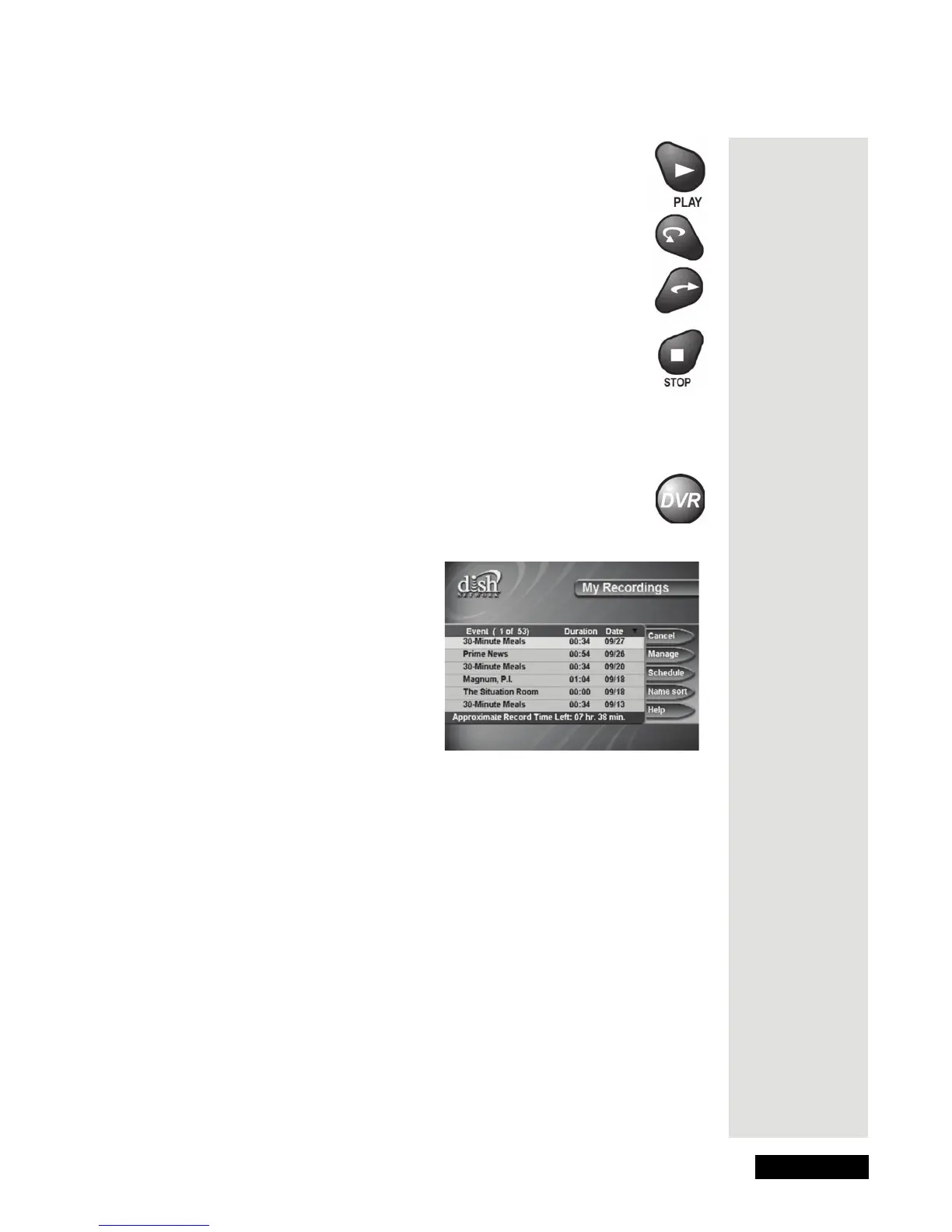
• Press the PLAY button to play back or go on with play back.
Also, press this button to switch from fast forward or rewind
back to normal play back.
• Press the SKIP BACK button to skip back about ten seconds
in the event. Press this button again to skip back again.
• Press the SKIP AHEAD button to skip ahead about 30
seconds in the event. Press this button again to skip ahead
again.
• Press the STOP button to stop play back.
Play Back a Recorded Event and Record Another Event
1. Set up the receiver to make an on-demand recording.
Note: You can press the Record button or you can use any
kind of event timer except a VCR event timer. Press the PVR
button. This opens the
My Recordings menu.
2. Select an event on the
My Recordings menu (not the one you’re
recording). This opens an information menu for that event.
3. Select the
Start, Start Over, or Resume option to play back the event.
Tip: With the
DishPVR
receiver, you
can even
watch one
recorded
event while
recording
another at the
same time!









 To Next Page