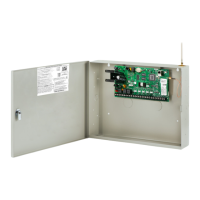
Digital Monitoring Products XF6 Series Installation and Programming Guide
18
KEYPADS
DMP oers multiple keypads in a variety of styles that provide programming capabilities. Each keypad and its operation
are shown and described in the following sections.
SPECIAL KEYS
The following special keys/areas are common to all DMP keypads.
COMMAND (CMD) Key
Pressing CMD allows you to go forward through the programming menu and through each step of a programming sec-
tion. As you go through the programming, the keypad display shows any current programming already stored in the
panel memory. If no change is required for an option, press CMD to advance to the next step.
CMD is also used to enter information into the panel’s memory such as phone numbers or zone names. Press CMD after
entering information.
Back Arrow (<—) Key
Use the Back Arrow key to back up one step while programming. The Back Arrow key is also used when an error is made
while entering in formation. Press the Back Arrow key once to erase the last character entered.
Select Keys or Areas
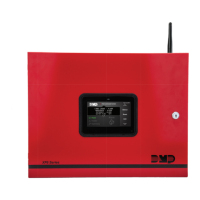
The top row of keys are called the select areas on the 7830F Fire Command Keypad. Each time you need to press a
select key or area, the keypad displays the function or options above one of the keys or in the select area. Displaying
choices above individual select keys or in select areas allows them to be used for many dierent applications. For
example, you can enter AM or PM when programming the automatic test time or answer YES or NO for a system option.
During programming, the select keys or areas also allow you to change infor mation currently in panel memory by
pressing the appropriate select key or area under or on the display. You then enter the new information using the keypad
data entry digit keys.
When there are more than four re sponse options avail able, press CMD to display the remaining options. Pressing the
Back Arrow key allows you to review the previous four choices.
The select keys or areas are also used for choosing a section from the pro gramming menu. Press any select key or touch
the select area when the programming section name you want displays.
On Wireless, Thinline and Aqualite keypads, when instructed to press the first select key, press the far left select key; the
second select key is the second from the left; third select key is second from the right; and the fourth select key is the far
right key.
On Graphic Touchscreen Keypads, when instructed to press the first select key, touch select area 1; the second select key
touch select area 2; third select key touch select area 3; and the fourth select key touch select area 4.
ENTERING ALPHA CHARACTERS
Some options during programming require you to enter alpha characters. To enter an alpha character, press or touch
the key that has that letter written below it. The keypad displays the number digit of the key. Next, press the select key
or area that corresponds to the loca tion of the letter under the key. Pressing a dierent select key or area changes the
letter. When an other digit key is pressed, the last letter displayed is retained and the process starts over.
KEYPAD DISPLAYS CURRENT PROGRAMMING
Each programming option displayed at the keypad shows the currently selected option in the panel memory. These
options are either shown as a number, a blank, or a NO or YES. To change a number or blank to a new number, press any
select key or touch any select area. The current option is replaced with a dash.
Press the number(s) on the keypad you want to enter as the new number for that option. It is not necessary to enter
numbers with leading zeros. The panel automatically right justifies the number when you press CMD.
To change a programming option that requires a NO or YES response, press the select key or touch the select area for
the response not selected.


 To Next Page