Dobot CR A Series User Guide
Issue V1.3 (2023-09-14) User Guide Copyright © Yuejiang Technology Co., Ltd.
12
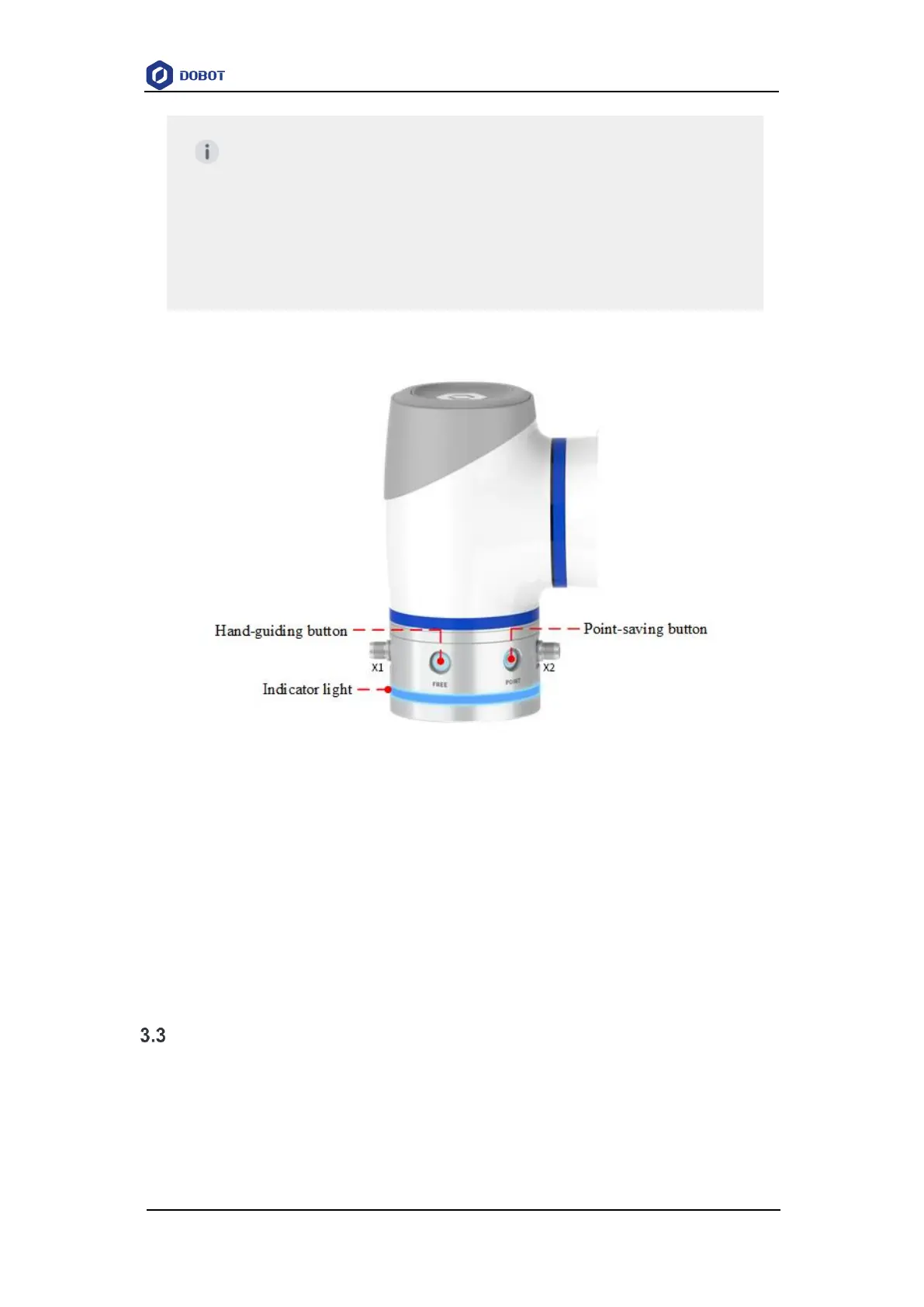
The configuration of the end of CR20A is shown in Figure 3.6.
Figure 3.6 End buttons and indicator light (CR20A)
The indicators of CR20A have the same meaning as other models of CR A series robots. The
functions of the buttons are described below.
Hand-guiding button (silkscreen: FREE): When the robot arm is enabled, press and
hold this button to enter the hand-guiding status, and release this button to exit the hand-
guiding status.
Point-saving button (silkscreen: POINT): When the robot arm is enabled, and
DobotStudio Pro is connected to the robot arm and the point list is opened, short-press
this button to save the current point of the robot arm.
Controller
CR A series robots need to be used with a controller.
The controller model of CR A series robot arms (except CR20A) is CC262, includes two
models: AC power input and DC power input. They are common in the dimensions and functions,
except for differences in input power components.
The controller model of CR20A robot arm is CC263, supports AC power input only and looks
NOTE
Short pressing is to release within 1.5s after pressing. Long pressing is to release
within 1.5s~5s after pressing. Pressing for more than 5s and then releasing is an
invalid operation.
Some of the button functions are affected by the manual/automatic mode of the
controller. See the instructions on mode switch in the DobotStudio Pro user
guide for details.



 To Next Page