14. DONGLE TROUBLESHOOTING
14.1 LEDS & BUTTON FUNCTIONALITY
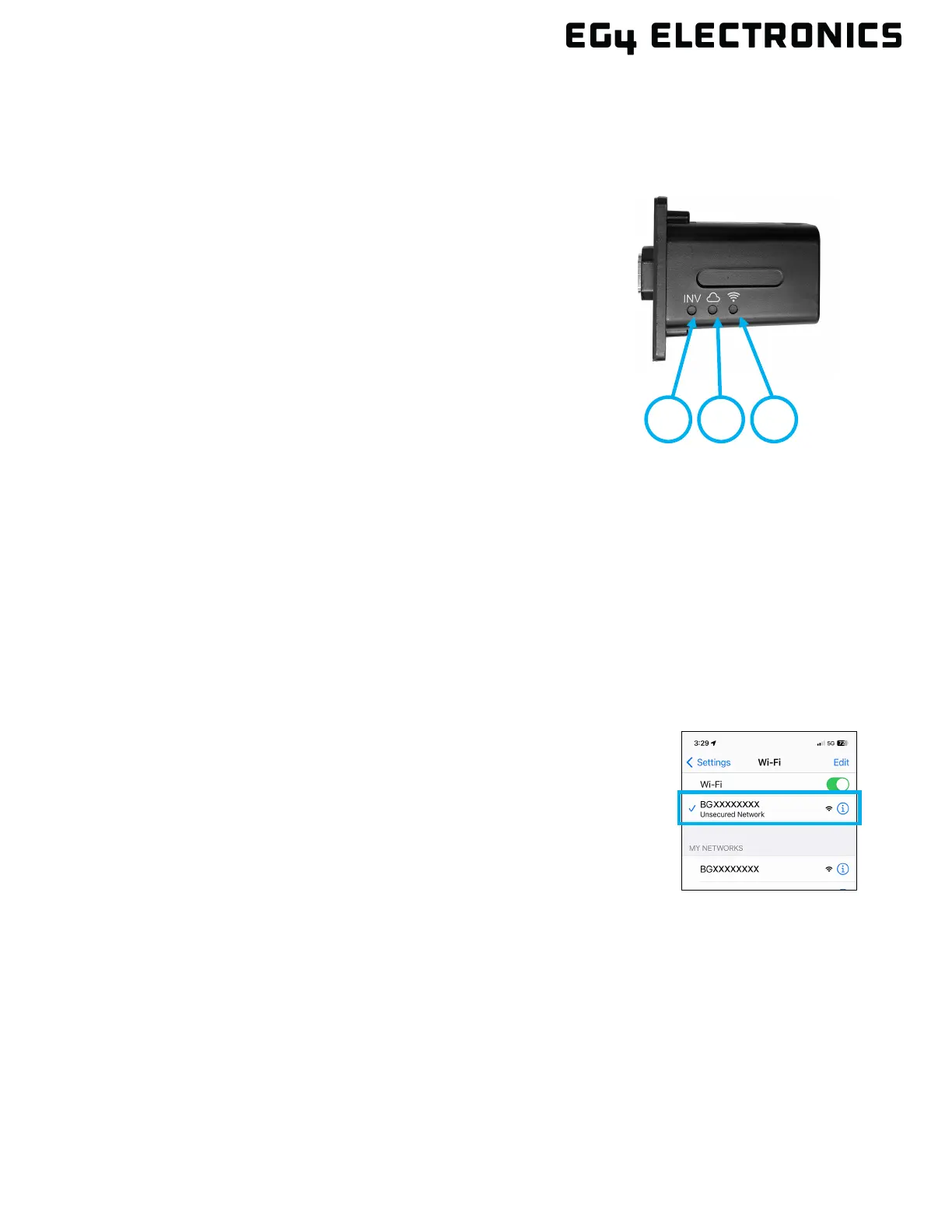
LEDs: Each of the three LEDs on the dongle will illuminate green when the boot/configuration
process is complete.
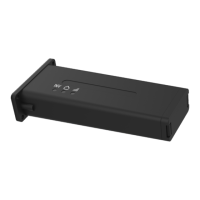
Bottom Button: When using dongle firmware version 2.0 or
later, press the button on the bottom of the dongle to perform
the following:
• Reboot the dongle - Hold down the button for 5 seconds, then release.
• Disable encryption - Hold down the button for 10 seconds, then release.
NOTE: It is recommended to use a small Phillips screwdriver or similar object to press the button to
ensure it is being pressed in far enough to make the change. The dongle will not reboot until the
button is pressed and held for 5 seconds.
14.2 DONGLE BOOTUP STEPS
The following steps describe the Wi-Fi dongle bootup sequence:
1. After the Wi-Fi Dongle receives power from the inverter and
completes the first step in the bootup process, the Wi-Fi LED
should be on. The dongle then creates a hotspot (see image) for
supported devices to connect to.
NOTE: The dongle should automatically power-on if the inverter is on
and the dongle is plugged into the dongle conector. If the Wi-Fi LED is
not on, check the physical connection to ensure the dongle is completely
seated into the connector on the inverter.
The dongle is hot-pluggable, meaning it can be removed and re-inserted
with the inverter on.
1. Wi-Fi LED: Dongle has power, and the Wi-Fi
hotspot is on.
2. Cloud LED: Dongle is communicating with
the monitoring server.
3. INV LED: Dongle to inverter communication
is established and functioning.


 To Next Page