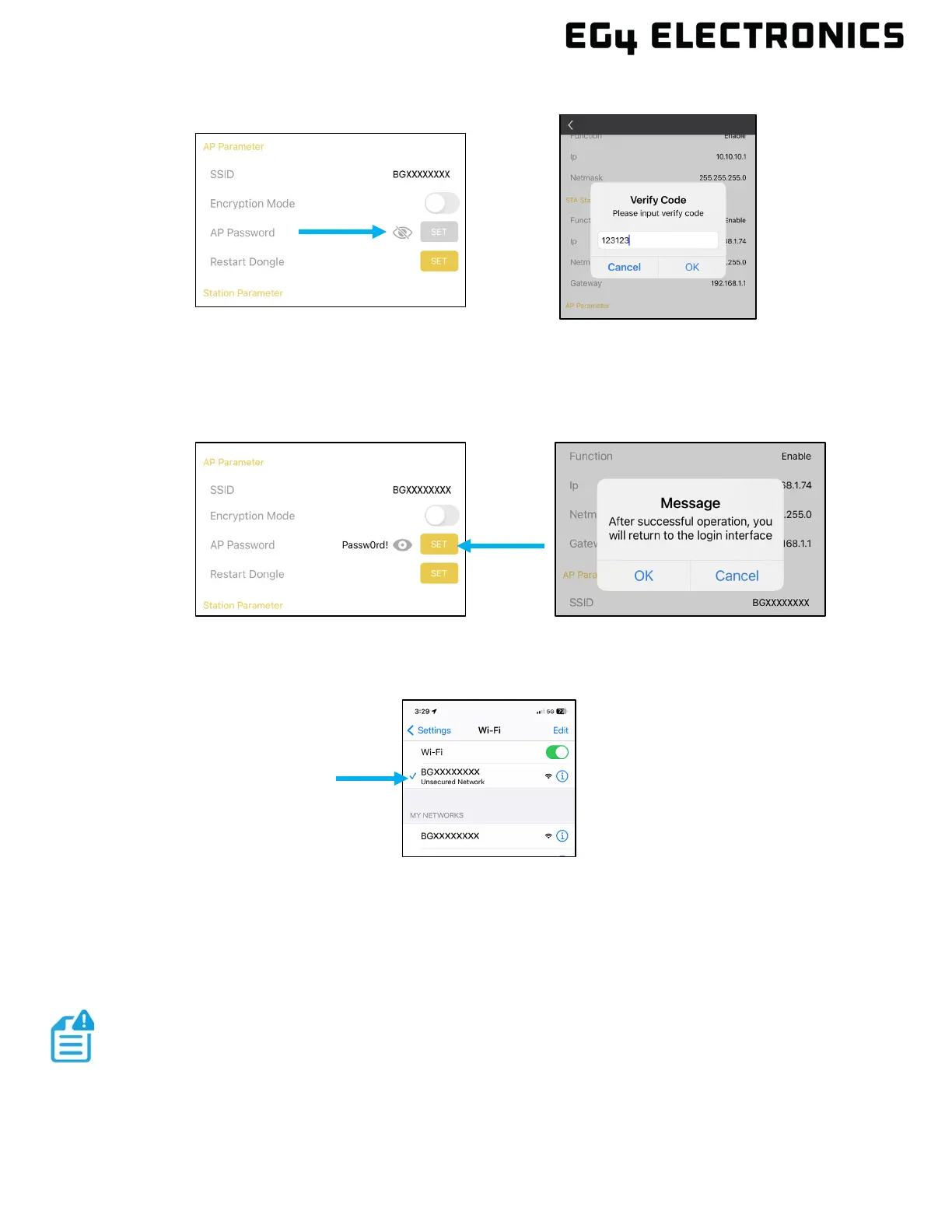
4. Press the “eye” icon and enter the verification code 123123.
5. Select the “SET” button. There may be a short pause after selecting SET. If this step is
not completed, security will NOT be disabled. Press “OK”, when prompted. The dongle
will reboot, and security will be disabled after the reboot is complete.
6. When selecting the dongle’s Wi-Fi network, the lock icon should no longer be displayed,
and a password should not be required to connect to the dongle’s network.
14.7 UPDATE DONGLE FIRMWARE USING APP
Before starting a dongle firmware update, verify all three LEDs are on and the dongle is online and
has access to the monitoring server (EG4
®
Monitor Website). Dongle updates require downloading
firmware from the server over the internet. If there are any issues connecting to the monitoring
server, refer to section 13. Then connect the phone to the dongle's wireless network.
NOTE:
Before starting a firmware update, verify the EG4 mobile app is Android
version 1.3.1 or later. Apple iOS does not currently support dongle FW


 To Next Page