3. Select Photo Layout Sheet.
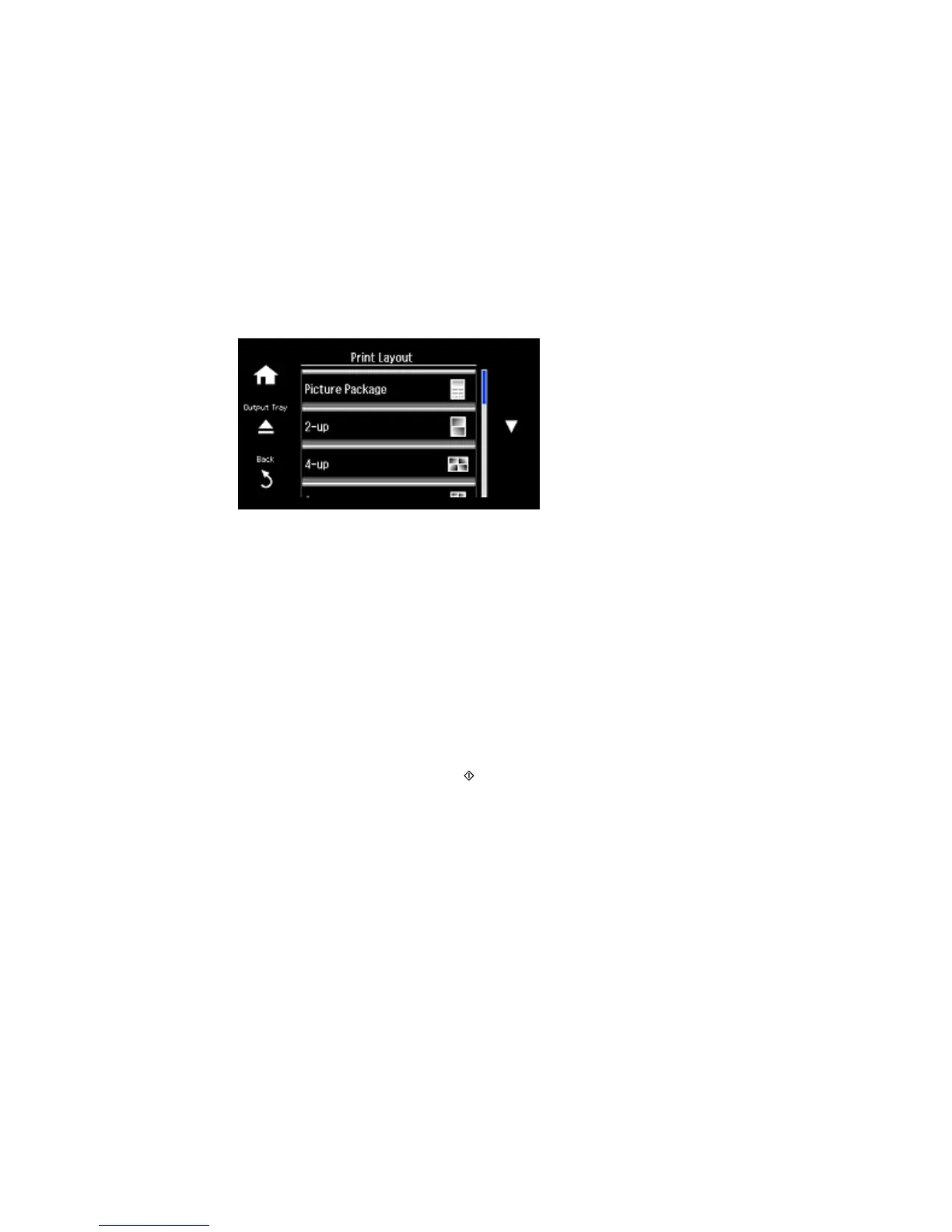
4. Scroll down to view all of the layout options, then select the option you want.
5. Select the paper size and paper type that matches the paper you loaded and select Proceed.
6. If you see a screen asking you to choose between automatic and manual placement of photos, do
one of the following:
• Select Automatic layout if you want to allow your product to place the photos in the layout
automatically.
• Select Place photos manually to place photos in the layout manually.
7. Select the photos you want to print and select Proceed. If you chose to place the photos manually,
follow the instructions on the LCD screen to select and place your photos on the layout, then select
Proceed.
8. Press the + or – button to select the number of layout sheets to print (up to 99) and select Proceed.
9. Select additional print settings for your layout as necessary.
10. When you are ready to print, press the Start button.
Note: To cancel printing, select Cancel.
Photo Layout Options
Parent topic: Printing from a Memory Card
197



 To Next Page
 Loading...










