IP Series IP Feature Phone operation
A.9
Call waiting display
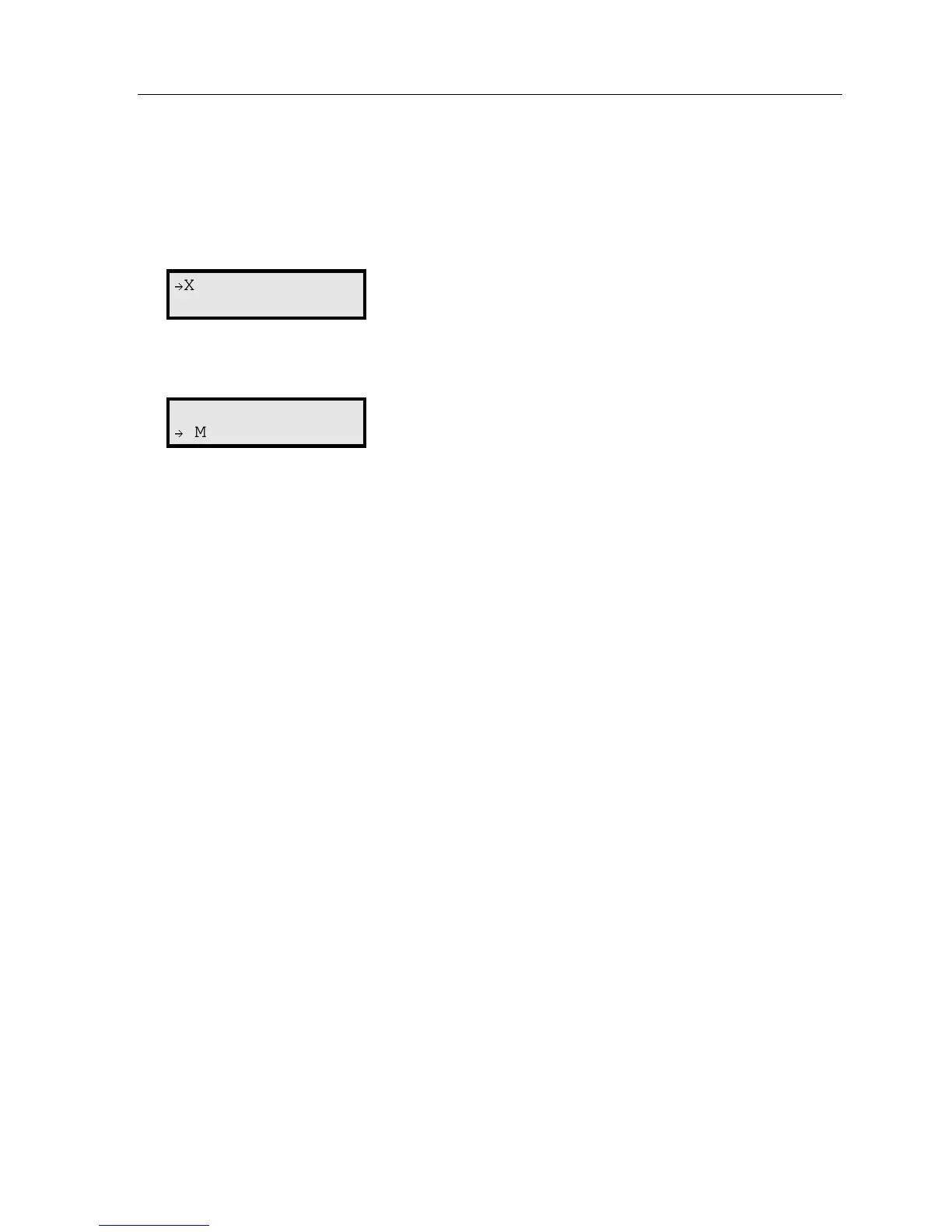
Be sure to check the display when you’re using call waiting. Initially, the top line shows the name or
number of your original call (depending on how the call was created) and the call duration. The
bottom line shows the name or number of the call waiting along with the duration of that call. The
arrow on the display will move between the top and bottom line, indicating to which call you are
connected. Here’s an example:
1. You’re connected to XYZ Company, when you hear a beep and see that Joe Smith is calling:
Æ
XYZ COMPAN 4:12
SMITH, JOE 0:31
(In this example, Joe’s call is being transferred to you; it’s been in the system for 31 seconds.)
2. You press FLASH and are connected to Joe. Notice how the arrow moves to indicate the change
of connection:
XYZ COMPAN 4:13
Æ
SMITH, JOE 0:32
Note: If Caller ID is not used, the Line number will appear instead of the caller’s name or number. If
Caller ID is used, in some instances the local telephone service provider will only show a
general caller status such as Unavailable, Private, or No Data Sent.
Station-to-station call waiting
You can call, or transfer a call to, another station that is in use (as indicated by the fact that its
station key, if one exists for it on your IP Feature Phone, is glowing red). This generates a call
waiting tone in the other station’s earpiece and puts a call waiting indication on the bottom line of
that station’s display, as explained in “Call waiting display” (above). If the person ignores the call
waiting, your call or the transferred call will be forwarded to the person’s mailbox (or other
destination set by the installer).
Background announce feature
During call waiting, you can also make a brief, private background announcement to the station's
earpiece (if its user has enabled the background announce feature; see “Station options,” page
A.34). A background announce key must have been programmed at your station by programming
code 569 at a programmable feature key (see “Programmable feature keys,” page A.32).
1. During call waiting (as described previously), press and hold the programmed announce key to
speak; the key will glow green if background announce is permitted or red if it isn’t permitted.
The called station will hear your voice over the outside party’s voice. The outside caller,
however, cannot hear you. The called party can respond by pressing FLASH, which places the
original call on hold.
2. Release the key when you are finished speaking.
Note: The background announce feature works only between IP Feature Phones, only if the called
party has allowed call waiting and background announce, and if the called party is using
their handset. The background announce key will be green (only if these conditions are met)
indicating that a background announce can be made.



 To Next Page