4 Configuration Creation | 35
In the table, all newly selected measure files are displayed in the first
column. In the second column, all deleted measure files from which
there are still some signals in use ("No-Match" signals) are displayed. If
available, all used measure files are also displayed in the second
column.
2. To replace a missing or used measure file, drag and drop a newly added file
from the first column onto the row of a file in the second column.
The file is moved from the first column into the third column that displays
all replaced files.
3. To undo the replacement, click the undo icon on the right side of the
replaced file.
The cell is cleared and the file is added to the list in the first column again.
4. Click Ok.
All measure files in the first column are added and all measure files in the
third column replace the ones in the second column.
To replace a measure file
To see how you can replace a measure file, watch our video Replacing Meas-
ure Files.
To resolve the "No-Match" situation, see "To replace a signal" on page101.
1. Do one of the following:
l
In the File Explorer, select a single measure file. On the Configuration
tab of the ribbon, click .
l
In the File Explorer, hover over a measure file and click .
l
Right-click a measure file and select Replace Measure File.
l
Drag the new measure file from the Windows File Explorer onto the
measure file in the File Explorer that you want to replace. When the
Replace icon appears, you can drop the measure file.
2. Select the new measure file in your file system.
In the File Explorer, the selected measure file is displayed instead of the
previous measure file. If signals from the previous measure file had been
assigned to an instrument, they are displayed in the instrument as follows:
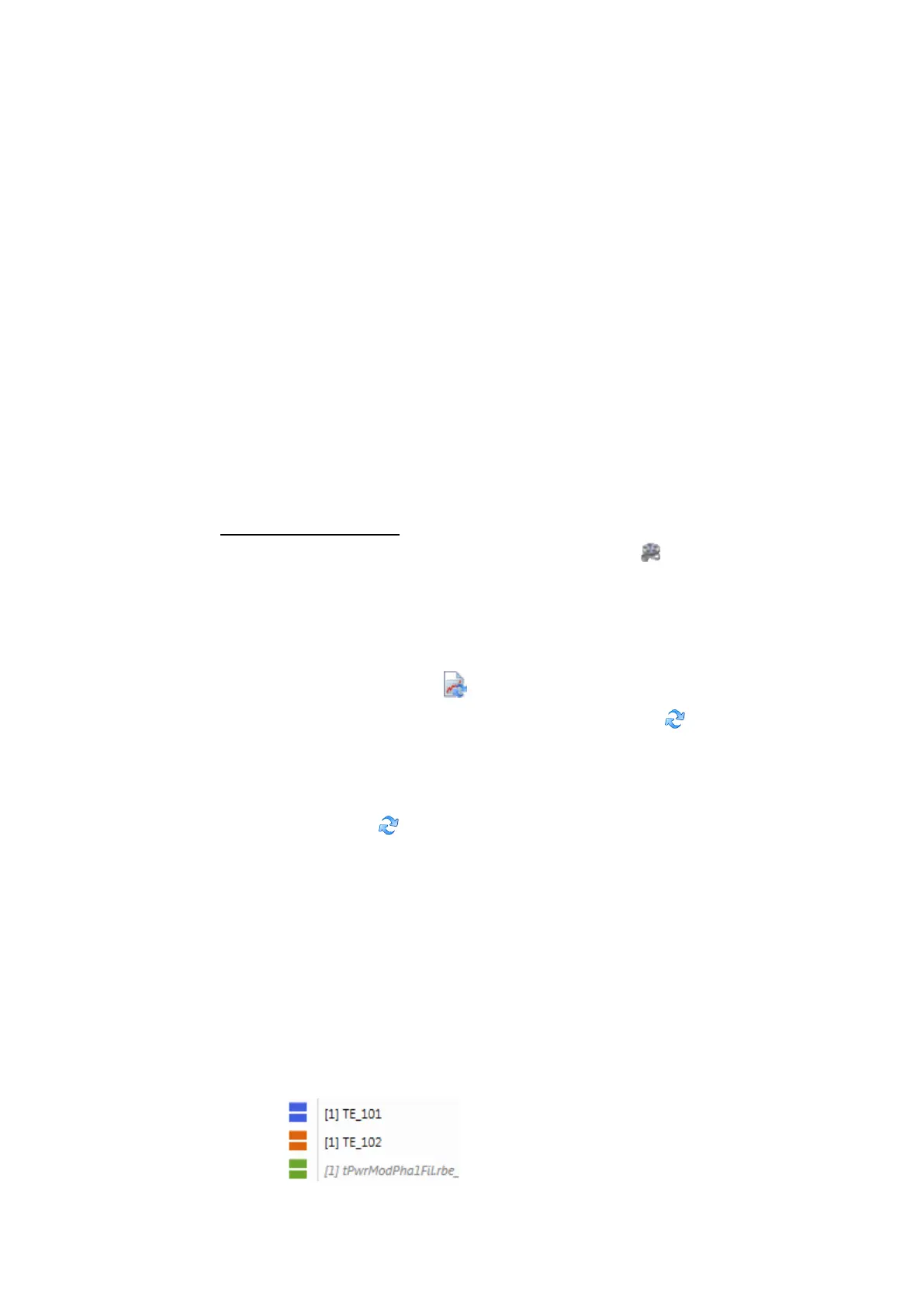
l
Signal names that are contained in the new measure file are displayed in
black color as before. This means the signals could be mapped and are
displayed with the data from the new measure file.
l
Signal names, that are not contained in the new measure file or cannot
be mapped clearly, are displayed in gray color. This status is called "No-
Match". For "No-Match" signals no measure data can be displayed.
MDA V8 | User Guide



 To Next Page