452 Ion Operations Manual
{Apply} - will save and use your settings. A window will open asking if you want to {Keep
Changes} or {Revert} back to the defaults. {Revert} will be selected within 15 seconds if noth-
ing else has been selected first.
{Close} - will close the display. {Close} will not save any settings if {Apply} has not been used.
{Configure Touchscreens} - is used to map the touch screens to the displays.
{Elo Monitor Settings} - opens the properties window for the monitor. See Calibrate Elo Touch-
screens (on page450).
{ETC Monitor Settings} - opens the properties window for the monitor. See Calibrate ETC
Touchscreens (on page450)
Note: Only supported options will display. Monitor options may vary. While it is possible to
assign a resolution lower than the minimum (1280x1024), it is recommended to be at
1280x1024 or higher.
Software Update
Software Update allows the installation of Eos Family Software and other ETC-approved software
(GCE and NCE). Updating Eos Family Software does not affect or update the software in any other
networked device such as a Net3 Gateway.
When you click on {Software Update}, the desk looks at the root directory of any connected USB
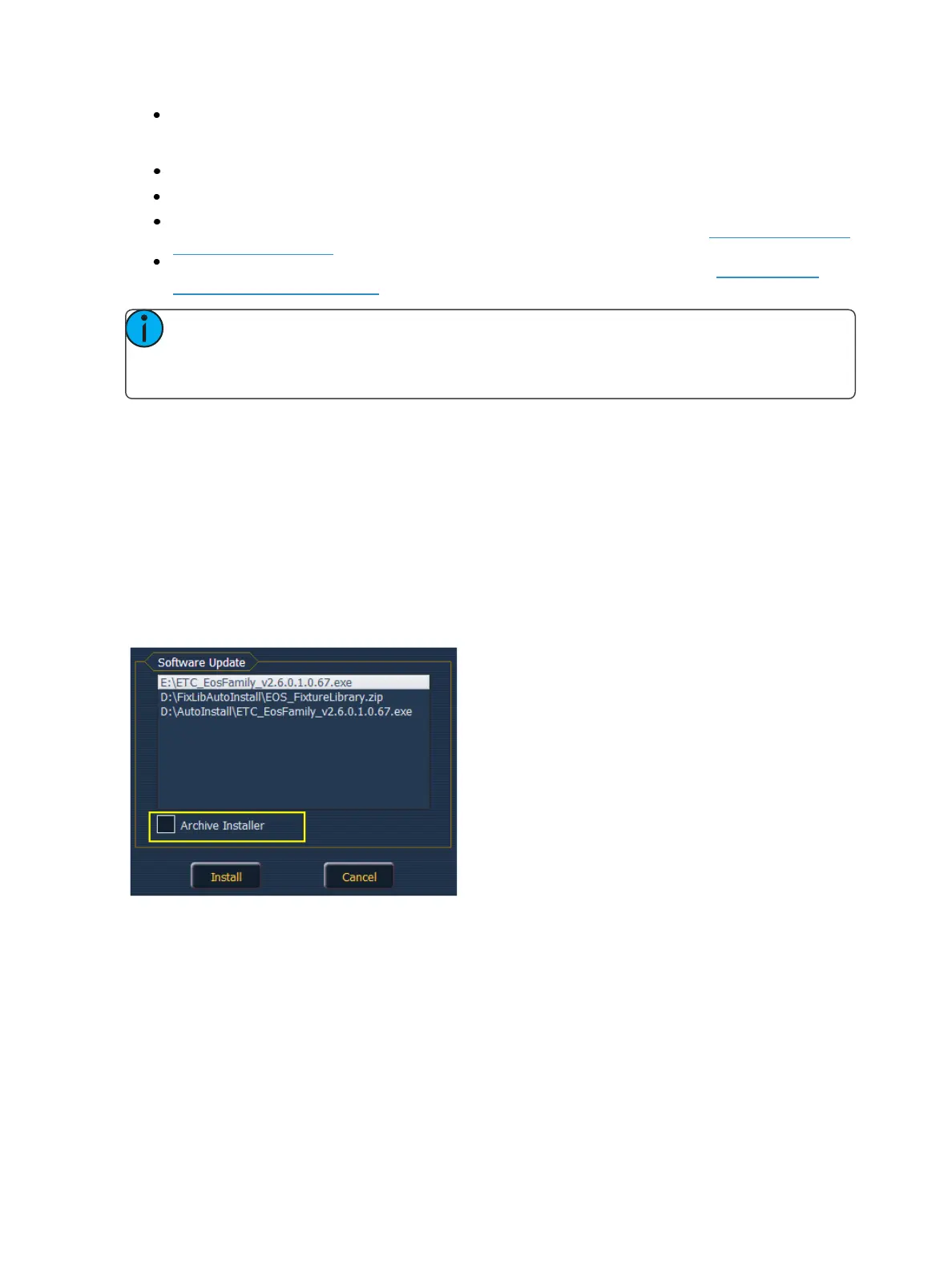
drive for an Eos Family desk software update file. You will be shown the names of any updater files
found on the drive. Select the file you would like to install and click the {Install} button, or click
{Cancel}. The software will first save to the hard drive before opening the installer.
You will also receive a message if no software update file can be found.
Installer Archive
Ion has an installer archive, which saves selected installers directly onto the console's local hard
drive. You can save multiple software versions onto your console's hard drive in case you wish to
downgrade.
While installing the software, you can archive the installer used. Check the Archive Installer box for
the selected version, and it will archive while installing the software. If you would like to archive
installers without installing their software, you can do that by using the File Manager utility in
ECU>Settings>Maintenance.



 To Next Page