Patch 129
Fixture Editor
Ion provides you with the ability to create your own fixture type within patch and store it with your
show file. You can name the fixture, assign all necessary parameters, define the address and oper-
ational range of those parameters, and set lamp controls.
The fixture creator is accessible from patch. Once a fixture has been created, it is stored in the show
file. It is not added to the fixture library. If you want to use the created fixture in another show file,
you will need to use merge. See Merging Custom Fixtures into aNew Show File (on page134)
If you would like to remove any unused fixtures from this list, press {Delete Unused}.
To open the fixture editor:
1. Press [Displays]> {Patch} to open the patch display.
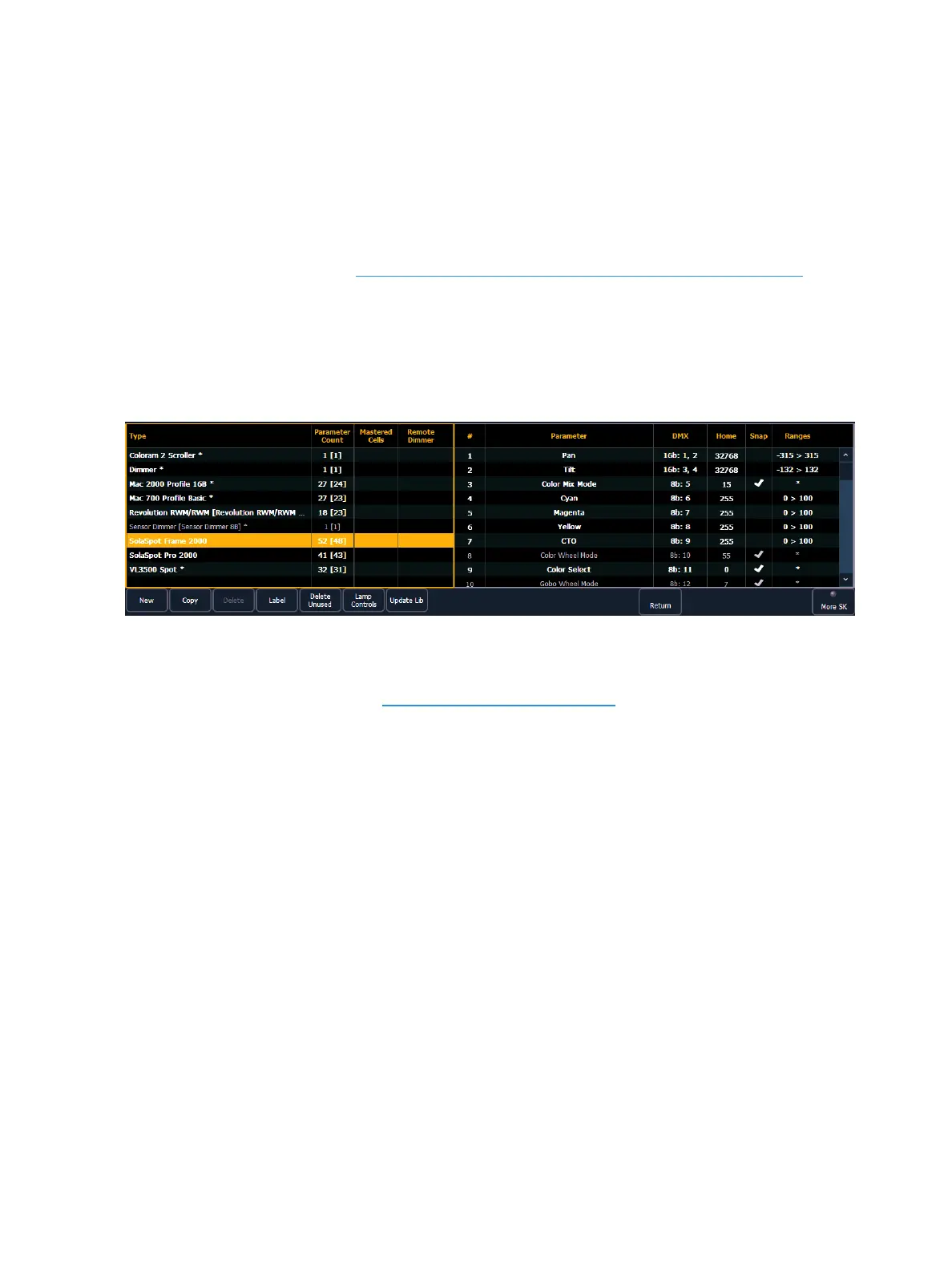
2. Press the {Fixtures} softkey. This will open a list displaying those same fixtures that are cur-
rently patched. This is the fixture editor.
Creating a New Fixture
New fixtures are created from the fixture editor in the CIA . You can either create a new fixture, or
copy an existing fixture to edit. See Copying a Fixture (on page134)
To create a new fixture, press {New}. A new fixture will be added to the fixture list.
Naming a New Fixture
Once the new fixture appears in the list, it is recommended that you name the fixture you are about
to create.
To name a fixture in the creator list:
1. Use the [Page] keys, mouse, or touchscreen to select the new fixture.
2. Press [Label] or tap on the new fixture. You can press [Label] twice to clear the name. The vir-
tual keyboard will open in the CIA.
3. Enter the desired name for the new fixture on the virtual (or attached alphanumeric) key-
board.
4. Press [Enter]. The name will appear in the “Type” column of the fixture list.
Adding Parameters
After naming the fixture, you can specify which parameters the new fixture contains.



 To Next Page