86 Ion Operations Manual
About Managing Show Files
This section explains how to create, open, and save your show files. Each of these operations are
accomplished through the Browser (on page31) area in the The Central Information Area (CIA) (on
page28).
Create a New Show File
To create a new show file, navigate within the browser to: File> New> and press [Select].
You will be prompted for confirmation that you want to create a new show. Any unsaved show data
will be lost. Press {OK} to confirm or {Cancel} to discontinue the operation.
On Ion, you can select to have a 1-to-1 patch by pressing the {Patch 1to1}. A new show created with
{Patch 1to1} selected will have a 1 to 1 patch and 1 to 1 channel to sub assignment.
Open an Existing Show File
Names of show files may appear in the browser list in normal text or in bold text. Files in normal text
indicate that there is only one show file stored by that name.
Bold show names indicate that there are several versions of the show file stored under that name,
the bold one being the most recent. To access the most recent show file, simply select the bold
name. You may right arrow [Page u] from the bold name to expand a list of previous versions
beneath it in the browser. Select the desired show from the expanded list.
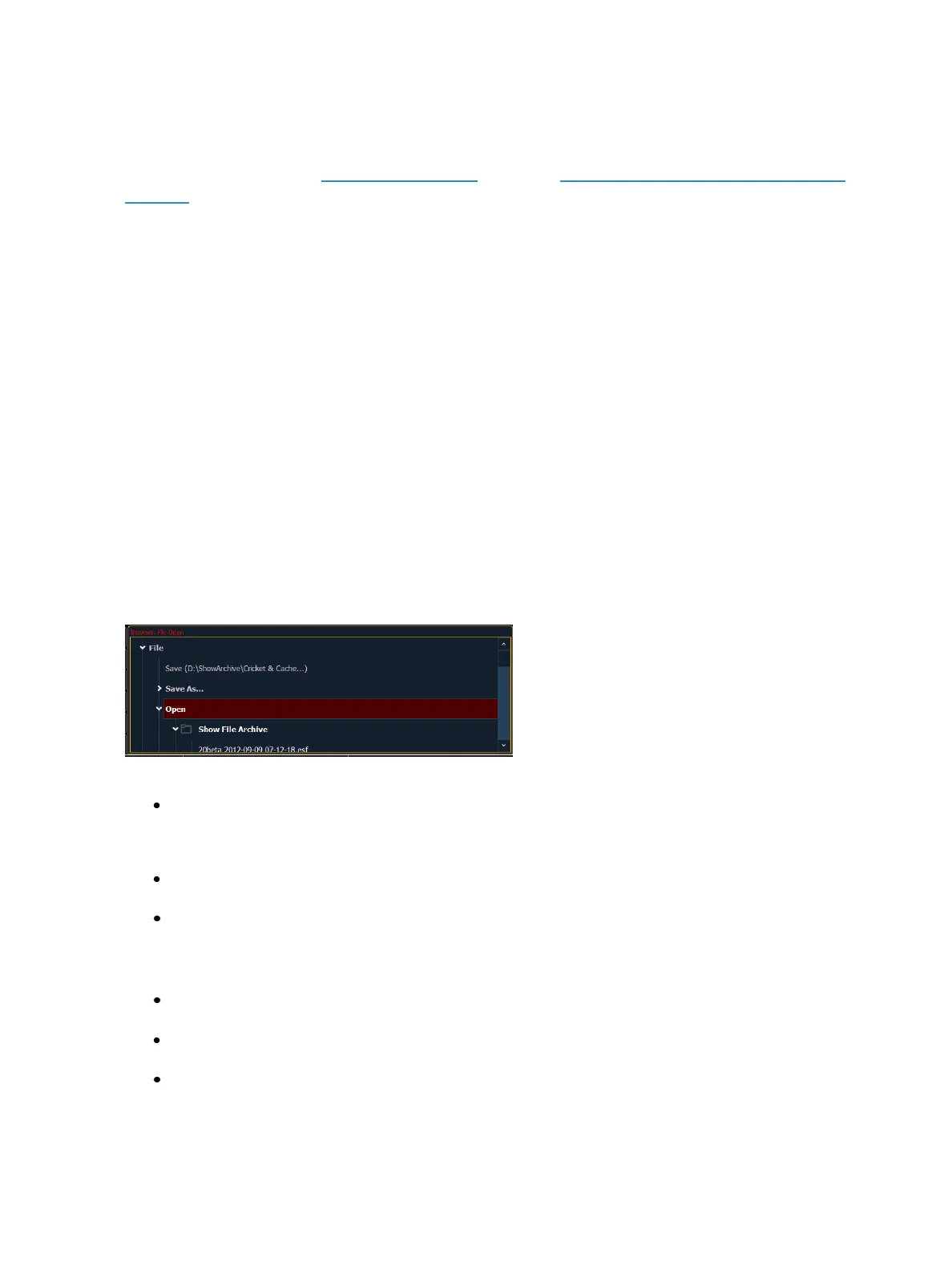
To open an existing Eos Family show file, navigate within the browser to: File> Open> and press
[Select].
Ion provides you with multiple locations to retrieve an Eos Family show file (.esf) including:
Show File Archive - This is the default storage location for show files when a show file is cre-
ated and saved. Older versions of the show file will be listed under the most current ver-
sion.This allows you the ability to open the latest version or an earlier version of a show file if
desired.
Network Drive- if one is connected. When there is no network drive connected, it will not dis-
play in the Browser.
USB device - When a USB device is connected and an Eos Family show file (.esf) is available on
the device, you will notice the USB is displayed in white text and is expandable.
Open the desired location:
To open a show file from the Show File Archive, navigate within the Browser to: File> Open>
Show File Archive and press [Select].
To open a show file from the network drive, navigate within the Browser to: File > Open>
Name of NetworkDrive> and press [Select].
To open a show file from a USB device, navigate within the Browser to: File> Open> Name of
Drive and press [Select].



 To Next Page