464 Ion Operations Manual
Touch Screen Test
{Touch Screen Test} opens an application for testing your touchscreens.
Upgrade Console
{Upgrade Console...} is used for upgrading the desk's outputs.
Upgrade I/O Firmware
Note: This option is for use with older I/O cards.
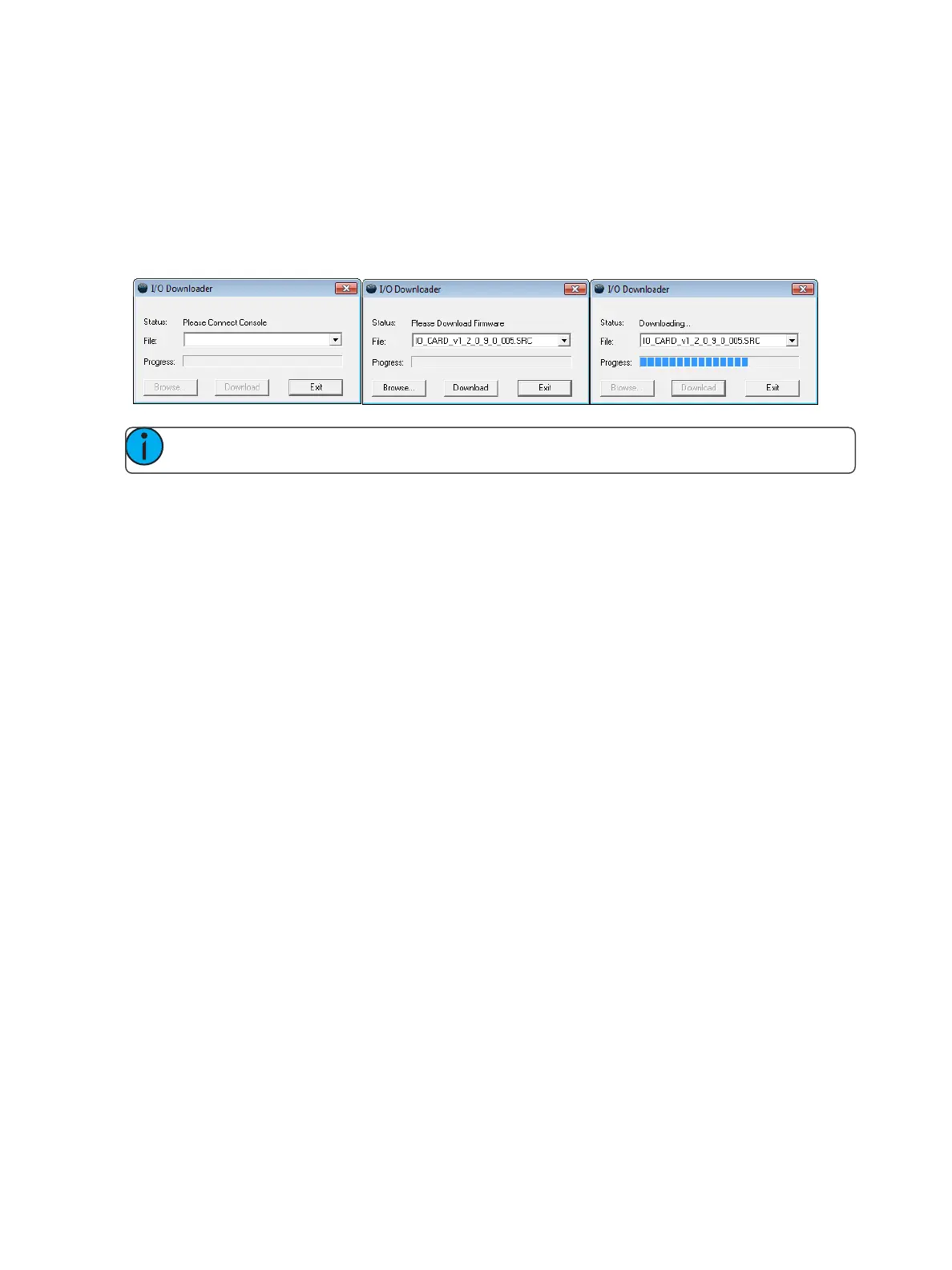
{Upgrade I/O Firmware} is used to upgrade the firmware in the desk’s I/O card.
When you first open the I/O Downloader, it will look for the connected console. This may take a
second or two.
Once the console is found, the downloader will search for the needed files. If it finds the file, it will list
it and you can click {Download}. If it doesn't find the file, you can use {Browse} to look for the
needed file and selected it. Once finished, click {Exit}.
Network Drives
{Network Drives...} allows you to select an alternative show file storage location on another desk or
computer. After setting this location, it will appear as an option within the save and open dialogs in
Ion.
In the {Network Drives...} dialog box, there is a {Add} button for mapping a network drive. In the In
the Add Network Drive dialog box, select the drive letter that is appropriate, the network path, and
the path type. The network path can use either the IP Address or the Device Name. (Example:
\\10.101.90.101\ShowArchive or \\YourDeviceName\ShowArchive) The network path type can be
Eos, Eos Ti, Gio, Gio @ 5, Ion, Ion Xe, Ion Xe 20, Ion Xe RPU, Element, Element 2, or ETCnomad Puck.
If Other is selected, you will have additional fields to fill out for Username and Password.



 To Next Page