System Basics 81
Fader list (Tab 35)
In Live using the {Properties} softkey
Tap or click on {Chan Filter} to assign channels or groups. Tap or click on {Param Filter} to open a list
of available parameters that you can filter.
Note: Filters will travel with their assigned cue lists and submasters wherever they are
mapped.
When a filter has been applied, an indicator will display in the fader ribbon. C will display for channel
filter, and F is for parameter filter.
Clearing Channel and Parameter Filters
Press the red [X] to clear the channel or parameter filters listed.
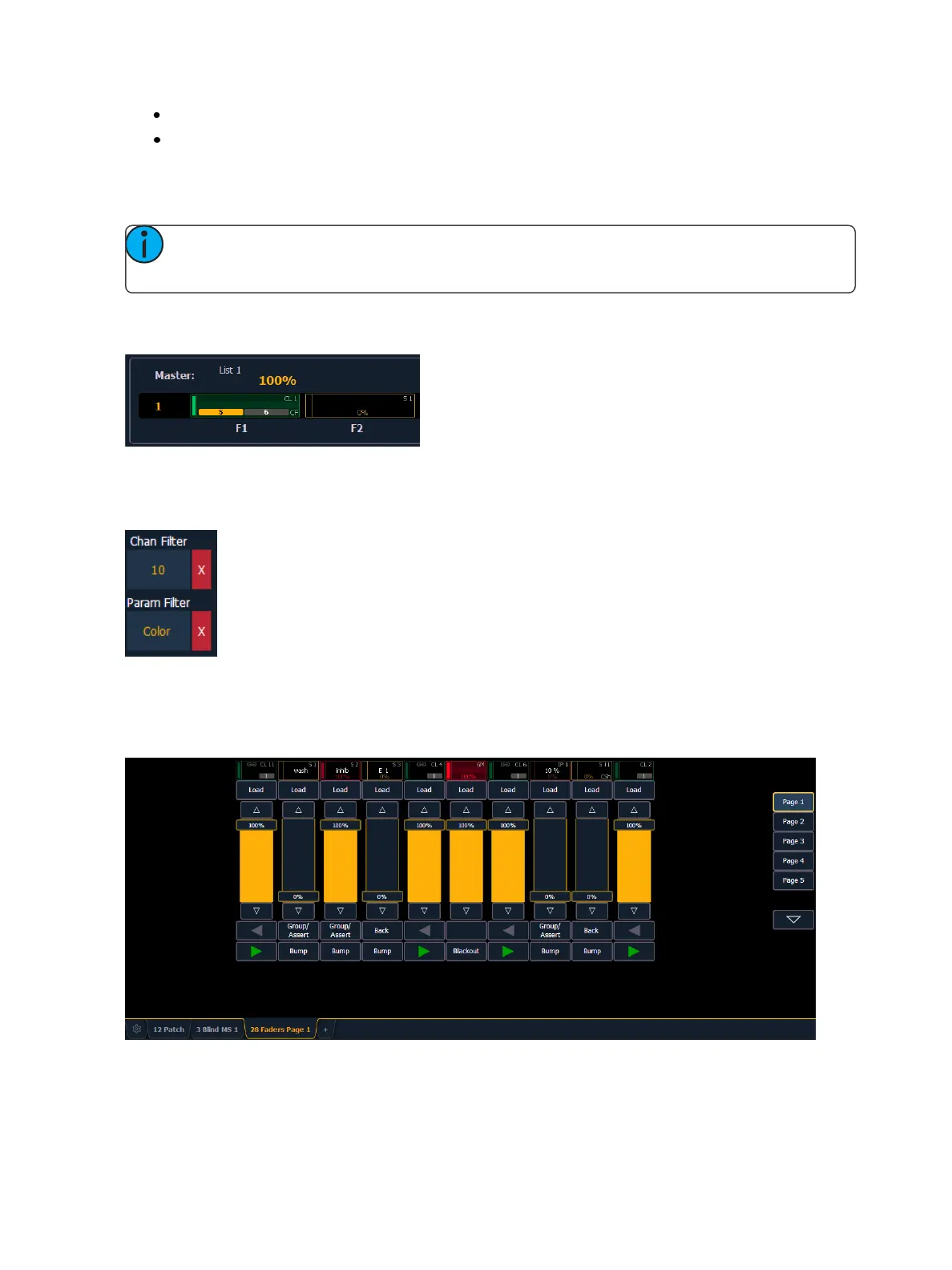
Virtual Fader Module
A virtual fader module can be opened from the home screen by selecting the Faders button or by
pressing [Tab] [2][8].
The virtual fader module has a configuration menu, which is accessed by first selecting the module
tab and then double clicking on the tab to open the menu. With the virtual fader module selected,
you can also select the gear icon, which is located by the tabs, to open the configuration menu.



 To Next Page