Managing Show Files 95
Note: Not all data is saved to a .csv file. It is recommended that you first export as a .csv
file, modify the file as needed, and then import. See Exporting aShow File (on the next page)
for more information.
Lightwright Import
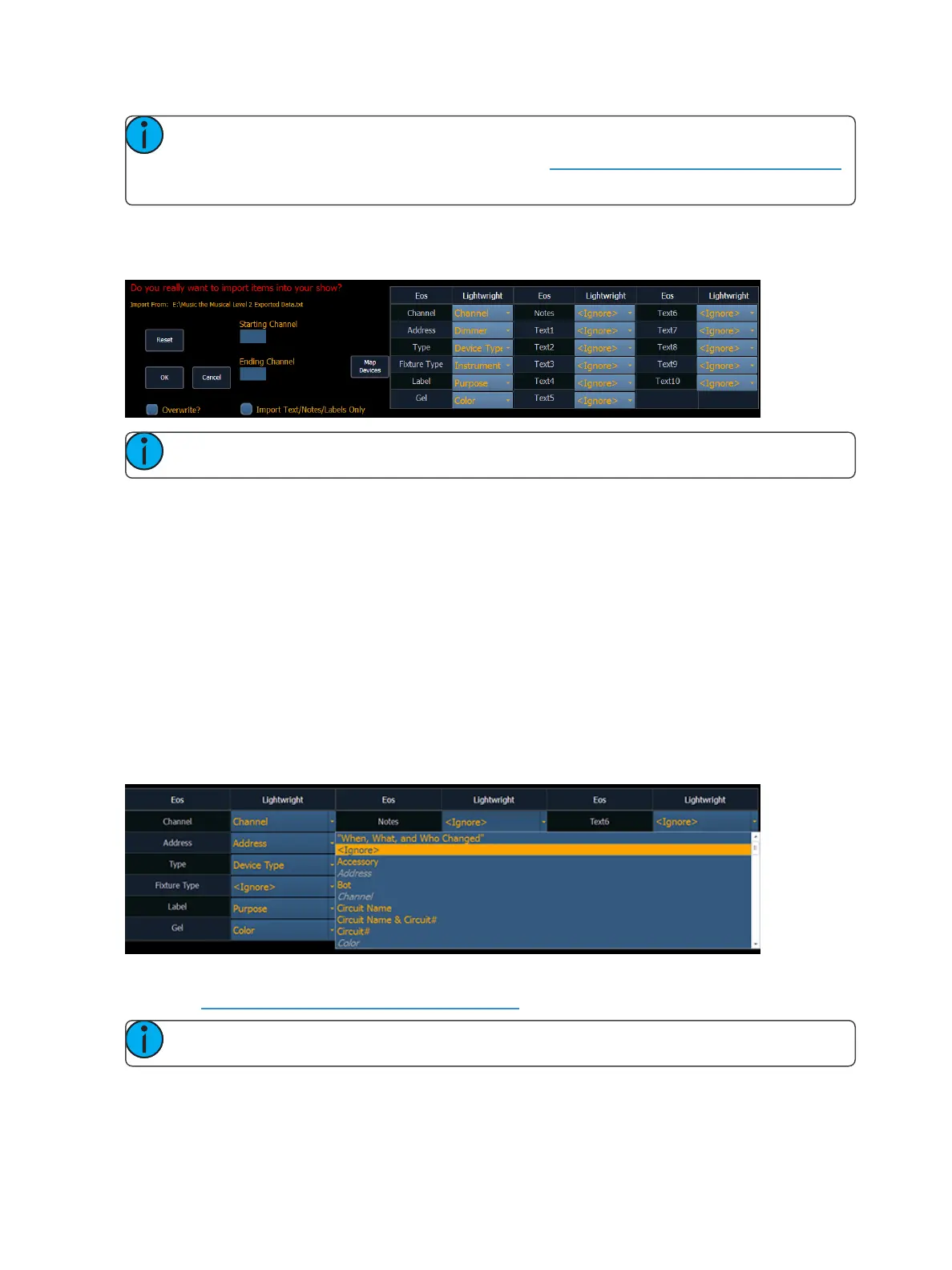
Once a file has been selected for import, you will now have options for importing.
Note: {Import Text/Notes/Labels Only} allows you to import just the patch database text.
Merge and Overwrite
You can select to either merge the data with the current show file, or to overwrite the data in the cur-
rent file. To do this, check the {Overwrite} box. Leaving this box unchecked will merge the data.
Starting and Ending Channel
You can select starting and ending channels for the import.
Mapping
You can map Ion patch fields to fields in the Lightwright file. Channel and Address must be mapped
for the file import to work. Any other field can be set to ignore if desired. Once a Lightwright field
has been mapped, it will display in grey in the dropdown menu. However, greyed out options can be
selected again for placement in multiple fields.
The text fields in the Patch display and database will rename based off of the Lightwright imported
fields. See Renaming Text Fields in Patch (on page122) for more information.
Note: Ion does not currently support multiple gels per fixture from Lightwright.



 To Next Page