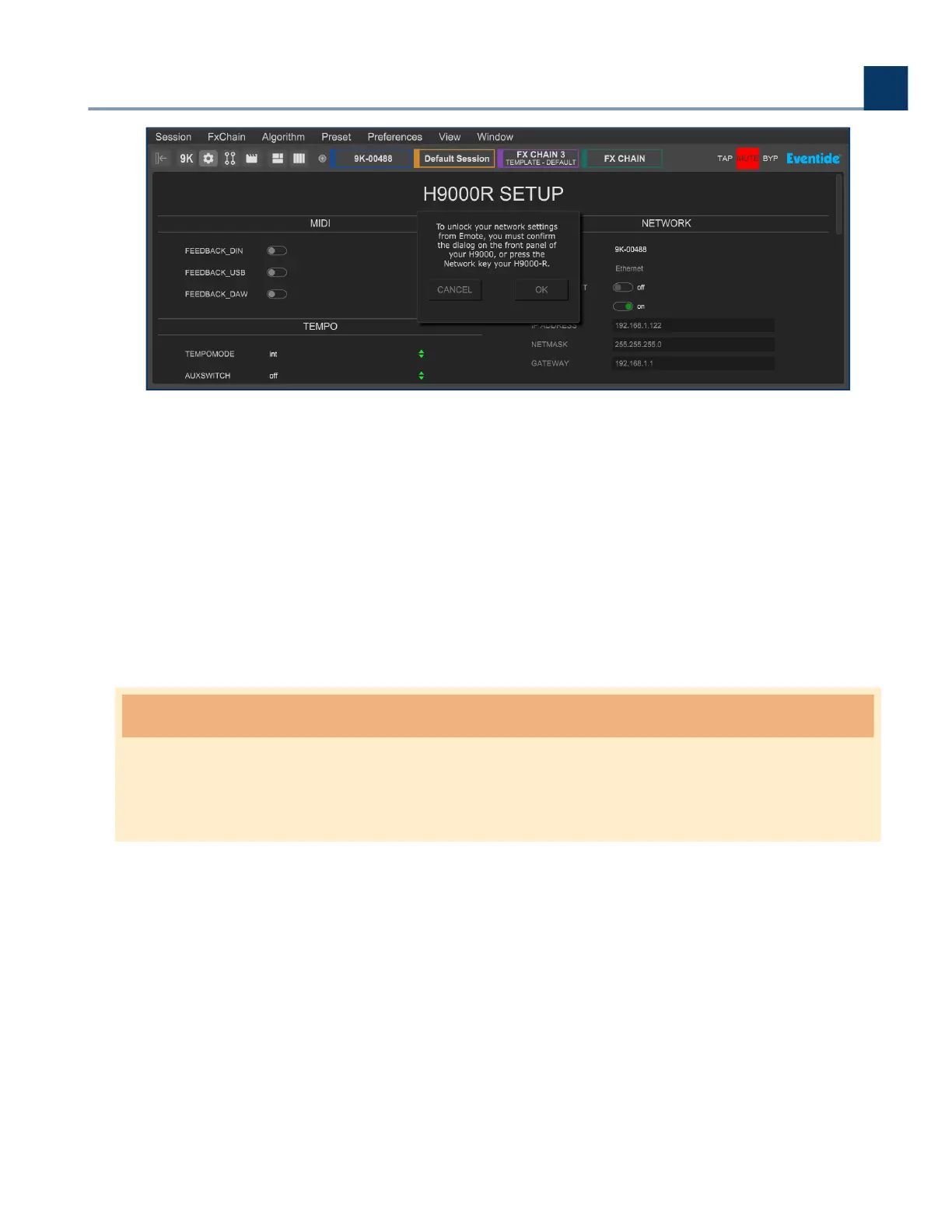
You will then have 30 seconds to press the Network button on the H9000R’s front panel, which will
unlock the Network selection eld in Emote (it will now no longer be greyed out)
This generates a temporary encryption key, which is used to protect usernames and passwords sent
via Emote. You will then have 2 minutes to select and connect to your main network, ater which you
would need to re-do the handshake process to unlock it again.
When the network connects, quit the Emote sotware. Re-connect your Emote computer to your main
network, and re-open Emote. The H9000R should now be visible in Emote’s browser. If it isn’t, then
reboot your H9000R.
Warning
Turn o the access point ater you are nished using it. Otherwise it may interfere with Emote’s
connectivity.
2.2.4. Updating Your H9000R Firmware
Refer to Section 5.2.3.1: Emote's Devices View.
2. Setup
Copyright © 2021, Eventide Inc.



 To Next Page