The data to be saved is contextually based on the currently selected item, as follows:
Save Session will always save the currently loaded session.
For FX Chains and Presets, the current FX chain and algorithm container selected on the screen
will be the items saved for each save option.
At any time, you can refer to the cursor highlight or the title bar in the FX Chains or Algorithms view
in order to see the currently selected item.
Navigate to one of the choices above and press the Enter () key to access the naming screen.
Use the front panel keypad to type a custom name for your saved data, then press the OK sot
key. The data will be saved to the H9000’s internal storage.
If a USB drive is attached, you will then be presented with the option to also save the data to
the drive as well.
Press the YES sot key to save your data to the attached USB drive; you will receive a
conrmation message that the data was saved successfully.
4.8.2. Exporting
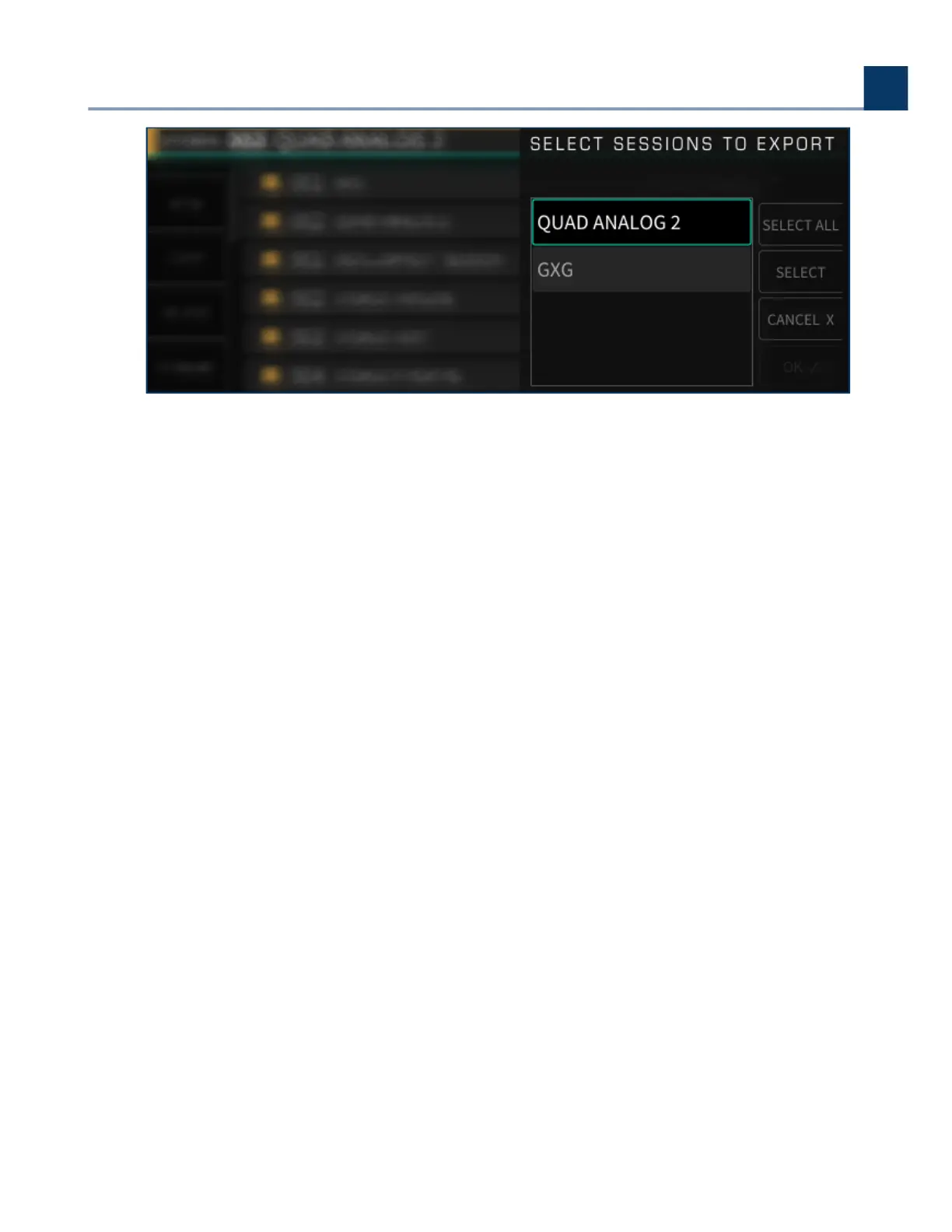
If you have a USB stick plugged in, you will also see the “Export” options. The export options will NOT
appear in the list if no drive is attached.
Whereas “Saving” refers to storing something onto the H9000’s internal memory, “Exporting” transfers
it from the H9000 to the ash drive.
•
•
•
•
•
•
4. Front Panel Operation
Copyright © 2021, Eventide Inc.



 To Next Page