4.7. Meters
The H9000 oers an 8-channel set of dedicated three-segment hardware LED meters, positioned
above the front panel color display. These LED meters are always active.
The rst segment of the hardware LED meter represents signal presence, at any dB level. The second
segment, if lit, means the signal is reaching -6dB, which represents nominal headroom and nominal
S/N ratio. The third segment indicates a signal overload, or too much signal presence.
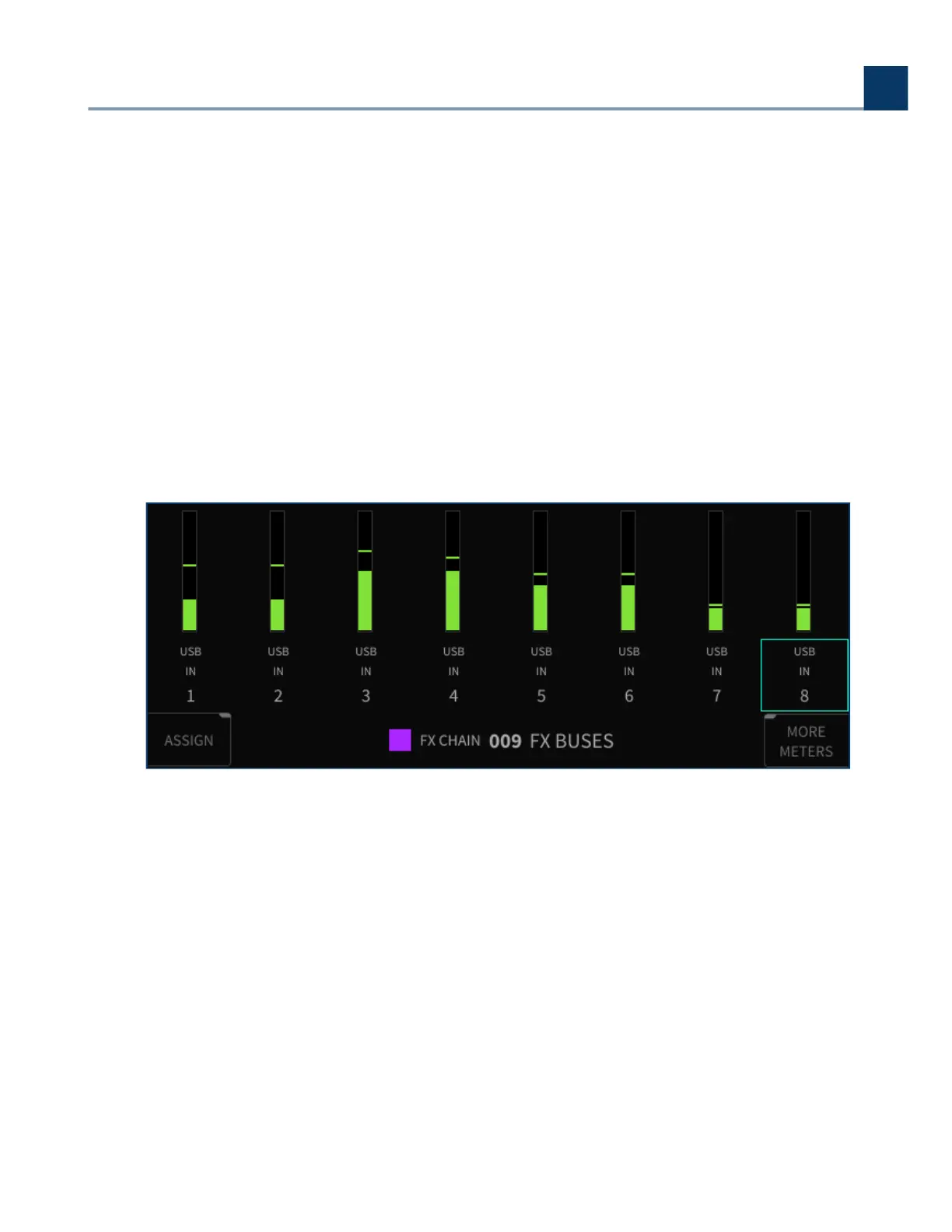
For a more detailed metering view, press the front panel Meters button to switch the color display to
the Meters page. The Meters page displays eight channels of metering at a time, and allows you to
assign which signal sources are assigned to the display.
4.7.1. Assigning Input/Output sources to Meters
On the main metering page, use the cursor buttons or the wheel to navigate to the metering
slot to which you wish to assign an audio input or output.
Press the Enter key, or the latching Assign sot key, to make an assignment.
You will be presented with a list of all physical I/O channels; use the cursor up/down buttons or
wheel to navigate to the physical input you wish to assign.
•
•
•
4. Front Panel Operation
Copyright © 2021, Eventide Inc.



 To Next Page