CP-2232E
Remote Control Panel
Revision 1.1 Page 9
5. SYSTEM CONFIGURATION
5.1. UPGRADING THE CP-2232E PANEL
5.1.1. Requirements
1. The user must have a laptop or PC connected to the same network as the CP-2232E.
2. The user must obtain upgrade files from Evertz Personnel.
a. Your computer must be running the Mozilla Firefox web browser located at:
http://www.mozilla.com/en-US/firefox/
b. This browser is also available in Chinese simplified and traditional, if preferred, by
clicking the “other languages…” option under the download link.
5.1.2. Getting Started
1. Set the IP address of the CP-2232E by holding down the first and last rotary encoders (S1 and
S4) on the far left of the panel for 6 seconds.
c. Select the “Network” page.
d. Set the IP address for the A port and ensure “bonding” is off (a red x should appear next
to it).
e. Select Apply, then press the setup button.
2. Set the IP of your laptop or PC in the same range as the panel.
3. Ensure that Firefox is installed on your machine. If not, please review section 5.1.1 for
instructions on installing Firefox.
5.1.3. Upgrading Firmware on the CP-2232E
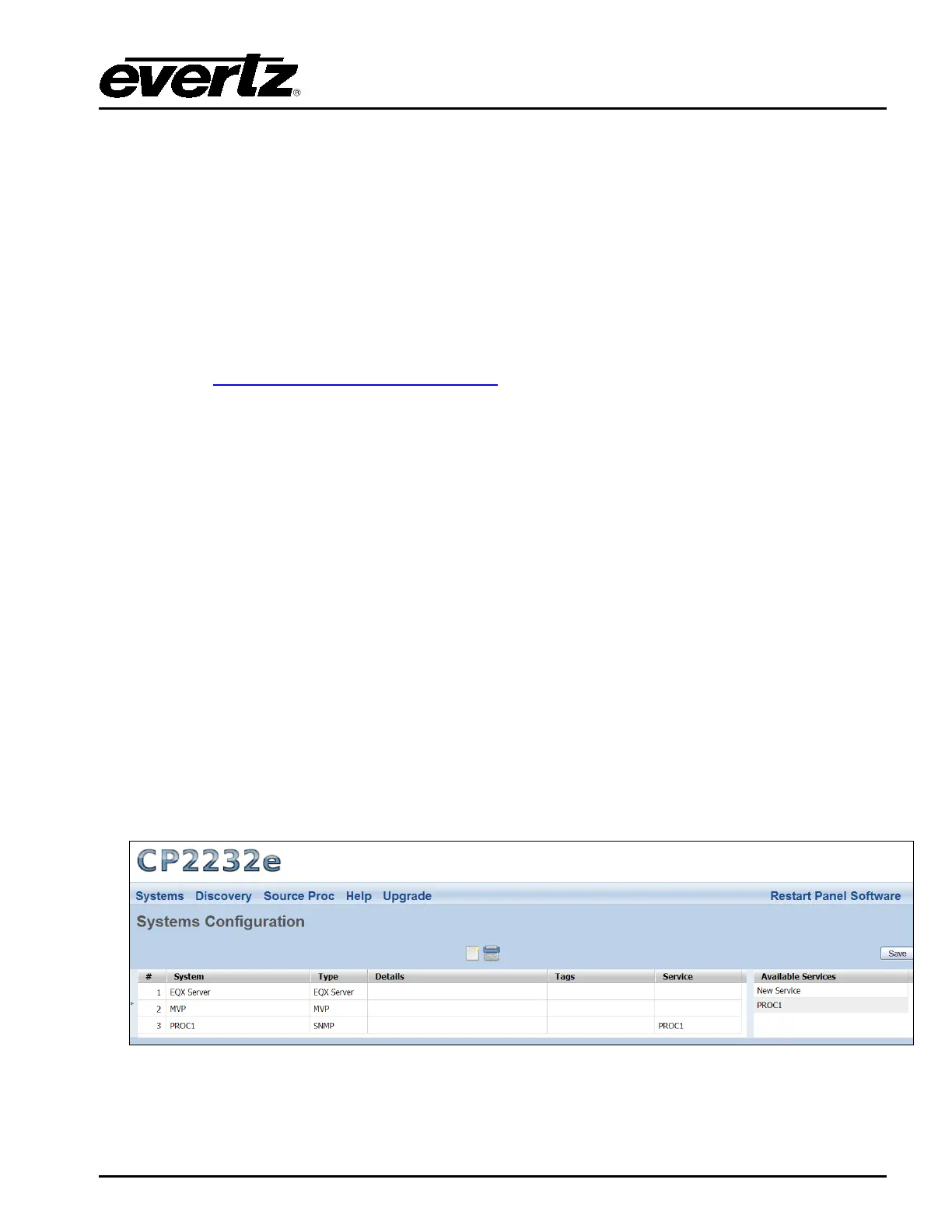
1. To upgrade firmware using the web interface, open a Firefox web browser and enter the IP
address of the CP-2232E, then press the <enter> key. The CP2232e web interface will appear,
as shown in Figure 5-1.
Figure 5-1: CP2232e Web Interface
2. Select the Upgrade menu and the “Install Firmware” page will open as illustrated in Figure 5-2.



 To Next Page