CP-2232E
Remote Control Panel
Page 22 Revision 1.1
The user can add and/or remove a device using the Systems buttons listed in Table 5-3:
Button Image Description
New Device
The New Device
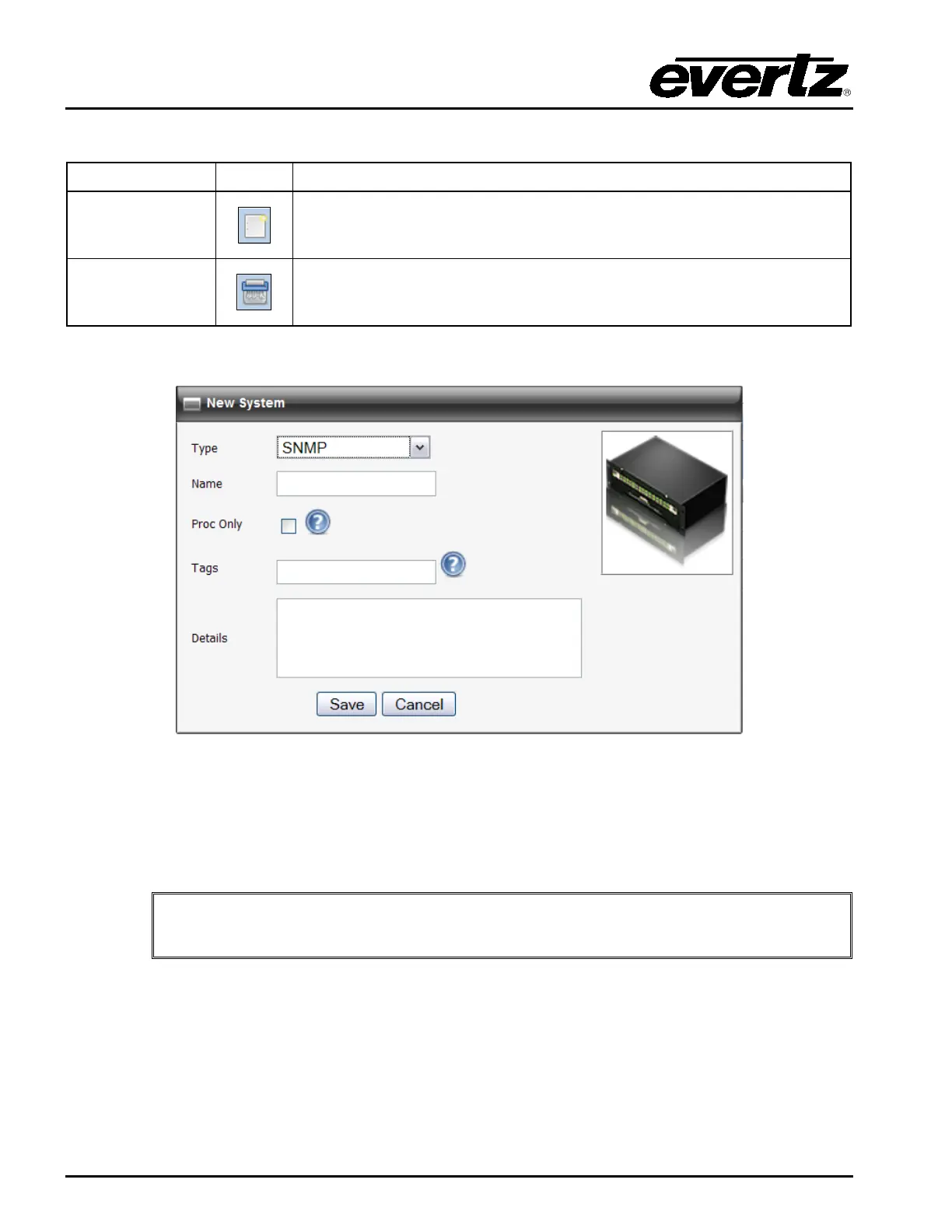
button enables the user to add and create a new
device. Selecting this button will open a new system window as shown
in Figure 5-14.
Delete Device
The Delete Device button enables the user to comple
currently selected device. Select the device
and then press the Delete Device button to remove the device.
Table 5-3: Service Template Buttons
Figure 5-14: New System Window
5.2.4.1. Device Properties
The user can adjust each device’s properties by entering the appropriate information into the fields
below:
If the user double clicks the System, Type, Details, and/or Tags field, an Update
System window will open as illustrated in Figure 5-15.
System: This field displays the device’s name. If the user double clicks the System field, an
Update System window will open. Here, the user can edit the device’s name using the
Name field.
Type: This field displays the device’s type. If the user double clicks the Type field, an Update
System window will open. Here, the user can select a device type using the Type drop
down menu.



 To Next Page