CP-2232E
Remote Control Panel
Revision 1.1 Page 35
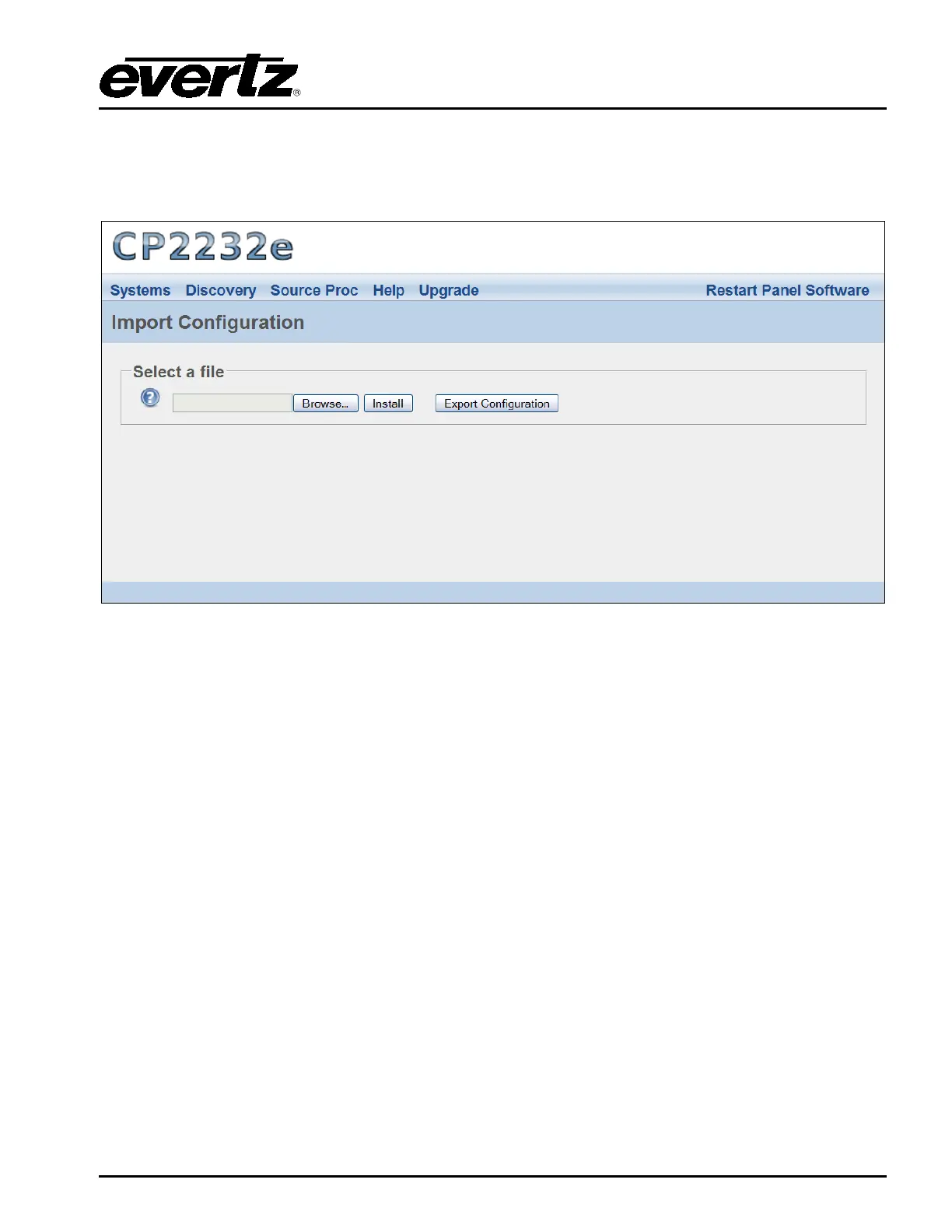
5.5.3. Import/Export Page
The user can select the Import/Export option from the Help menu drop down. This page, as illustrated
in Figure 5-33, enables the user to import and export an advanced panel configuration.
Figure 5-33: Import/Export Page
To import a configuration, follow the instructions outlined below:
3. Select the Browse button and navigate to the appropriate configuration file and then select the
Open button.
4. Once the file name is displayed in the field next to the Browse button, select the Install button.
5. The panel must be restarted when a file is imported. Click the Restart Panel Software button
in the top right hand corner.
To export a configuration, select the Export Configuration button. An Opening config.cf dialog box
will be appear, as illustrated in Figure 5-29, which will prompt the user open or save the configuration
file. Select “Save File” to download and save the configuration locally on the PC.



 To Next Page