CP-2232E
Remote Control Panel
Page 18 Revision 1.1
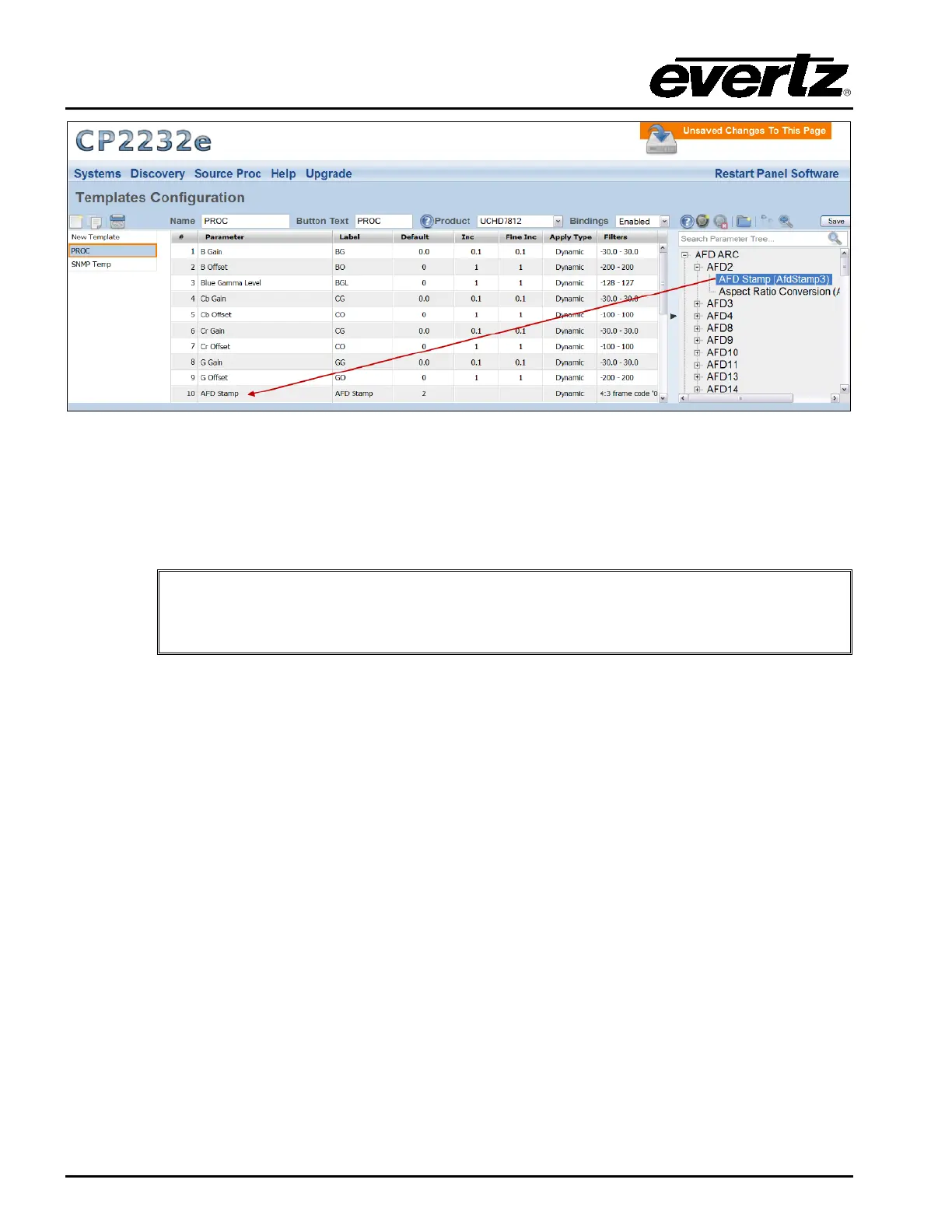
Figure 5-10: Assigning a Parameter
7. For each parameter that is added, the user can fill in the seven properties (i.e. Parameter,
Button Text, Default, Inc, etc). Please refer to section 5.2.2.3 for more information.
8. Click the SAVE button on the right hand side of the screen to save the template.
Please note that the user must press the “Save” button in order for changes to
be saved and then select “Restart Panel Software” to apply the changes to the
control panel.
5.2.2.5. Service Template Controls
To modify the template, use the Service Templates controls. Please refer to section 5.2.2.1 for more
information.
5.2.3. Services Page
The Services page enables the user to create a service or edit an existing service, which can be
loaded onto the CP-2232E control panel. Services are created by linking a Service Template to a
particular Service and then defining the frame, card in a particular slot, and input using the Services
page.
The services that currently exist will be listed in the far left column as illustrated in Figure 5-11.



 To Next Page