CP-2232E
Remote Control Panel
Revision 1.1 Page 51
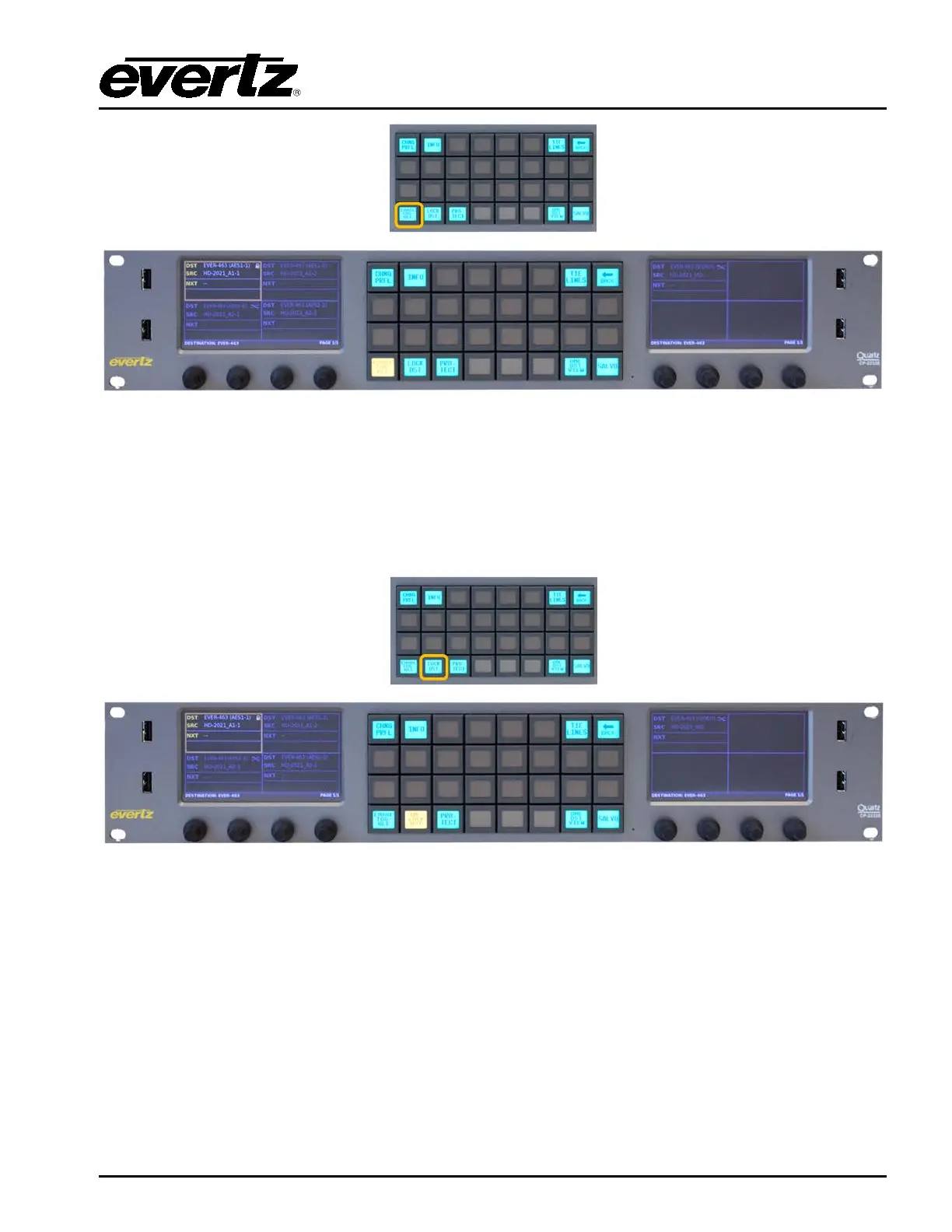
Figure 7-16: Selecting the “ENABLE TOGGLE” Button
Selecting the Enable Toggle button will either enable or disable toggle for the selected destination.
When Toggle is enabled the Current Source and Next Source for a destination will flip with each
Take button press. The Back button can be used to return to the return to the Eight Destination view. A
destination that has Toggle enabled will have circular blue arrows next to the green cross-point
icon in the top left corner of the destination quadrant.
Figure 7-17: Selecting the “LOCK DST” Button
The LOCK DST button when pressed will toggle between Locking or Unlocking the selected
destination. A destination that is locked will display a Lock icon in the top right corner of the destination
quadrant. When a destination is locked no routes are allowed. Only the user who locked the
destination or an Admin user can unlock the destination. To view the owner of a locked destination,
select the INFO button. The Back button can be used to return to the Eight Destination view.



 To Next Page