DTC4500e_User Guide_EN, PLT-01669, Rev. 1.1
4.14 Defined Area
The Defined Area option can be used with the K Panel Resin or the Overlay / Print Area tabs to
define one or more specific areas.
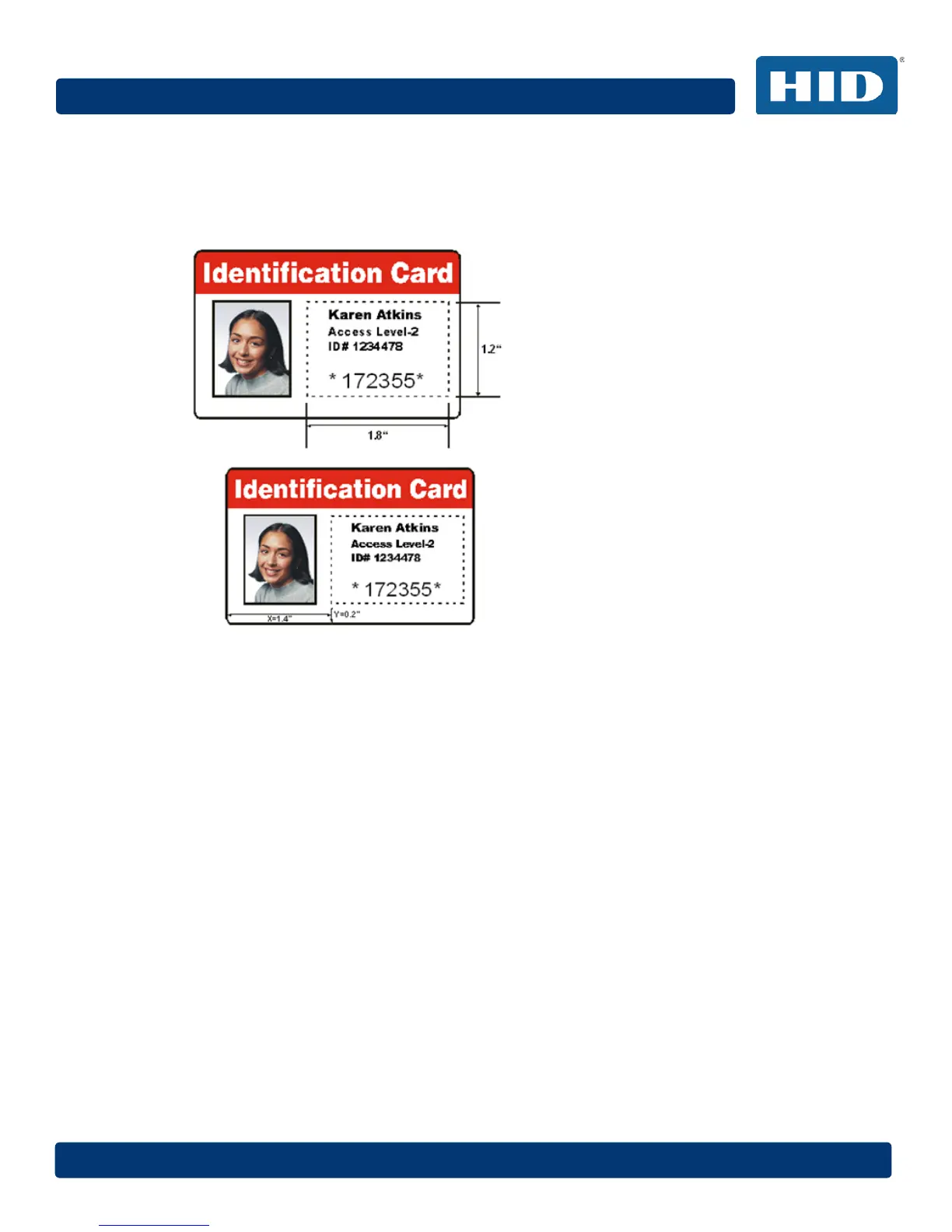
In the samples, the defined area is indicated by the dashed outline.
Method for Defining a Single Area
Step Procedure
1 On the Overlay / Print Area or K Panel Resin tab, select Defined Area(s).
2 Print a card and look at it in the same orientation as when it exits the printer.
3 Measure the total size of the area and enter the dimensions into the dimension boxes.
4 Measure from the lower-left corner of the card to the lower-left corner of the defined area
and enter the values into the X and Y boxes.
Method for Defining Multiple Areas
Step Procedure
1 On the Overlay / Print Area or K Panel Resin tab, select Defined Area(s).
2 Print a card with a defined area and look at it in the same orientation as when it exits the
printer.
3 Measure the defined area location based on the printed card.
4 To define another area, click the Defined Area up-arrow.
5 Use the Defined Area arrows to navigate back and forth from area to area.


 To Next Page