EasyManua.ls Logo

Fargo DTC400e - User Manual

Fargo DTC400e
345 pages
Print Icon
To Next Page IconTo Next Page
Loading...
RESTRICTED USE ONLY Fargo Electronics, Inc.
DTC400e Card Printer User Guide (L001172 Rev. 1.1)
1-1
DTC400e Card Printer User Guide
(Rev. 1.1)
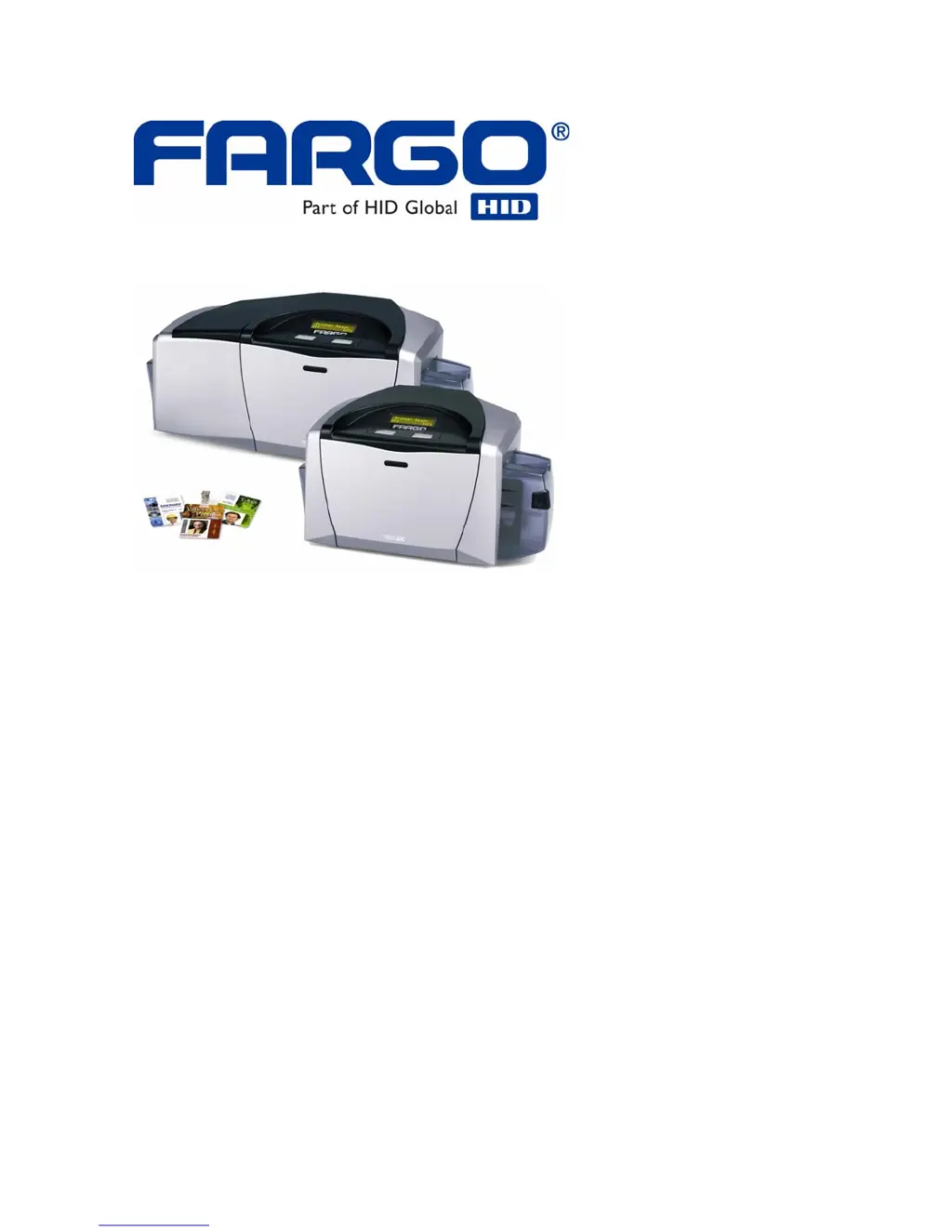
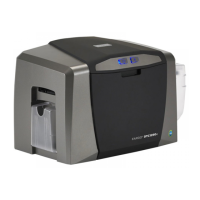
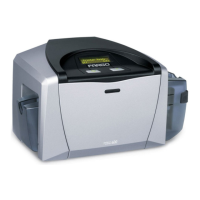
Single-side Model
Dual-side Model
Single-side (plus Mag) Model
Dual-side (plus Mag) Model
Part Number: L001172

Table of Contents

Questions and Answers

  • A
    Andrea FreemanAug 20, 2025
    What to do if my Fargo DTC400e has communications errors?
    • K
      Kenneth LewisAug 20, 2025
      First, confirm your system meets the minimum requirements: IBM-PC compatible, Windows 2000/XP Pentium 500 MHz with 256 MB RAM or higher, 500 MB free hard disk space or higher, and a USB port. Next, verify the Printer Driver is correctly installed. Close the software, check the driver, reboot, and ensure the correct setup options are selected. Check for driver updates at www.fargo.com. Also, check that the Flipper Table Module Assembly is correctly installed by rebooting the computer, ensuring the Print Both Sides option is correctly set, and verifying its function with a test print. You can print a self-test from the printer by holding the Pause button on power up. Finally, ensure adequate hard drive space, clear temporary files, and defragment the disk.
  • L
    Leslie SpenceAug 22, 2025
    What to do if my Fargo printer shows a Card Jam Error?
    • J
      Jennifer ThomasAug 22, 2025
      This error means the Card TOF Sensor isn't detecting card motion. Start by looking for a jammed card inside the printer. Open the front cover and remove the ribbon cartridge. Check the print station for any jammed cards. If you find a card, use the Cancel and Pause buttons to move the feed rollers and free the card. If there is no card, test the card sensor. Remove the rear cover and use a digital voltmeter to measure the voltage at Pin 10 of J4. If blocked, it should read 4.9 to 5.5 VDC; if unblocked, 0.15 to 0.18 VDC. Replace the sensor if the voltages are incorrect.
  • D
    Dominic WarrenAug 25, 2025
    Why is my Fargo printer showing a Ribbon Break Jam Error?
    • S
      Scott LewisAug 25, 2025
      This error occurs because the Ribbon Supply Encoder Sensor has unexpectedly stopped receiving information from the Ribbon Encoder. First, open the front cover and inspect the ribbon cartridge. If the ribbon is broken, try adjusting the print offset. If the ribbon is in good condition, replace the ribbon cartridge. Ensure the Ribbon Encoder Sensor is securely connected to the J-4 Main Board connection and to the Encoder Sensor. If the issue persists, replace the Encoder Sensor.
  • C
    Cody RamirezAug 26, 2025
    What to do if my Fargo DTC400e Printer displays a 'Cover Open Error Message'?
    • S
      Sarah SimsAug 26, 2025
      This error indicates that the front cover sensor detects that the cover is open. First, check for any debris accumulated in the sensor opening and clean it with compressed air if needed. If the sensor still doesn't work, inspect the sensor tab on the front cover for damage. If the tab is damaged, replace the front cover. If the issue persists, the main board may need to be replaced.
  • J
    Joseph KaufmanAug 27, 2025
    How to resolve 'Card Not Fed Error' on Fargo DTC400e?
    • R
      Robert SpencerAug 27, 2025
      This error indicates that the card isn't being detected by the Card TOF Sensor 11 seconds after a print job starts. Review the card quality and loading. Remove the cards from the hopper, fan them out to prevent sticking, and reload up to 100 cards with the print side down. Ensure the card tray locks into place. If the cards still don't feed, try rebooting the printer. You can also check the card feed motor by sending a test print via the Fargo Workbench and gently touching the card hopper feed roller to see if it's turning. If it's not turning, further steps are needed. You might also need to check the hopper tray spring tension.
  • E
    Eric ClarkAug 29, 2025
    What does 'No Mag Installed Error' mean on my Fargo DTC400e?
    • T
      Timothy PhillipsAug 30, 2025
      This error means a magnetic encoding print job was sent without a magnetic encoder installed. Press the Cancel Print button on the Driver Monitor Error Display Message. You can also reboot the printer. Verify that the printer has a magnetic encoder installed by opening the front cover and checking for the Magnetic Module. If there’s no module, and encoding data was sent in error, check the software user’s manual for encoding instructions.
  • J
    Jeffrey PhillipsAug 31, 2025
    Why is my Fargo printer showing a 'Ribbon Out Error'?
    • C
      Christopher WilsonAug 31, 2025
      This error indicates that the ribbon sensor has detected the end of the ribbon mark. The solution is to replace the ribbon cartridge and press the Resume button.
  • A
    Angelica AndersonSep 2, 2025
    Why does my Fargo DTC400e Printer have 'Blank Output issues'?
    • S
      sstevensonSep 2, 2025
      To troubleshoot blank output issues, start by running a self-test. Look for an image on the ribbon after the self-test. If there's no image, check the printhead connections and ensure the proper voltage (22-23 VDC) is being applied to the printhead. If there is an image, adjust the image placement setting by +5 and print another self-test. If a white border appears, adjust the image placement back toward its original value in increments of 2.
  • W
    watsonmatthewSep 4, 2025
    What does 'Mag Verify Error' mean on Fargo DTC400e?
    • M
      Mrs. Ashlee Santiago DDSSep 4, 2025
      This error indicates an issue with magnetic stripe encoding. First, ensure the cards are loaded with the magnetic stripe facing up and towards the front of the printer. Then, verify the driver settings to ensure they match the card loading. Check if data is being encoded by using a magnetic stripe reader or magnetic developer spray. If no data is written, ensure the Magnetic Module is securely seated. Also, verify that the coercivity of the cards matches the Driver Settings.
  • C
    Corey MooreSep 6, 2025
    What to do if Fargo DTC400e displays 'Ribbon RFID Error (Ribbon RFID Antenna is Corrupted)'?
    • D
      Daniel AndersonSep 6, 2025
      This error indicates the ribbon tag information is corrupted or incorrect. Replace the print ribbon cartridge and press the Resume button.

Summary

Section 2: Specifications

Technical Specifications

Provides detailed technical data about the printer's capabilities and requirements.

Section 3: Setup and Installation Procedures

Printer Setup and Installation

Guides through the initial physical setup and software installation of the printer.

Connecting the Printer power

Provides instructions on how to connect the printer to a power source.

Installing the Print Ribbon Cartridge

Guides through the process of inserting the print ribbon cartridge.

Installing Blank Cards into the Card Hopper

Explains how to load blank cards into the printer's input hopper.

Printer Driver Installation

Step-by-step guide for installing the printer driver software on a computer.

Printing a Test Print Image

Explains how to print a test image to verify printer functionality.

Section 4: General Troubleshooting

Communications Errors

Addresses issues related to incorrect output or no response from the printer.

Print Process Errors

Covers problems encountered during the printing process itself.

Flipper Table Module Assembly Problems

Addresses issues specifically related to the flipper module.

Diagnosing Image Problems

Provides guidance on troubleshooting image quality issues.

Running the Self Test

Explains how to perform a self-test to check printer operation.

Section 5: Ethernet Option

Ethernet Web Pages - Standard Procedures

Guides through standard procedures using the printer's web interface.

Configuring the Network Settings

Guides through the process of setting up the printer's network configuration.

Using the Administration pages

Covers printer administration tasks like upgrades and reboots.

Using the Reboot pages

Explains how to restart the printer's Ethernet print server.

Ethernet Printer Troubleshooting Procedures

Outlines procedures for troubleshooting network connectivity and printing issues.

Reviewing Frequently-asked Questions

Provides answers to common questions about the Ethernet option.

Section 7: Cleaning

Cleaning the Printhead

Guides on cleaning the printer's printhead for optimal quality.

Cleaning the Platen and the Card Feed Rollers

Explains how to clean the platen and rollers to prevent jams and contamination.

Section 9: Firmware Upgrades

Safety Messages (review carefully)

Provides critical safety instructions for potential hazards and precautions.

Upgrade the Printer Firmware

Guides on downloading and updating the printer's firmware.

Section 10: Fargo Technical Support

Contacting Fargo Technical Support

Provides contact information and procedures for seeking technical assistance.

Fargo DTC400e Specifications

General IconGeneral
BrandFargo
ModelDTC400e
CategoryPrinter
LanguageEnglish

Related product manuals