RESTRICTED USE ONLY Fargo Electronics, Inc.
DTC400e Card Printer User Guide (L001172 Rev. 1.1)
3-24
Printing a Test Print Image
Step Procedure
1 a. From your computer’s startup menu, select Settings > Printers and Faxes
(Windows XP, 2003) or > Printers (Windows 2000).
b. Double click on the DTC400e Card Printer under the Printers window.
c. Select Printing Preferences under the Printer drop-down menu. This will bring
up the DTC400e Printing Preferences window.
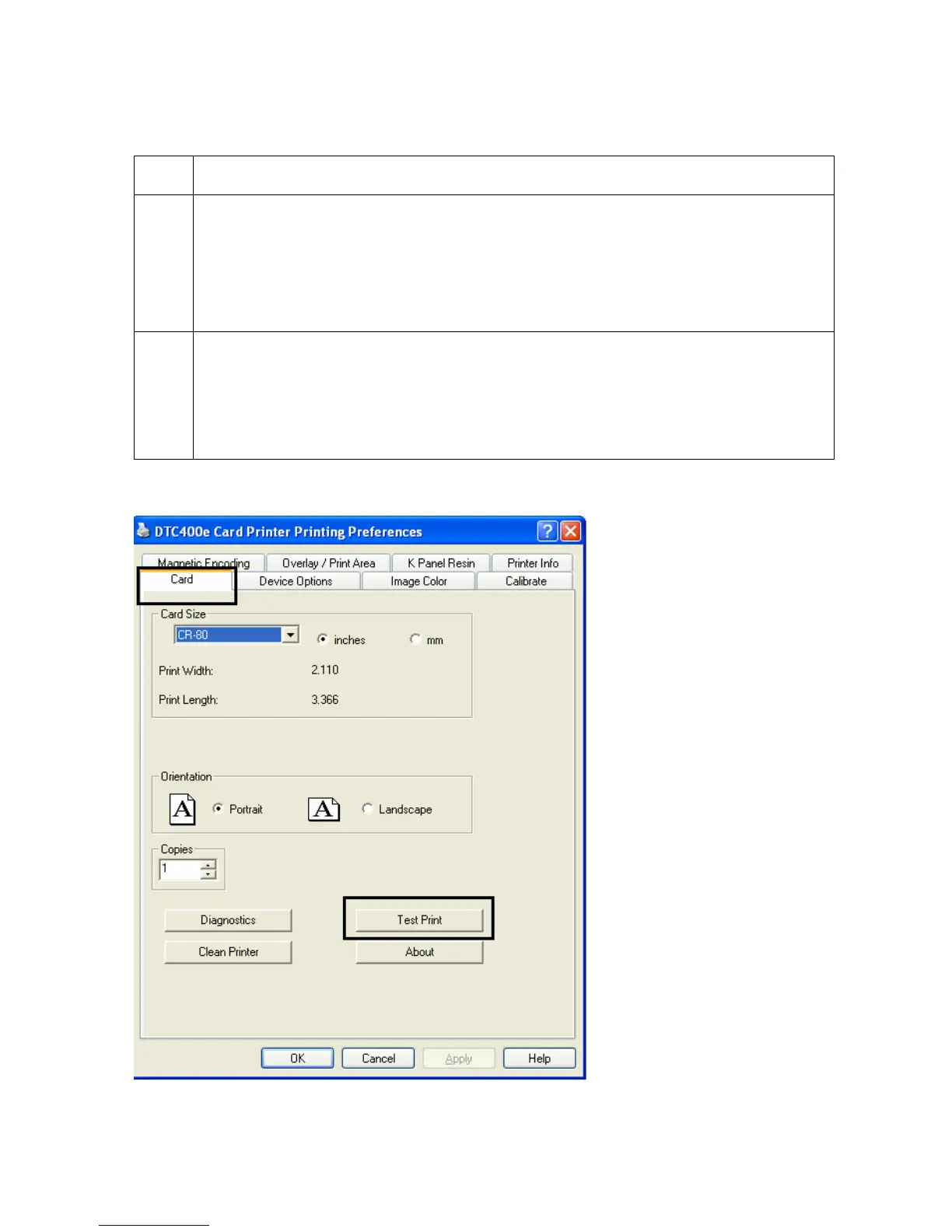
2 a. Select the Card tab, and then click on the Test Print button, as shown in
Display A in this section. (Important: Ensure that the Ribbon is installed
before proceeding. The correct Ribbon type is selected in the Device Options
tab.)
b. When the Test Print button is selected, an image is copied to the Printer.
Display A - DTC400e Printer Driver Card tab


 To Next Page