EasyManua.ls Logo

Fargo DTC400e - User Manual

Fargo DTC400e
345 pages
Print Icon
To Next Page IconTo Next Page
Loading...
RESTRICTED USE ONLY Fargo Electronics, Inc.
DTC400e Card Printer User Guide (L001172 Rev. 1.1)
1-1
DTC400e Card Printer User Guide
(Rev. 1.1)
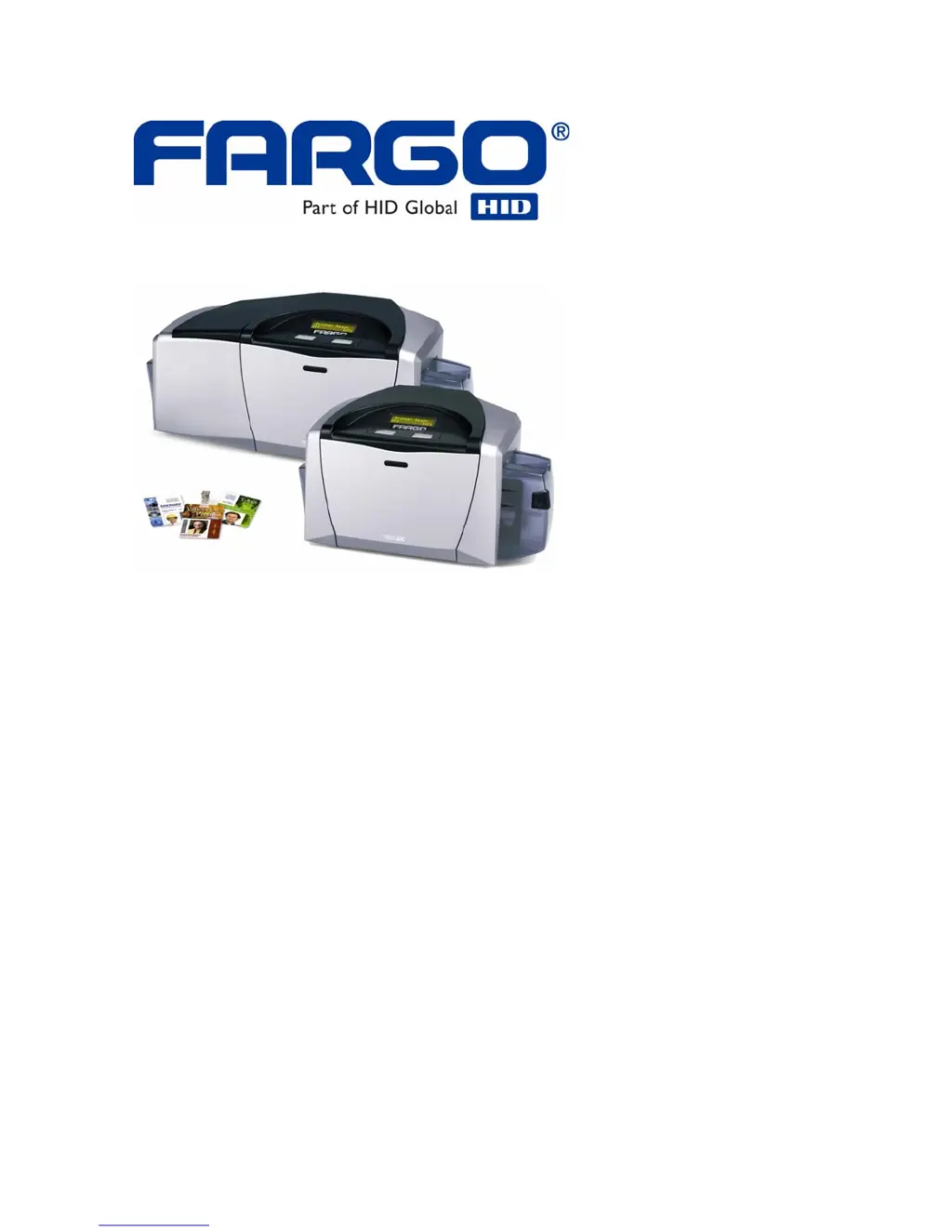
Single-side Model
Dual-side Model
Single-side (plus Mag) Model
Dual-side (plus Mag) Model
Part Number: L001172

Table of Contents

Questions and Answers

  • C
    Cameron HodgesSep 8, 2025
    How to fix 'Ribbon Sensor Error (Ribbon Miscue)' on Fargo printer?
    • M
      Margaret BurtonSep 8, 2025
      To fix this error, first open the front cover and remove the ribbon cartridge. Check that the ribbon is in good condition, not wrinkled or broken. If it is, repair the ribbon and wind up the take-up roll past the damaged area. If the issue persists, replace the ribbon cartridge. You can also try using the Driver Calibration tab to calibrate the Ribbon Sensor, ensuring the front of the printer is covered to block light during calibration. If none of these steps work, the ribbon sensor may need to be replaced.
  • C
    Christopher DelgadoSep 10, 2025
    What to do if my Fargo DTC400e displays 'Invalid Ribbon Error'?
    • W
      William ZimmermanSep 10, 2025
      This error means the installed ribbon isn't designed for the correct printer model. Verify that the ribbon cartridge is designed for your printer model. If the issue continues, remove the rear cover and check that the Ribbon RFID cable is securely connected to the Main Board (J-5) and the RFID Sensor. If the connections are loose, reattach them. If the connections are good or the issue persists, replace the Ribbon RFID Sensor.
  • T
    Tina HunterSep 12, 2025
    What should I do if my Fargo DTC400e Printer shows a 'No Ribbon Installed Error'?
    • J
      jonathon72Sep 12, 2025
      This error indicates that the printer's RFID sensor isn't receiving a signal from the ribbon. First, make sure a ribbon cartridge is installed in the printer. If the error persists, remove the rear cover and check that the ribbon RFID cable is securely connected to the Main Board (J-5) and the RFID Sensor. If the connections are loose, reattach them. If the connections are good or the issue persists, replace the Ribbon RFID Sensor.
  • D
    Danielle LinSep 13, 2025
    What to do if my Fargo printer displays 'Wrong Ribbon Error'?
    • J
      Jessica FosterSep 13, 2025
      This error means that the installed ribbon doesn't match the printer driver information. Verify the driver settings are correct. Open the Printer Control Panel, right-click on the DTC400e Card Printer, and select Printing Preferences. Click on the Device Option tab, then click Auto Select. Check that the ribbon type matches the ribbon selected. If the issue persists, remove the rear cover and check that the Ribbon RFID cable is securely connected to the Main Board (J-5) and the RFID Sensor. If the connections are good or the issue persists, replace the Ribbon RFID Sensor.
  • M
    Mary FritzSep 15, 2025
    What does it mean if my Fargo DTC400e has a 'Headlift Motor or Sensor Error'?
    • R
      Rebecca LeeSep 15, 2025
      This error suggests the Headlift Sensor isn't detecting movement from the Headlift Cam. First, press the Cancel Print button on the Driver Monitor Error Display Message. Then, reboot the printer. Use the Fargo Workbench to cycle the printhead to ensure proper printhead operation and verify the Headlift Motor turns. Check the Headlift Motor Main Board connection (J20) and test the Headlift Sensor by measuring the voltage at Pin 1 of J9 (positive lead) and Pin 3 of J9 (negative lead). If open, the sensor should read 0.17 to 0.9 VDC; if closed, 4.9 to 5.5 VDC. If voltages are incorrect, replace the sensor. If the motor doesn't turn, replace the Headlift Motor.
  • K
    Kayla DelgadoSep 18, 2025
    What to do if my Fargo printer displays 'Ribbon RFID Error (Ribbon RFID Sensor is Corrupted)'?
    • T
      tammy44Sep 18, 2025
      This error indicates the ribbon tag information is corrupted or incorrect. Replace the Print Ribbon RFID Sensor and press the Resume button. If the error continues, replace the printer main board.

Summary

Section 2: Specifications

Technical Specifications

Provides detailed technical data about the printer's capabilities and requirements.

Section 3: Setup and Installation Procedures

Printer Setup and Installation

Guides through the initial physical setup and software installation of the printer.

Connecting the Printer power

Provides instructions on how to connect the printer to a power source.

Installing the Print Ribbon Cartridge

Guides through the process of inserting the print ribbon cartridge.

Installing Blank Cards into the Card Hopper

Explains how to load blank cards into the printer's input hopper.

Printer Driver Installation

Step-by-step guide for installing the printer driver software on a computer.

Printing a Test Print Image

Explains how to print a test image to verify printer functionality.

Section 4: General Troubleshooting

Communications Errors

Addresses issues related to incorrect output or no response from the printer.

Print Process Errors

Covers problems encountered during the printing process itself.

Flipper Table Module Assembly Problems

Addresses issues specifically related to the flipper module.

Diagnosing Image Problems

Provides guidance on troubleshooting image quality issues.

Running the Self Test

Explains how to perform a self-test to check printer operation.

Section 5: Ethernet Option

Ethernet Web Pages - Standard Procedures

Guides through standard procedures using the printer's web interface.

Configuring the Network Settings

Guides through the process of setting up the printer's network configuration.

Using the Administration pages

Covers printer administration tasks like upgrades and reboots.

Using the Reboot pages

Explains how to restart the printer's Ethernet print server.

Ethernet Printer Troubleshooting Procedures

Outlines procedures for troubleshooting network connectivity and printing issues.

Reviewing Frequently-asked Questions

Provides answers to common questions about the Ethernet option.

Section 7: Cleaning

Cleaning the Printhead

Guides on cleaning the printer's printhead for optimal quality.

Cleaning the Platen and the Card Feed Rollers

Explains how to clean the platen and rollers to prevent jams and contamination.

Section 9: Firmware Upgrades

Safety Messages (review carefully)

Provides critical safety instructions for potential hazards and precautions.

Upgrade the Printer Firmware

Guides on downloading and updating the printer's firmware.

Section 10: Fargo Technical Support

Contacting Fargo Technical Support

Provides contact information and procedures for seeking technical assistance.

Fargo DTC400e Specifications

General IconGeneral
BrandFargo
ModelDTC400e
CategoryPrinter
LanguageEnglish

Related product manuals