Setting the Interface Language
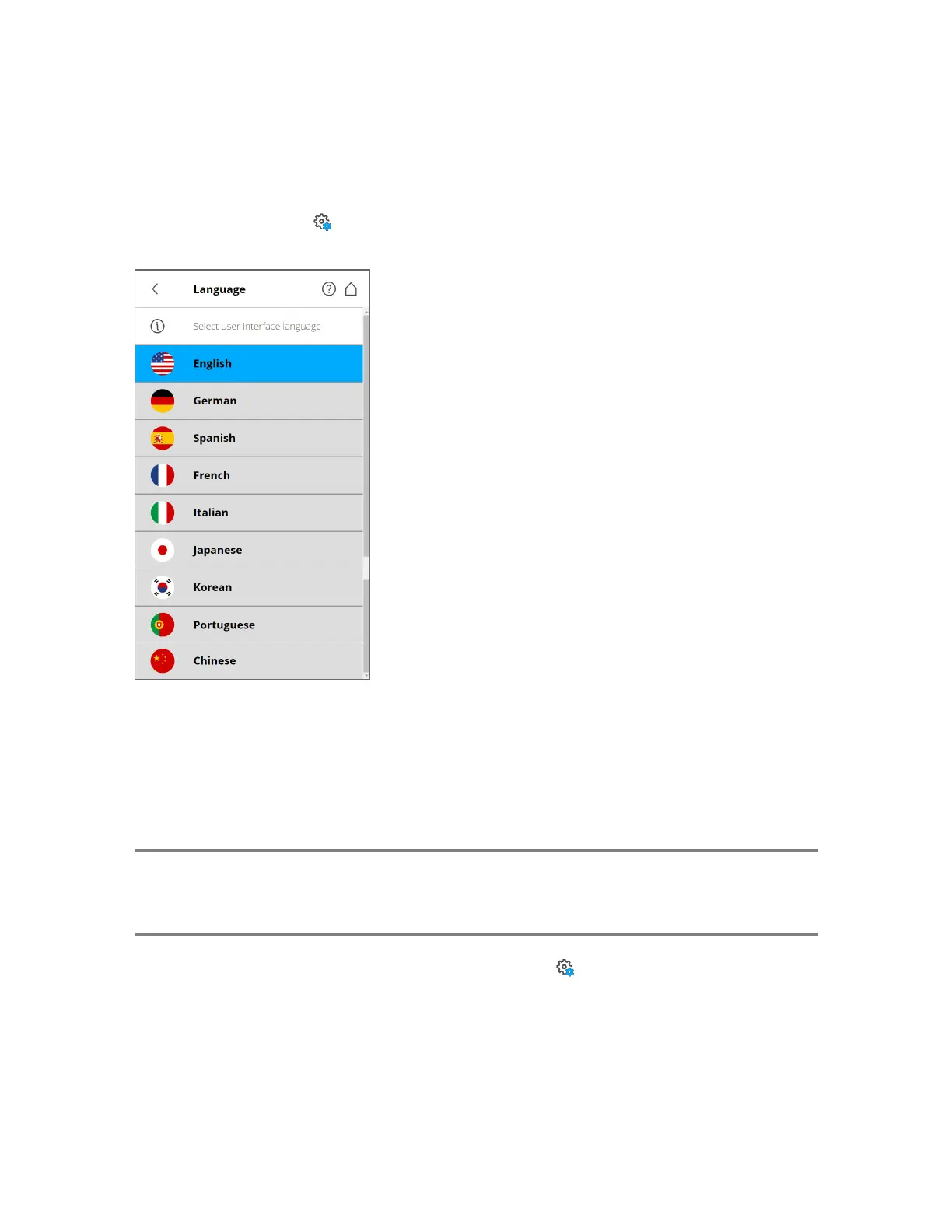
From the Home Screen, tap Manage > General Settings > Language to change the language of the
controller software.
Figure 5-10 Language Selection Screen Check
Select the language by tapping the desired language. The selected language is highlighted.
If the list of available languages exceeds the screen size, scroll up or down.
Setting the Date and Time
NOTE: If the scanner is not switched on for circa 60 days, the system date and time will be lost and
must be reset before scanning to ensure that the time and date of all project files and scans is
correct.
To change the date and time settings, from the Home Screen, tap Manage > General Settings >
Date&Time.
Automatic date and time - Tap and slide to activate automatic date and time settings.
24-Hour Clock - Tap to set the time format. The scanner can display time in either the 24-hour or the 12-
hour clock format. Slide to ON to select the 24-hour clock. Slide to OFF to select the 12-hour clock.
FARO
®
Focus Premium Laser Scanner User Manual
Chapter 5: Getting Started
FARO Focus Premium (March 2022) Page37of157



 To Next Page